Web: Example for Enabling Remote Users to Access the Intranet Through the SSL VPN Tunnel (Interface Connected to the Internet Obtaining an IP Address Through PPPoE)
Networking Requirements
As shown in Figure 1, the FW functions as a PPPoE client and obtains an IP address from the carrier's device through PPPoE dial-up. In this way, users in the enterprise intranet can access the Internet. The FW also functions as an egress gateway to authenticate employees in each department through local authentication. Authenticated users can access the enterprise intranet. The enterprise network is planned as follows:
All intranet PCs are deployed on network segment 10.2.0.1/24, and they dynamically obtain IP addresses through DHCP.
The device connects to all PCs and servers in the enterprise through the downstream link.
The device applies for the Internet access service from the carrier through the upstream link. The Internet access service is provided using the PPPoE protocol.
The enterprise has the following requirement: Remote users (mobile office users) in a user group (group1) can obtain an intranet IP address when they are on the move and can access resources in the enterprise through domain names as if they were on the intranet. To enhance security, local authentication based on the user name and password is required. The IP address of the upstream interface on the FW changes, and the mapping between the gateway domain name and IP address also changes. Therefore, you need to configure the FW as the DDNS client to dynamically update the information on the DNS server.
In this example, the enterprise has registered the domain name example.huawei.com with the DDNS service provider (www.oray.com). The registered user name and password are companyA and Password123, respectively.
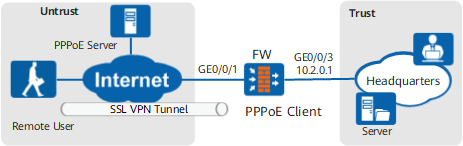
In this example, the information provided by the carrier is used only for reference.
Item |
Data |
Description |
|---|---|---|
GigabitEthernet 0/0/1 |
Zone: untrust |
The device obtains IP and DNS addresses from the PPPoE server (deployed by the carrier) through dial-up.
|
GigabitEthernet 0/0/3 |
IP Address: 10.2.0.1/24 Zone: trust |
Interface that uses DHCP to dynamically assign IP addresses to intranet PCs. |
Security policy |
policy01 Source Zone: trust Source Address/Region: 10.2.0.0/24 Destination Zone: untrust |
Intranet-to-Internet security policy, allowing employees on the intranet to access the Internet. |
policy02 Source Zone: untrust Destination Zone: local Service: https |
Internet-to-FW security policy, allowing employees on the move to access the SSL VPN gateway. |
|
policy03 Source Zone: untrust Destination Zone: trust Source Address/Region: 172.16.1.0/24 Destination Address/Region: 10.2.0.0/24 |
172.16.1.0/24 is the virtual address assigned by the FW to remote users. This security policy allows employees on the move to access resources at the headquarters. |
|
NAT Policy |
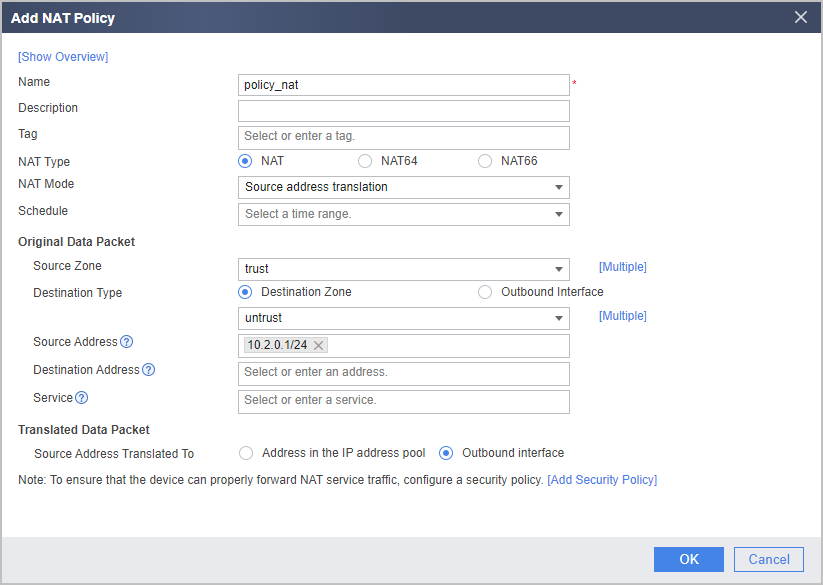
policy_nat Source Zone: trust Destination Zone: untrust Source Address: 10.2.0.1/24 Source Address Translated To: Outbound interface |
Source NAT policy working in outbound interface address mode, allowing intranet users to directly use the FW's public IP address to access the Internet. |
DDNS Policy |
mypolicy Domain Name: example.huawei.com Service Provider: www.oray.cn User Name: companyA Password: Password123 Bound interface: GE0/0/1 |
Assume that the enterprise has registered the domain name example.huawei.com with the DDNS service provider (www.oray.com). The registered user name and password are companyA and Password123, respectively. The registered domain name is used by remote users to access the SSL VPN virtual gateway. Set the parameters based on the site requirements. |
Configuration Roadmap
Enable the DHCP server service on GigabitEthernet 0/0/3 for dynamically assigning IP addresses to PCs, and specify the IP address of GigabitEthernet 0/0/3 as the gateway and DNS server addresses for the PCs. PCs typically require domain name resolution to access the Internet. For this reason, a DNS server must be specified. In this example, the FW functions as the DNS relay.
Configure the upstream link and use PPPoE to obtain IP and DNS addresses.
Configure a NAT policy. The IP addresses used on the intranet are private IP addresses, which are converted by NAT to public IP addresses for Internet access if needed. In this example, the upstream interface obtains an IP address by dial-up. The IP address obtained may vary for each dial-up connection. Therefore, Easy IP is recommended.
- Configure the FW as the DDNS client whose update mode is DDNS. In this way, when the interface IP address of the FW changes, the mapping between the domain name and IP address of the virtual gateway on the DNS server can be dynamically updated.
- Configure the SSL VPN network extension function to authorize remote users in user group group1 and use local authentication based on the user name and password to authenticate remote users. This allows remote users to connect to the intranet and access intranet resources.
- Configure an intranet-to-Internet security policy to allow intranet PCs to access Internet resources. Configure an Internet-to-intranet security policy to allow employees on the move to access resources at the headquarters.
Procedure
- Configure interfaces.
- Click
 corresponding to GigabitEthernet 0/0/3 and set the parameters as follows:
Zone
trust
IPv4
IP Address
10.2.0.1/24
- Check whether GigabitEthernet 0/0/1 obtains an IP address. In this example, the obtained IP address is 1.1.1.1.
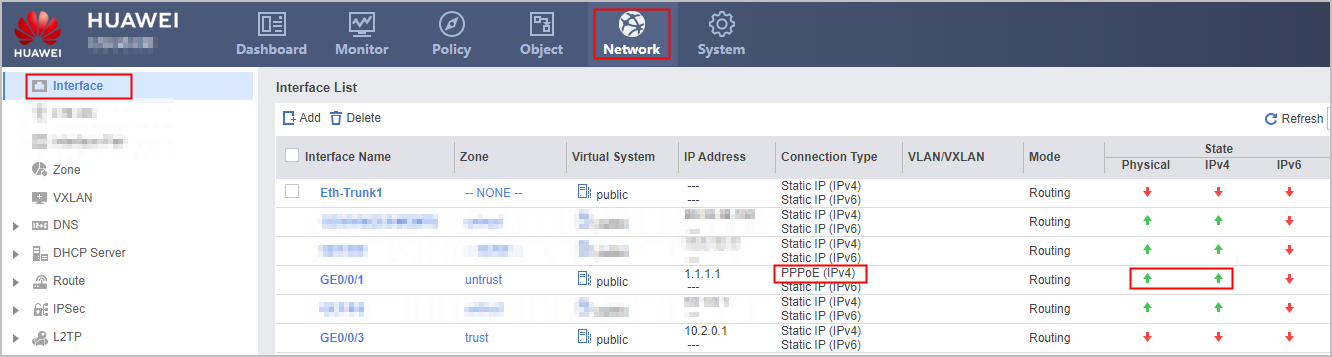
- Click
- Configure the FW as a DHCP server to assign IP addresses to intranet users.
- Configure the DHCP server service on GigabitEthernet 0/0/3 as follows:
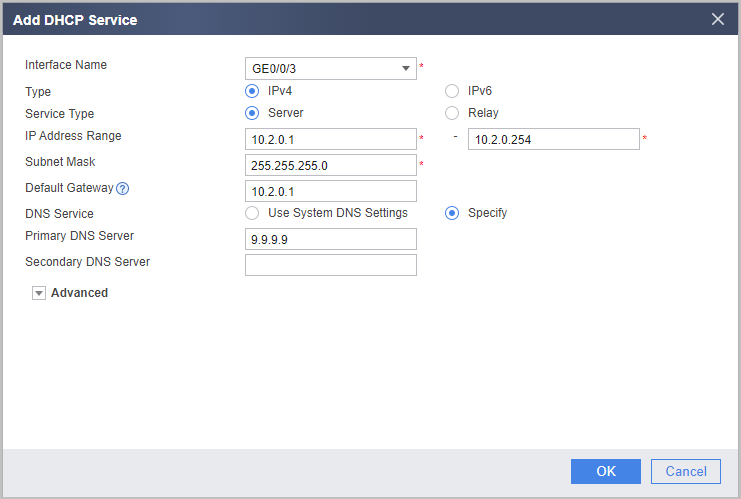
- Configure the DHCP server service on GigabitEthernet 0/0/3 as follows:
- Configure a NAT policy working in outbound interface address mode so that intranet users can use the FW's public IP address to access the Internet.
- Choose .
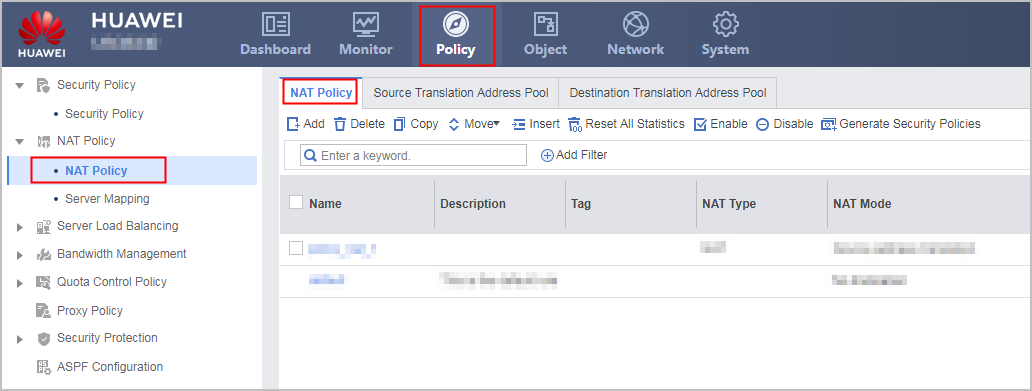
- In NAT Policy List, click Add and configure a NAT policy based on the following parameter values.
- Choose .
- Configure user objects and authentication.
- Choose and set parameters as follows:
User user0001 belongs to user group /default/group1. Authentication Type is local authentication, and Password is Password@123. Before creating user user0001, you need to create group /default/group1 so that you have a group to reference when creating a user.
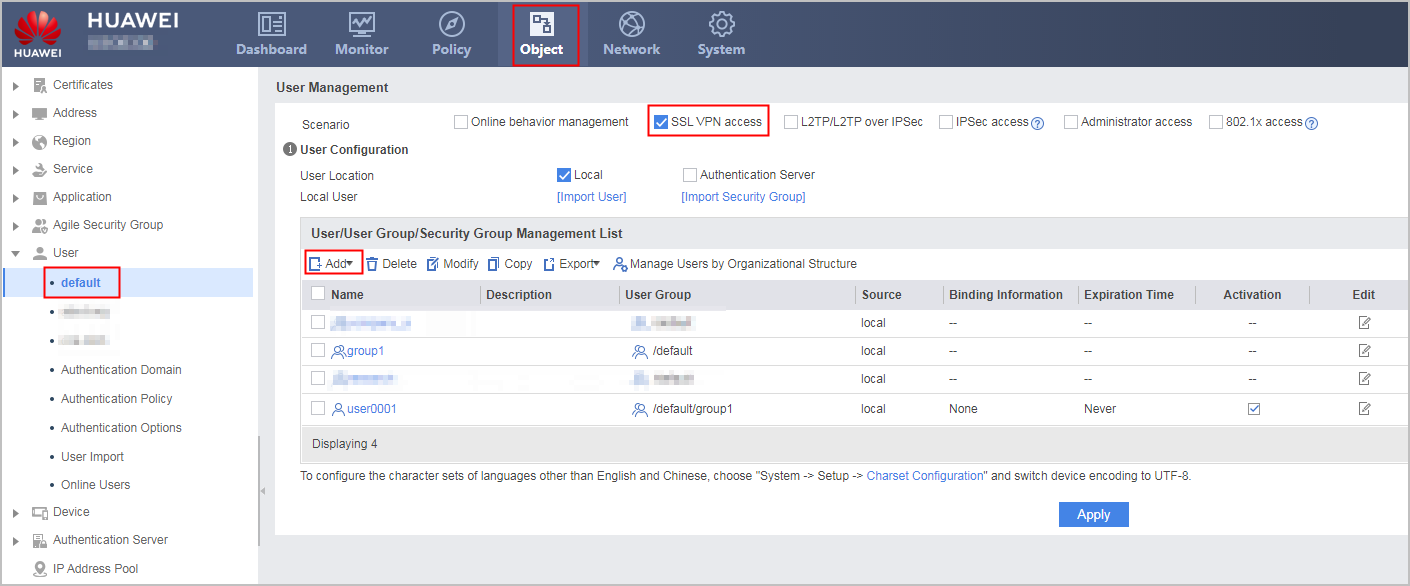
- Choose and set parameters as follows:
- Configure a DDNS policy.
- Click Add and set parameters as follows:
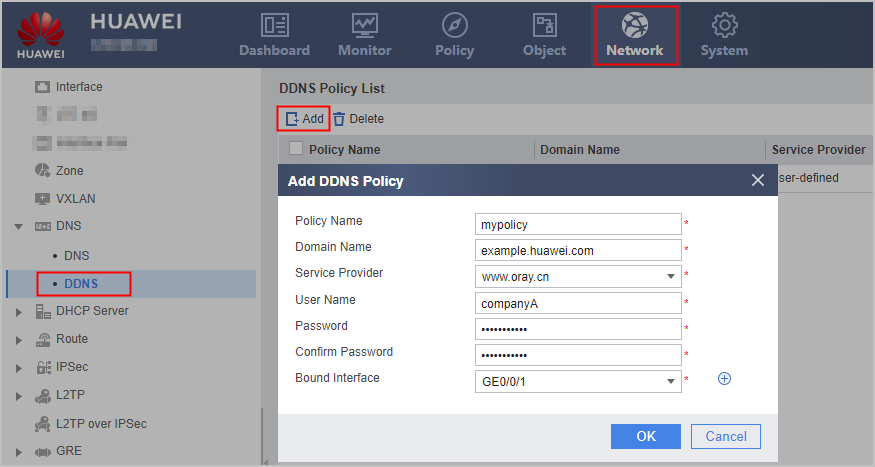
- Click Add and set parameters as follows:
- Configure the SSL VPN gateway.
- Click Add and set parameters as follows:
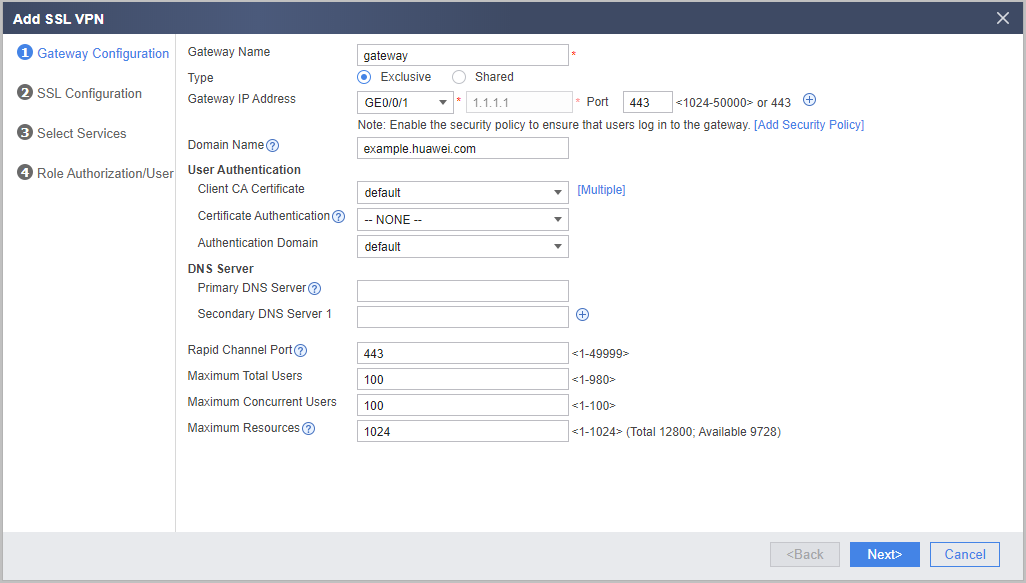
- Click Add and set parameters as follows:
- Configure the SSL version, cipher suite, session timeout duration, and session lifecycle. You can use the default values and click Next.
- Select Network Extension and click Next.
- Configure the network extension function.
- Set the parameters as follows:
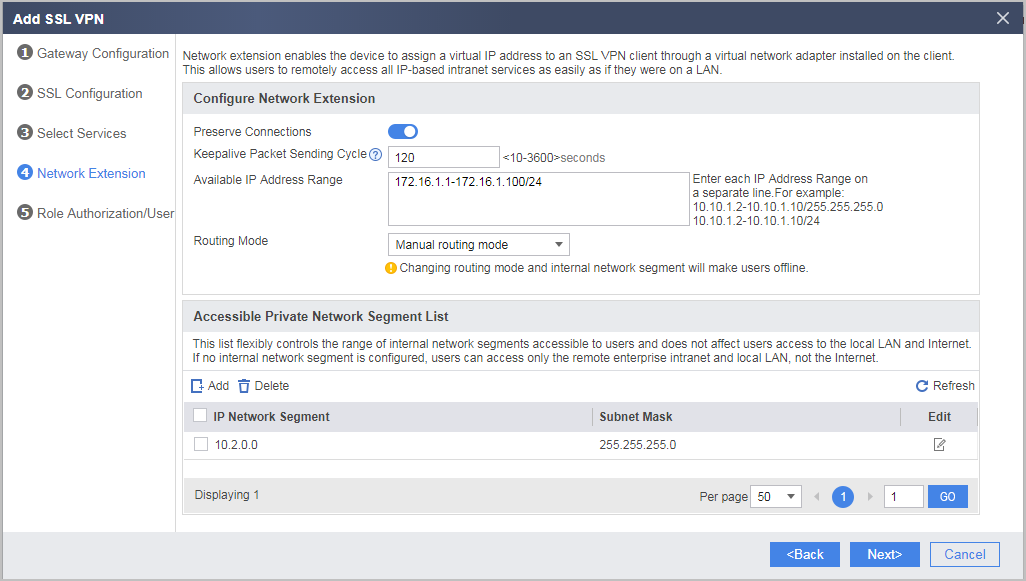
- Set the parameters as follows:
- Configure SSL VPN role authorization/users.
- Click Add in List of Authorized Roles and set the role authorization parameters as follows. After the configuration is completed, click OK.
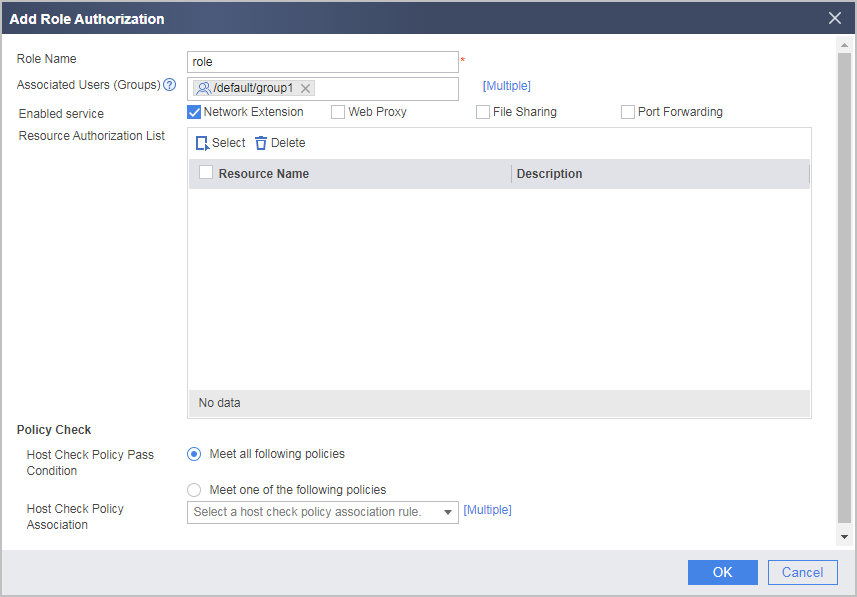
- Click Add in List of Authorized Roles and set the role authorization parameters as follows. After the configuration is completed, click OK.
- Configure security policies.
- Configure a default route for routing intranet users to the Internet. The next hop is the gateway address assigned by the carrier to the enterprise.
- Configure the default gateway on each intranet PC, so that the PCs send traffic to the FW when they access the Internet. The configuration details are not provided here.
Verifying the Configuration
- Run the ipconfig/all command on an intranet PC to check whether the private IP and DNS addresses have been correctly configured for the network adapter. The following example uses a PC running Windows 7. The actual command output may vary depending on the operating system.
Ethernet adapter Local: Connection-specific DNS Suffix . : Description . . . . . . . . . . . : Intel(R) 82574L Gigabit Network Connection Physical Address. . . . . . . . . : xx-xx-xx-xx-xx-xx Dhcp Enabled. . . . . . . . . . . : Yes Autoconfiguration Enabled . . . . : Yes IP Address. . . . . . . . . . . . : 10.2.0.3 Subnet Mask . . . . . . . . . . . : 255.255.255.0 Default Gateway . . . . . . . . . : 10.2.0.1 DHCP Server . . . . . . . . . . . : 10.2.0.1 DNS Servers . . . . . . . . . . . : 9.9.9.9 Lease Obtained. . . . . . . . . . : xxxx-xx-xx x:xx:xx Lease Expires . . . . . . . . . . : xxxx-xx-xx x:xx:xx - Check whether intranet PCs can access domain names on the Internet. If so, the configurations are correct. If not, modify the configuration and try again.
- Enter https://example.huawei.com in the address box of a browser to access the SSL VPN login page.
Install the control as prompted upon the first login.
- In the login window, enter the user name and password, and click Login.
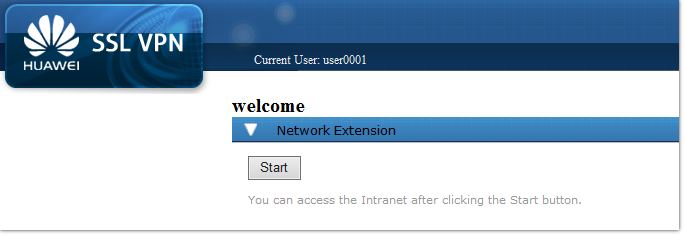
After the login is successful, click Start under Network Extension. Then you can access the corresponding servers on the enterprise intranet.
Configuration Scripts
#
 sysname FW
#
interface GigabitEthernet0/0/1
 pppoe-client dial-bundle-number 1 ipv4
 ddns apply policy mypolicy fqdn example.huawei.com
#
interface GigabitEthernet0/0/3
 ip address 10.2.0.1 24
 dhcp select interface
 dhcp server ip-range 10.2.0.1 10.2.0.254
 dhcp server gateway-list 10.2.0.1
 dhcp server dns-list 9.9.9.9
#
dhcp enable
#
interface Dialer0
 link-protocol ppp
 ppp chap user user
 ppp chap password cipher %$%$8*YSTS6T4Xon5,*wo<v~0>5,%$%$
 ppp pap local-user user password cipher %$%$8*YSTS6T4Xon5,*wo<v~0>5,%$%$
 ppp ipcp dns admit-any
 ip address ppp-negotiate
 dialer user user
 dialer bundle 1
#
ddns policy mypolicy
 method vendor-specific
 url oray://<username>:<password>@phddnsdev.oray.net username companyA password %^%#O]{-7Nelv-QW+wV=Yq0(s$MZ/";kGRu6;gClGPFM%^%#
#
firewall zone trust
 set priority 85
 add interface GigabitEthernet0/0/3
#
firewall zone untrust
 set priority 5
 add interface GigabitEthernet0/0/1
 add interface Dialer0
#
aaa
 authentication-scheme default
 authorization-scheme default
 domain default
  service-type ssl-vpn
  internet-access mode password
  reference user current-domain
#
 v-gateway gateway interface  private example.huawei.com
#
#****BEGIN***gateway**1****#
v-gateway gateway
 basic
  ssl version tlsv11 tlsv12
  ssl timeout 5
  ssl lifecycle 1440
  ssl ciphersuit custom aes256-sha aes128-sha
 service
  network-extension enable
  network-extension keep-alive enable
  network-extension keep-alive interval 120
  network-extension netpool 172.16.1.1 172.16.1.100 255.255.255.0
  netpool 172.16.1.1 default
  network-extension mode manual
  network-extension manual-route 10.2.0.0 255.255.255.0
 security
  policy-default-action permit vt-src-ip
  certification cert-anonymous cert-field user-filter subject cn group-filter subject cn
  certification cert-anonymous filter-policy permit-all
  certification cert-challenge cert-field user-filter subject cn
  certification user-cert-filter key-usage any
  public-user enable
  public-user default-login-number 500
 hostchecker
 cachecleaner
 vpndb
  group /default
  group /default/group1
 role
 role default
  role default condition all
 role role
  role role condition all
  role role network-extension enable
#****END****#
#
 ip route-static 0.0.0.0 0.0.0.0 Dialer0
#
security-policy
 rule name policy01
  source-zone trust
  destination-zone untrust
  source-address 10.2.0.0 24
  action permit
 rule name policy02
  source-zone untrust
  destination-zone local
  service https
  action permit
 rule name policy03
  source-zone untrust
  destination-zone trust
  source-address 172.16.1.0 mask 255.255.255.0
  destination-address 10.2.0.0 mask 255.255.255.0
  action permit
#
nat-policy
 rule name policy_nat
  source-zone trust
  destination-zone untrust
  source-address 10.2.0.0 mask 255.255.255.0
  egress-interface Dialer0
  action source-nat easy-ip
#
# The following configurations are saved in the database and are not displayed in the configuration file.
 user-manage user user0001 domain default
 password %$%$j@p.U.0bwNQv9nE#tf]G-+"v%$%$
  parent-group /default/group1
 v-gateway gateway
  role
   role role group /default/group1