Web: Example for Configuring Protocol-Specific PBR
This section provides an example for configuring protocol-specific PBR to forward the data through different links.
Networking Requirements
As shown in Figure 1, the FW is deployed at the intranet egress. The FW can access the Internet through Router_A of ISP-A or Router_B of ISP-B. ISP-A provides quick and stable Internet services but requires high charge. ISP-B requires low charge but provides slow Internet services.
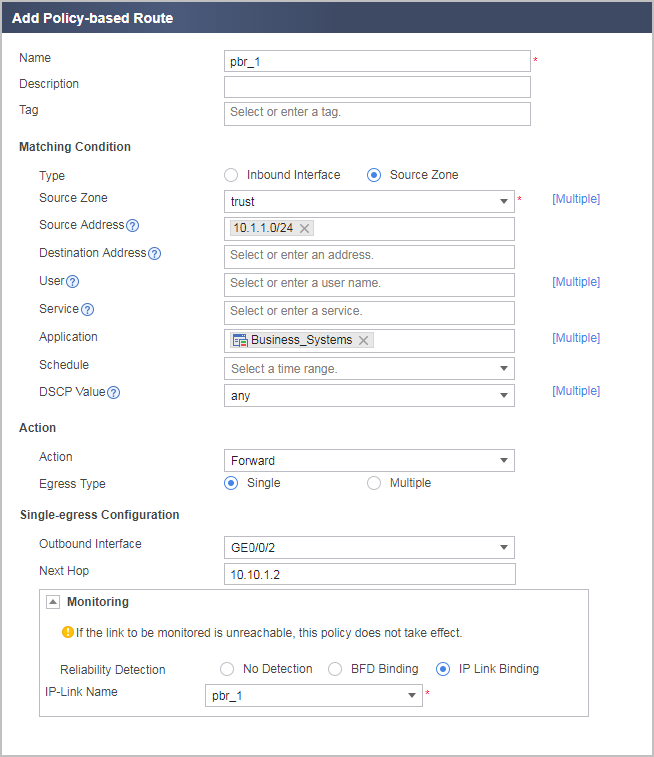
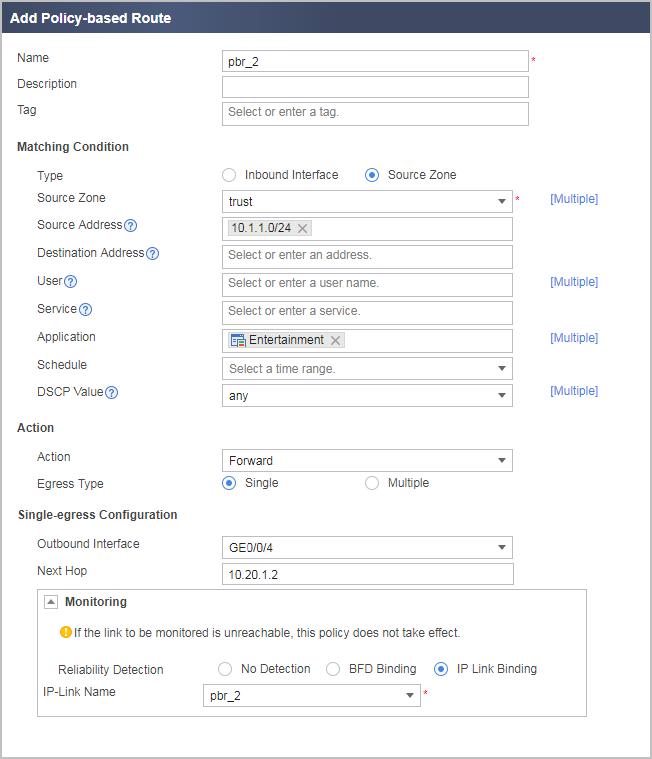
The GE0/0/2 interface forwards service traffic to the Internet through ISP-A. The GE0/0/4 interface forwards entertainment traffic to the Internet through ISP-B.
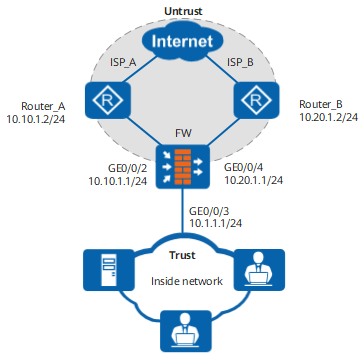

This example focuses on the configuration related to PBR. Configure other data such as NAT based on the actual networking.
Procedure
- Set an IP address for each interface and assign the interfaces to security zones.
Choose , configure an IP address for the interface, and assign the interface to a security zone.
GigabitEthernet 0/0/2
Zone
untrust
IP Address
10.10.1.1/24
GigabitEthernet 0/0/3
Zone
trust
IP Address
10.1.1.1/24
GigabitEthernet 0/0/4
Zone
untrust
IP Address
10.20.1.1/24
- Configure a security policy between the Trust and Untrust zones to allow intranet users to access extranet resources. It is assumed that the intranet user network segment is 10.1.1.0/24.
Choose and click Add Security Policy to create a security policy.
Name
policy_sec_trust_untrust
Source Zone
trust
Destination Zone
untrust
Source Address/Region
10.1.1.0/24
Action
Permit
- Configure IP-link to detect link status.
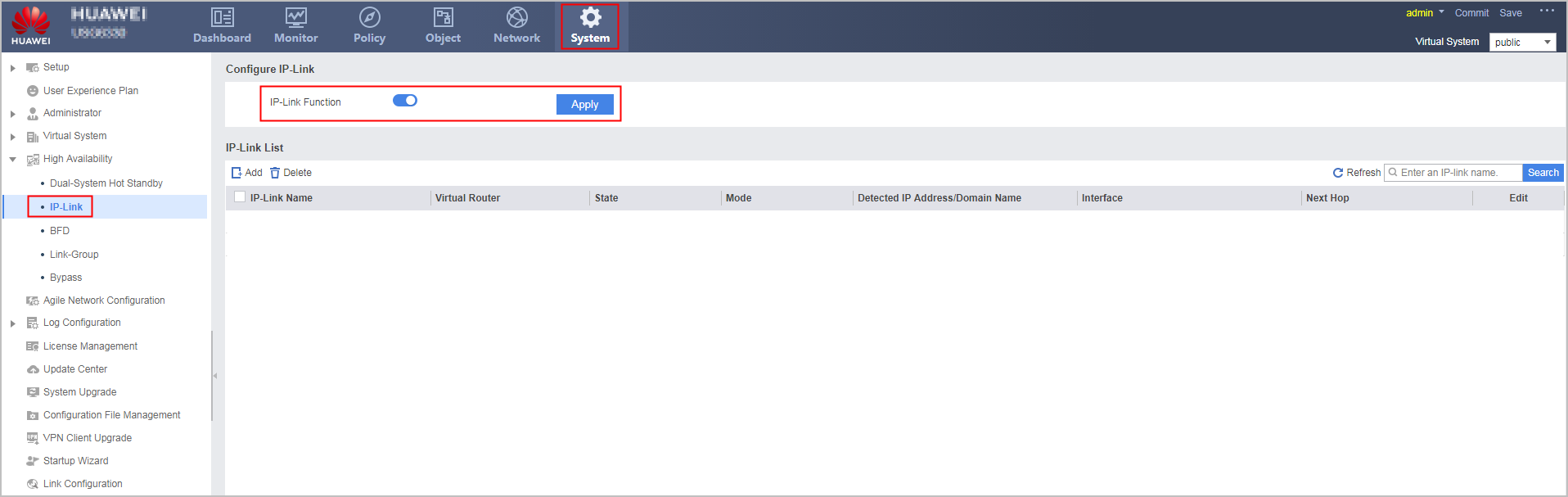
- Choose and enable IP-Link Function.
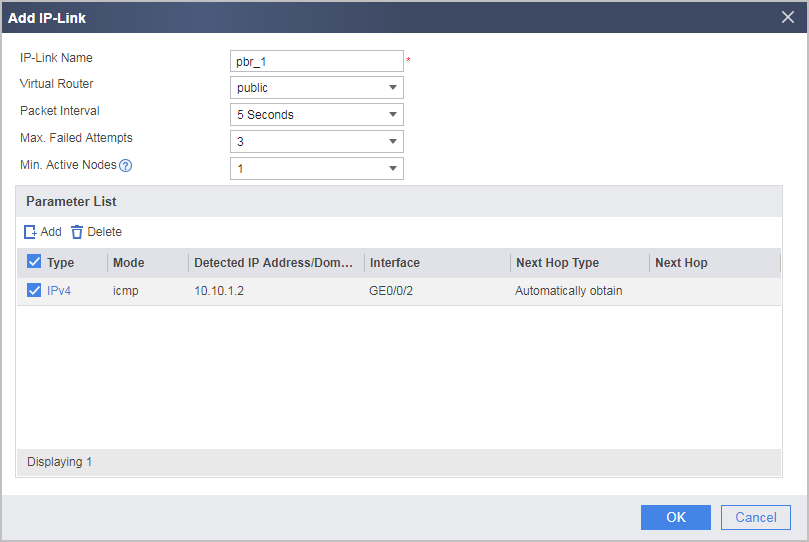
- In IP-Link List, click Add and set the following parameters.
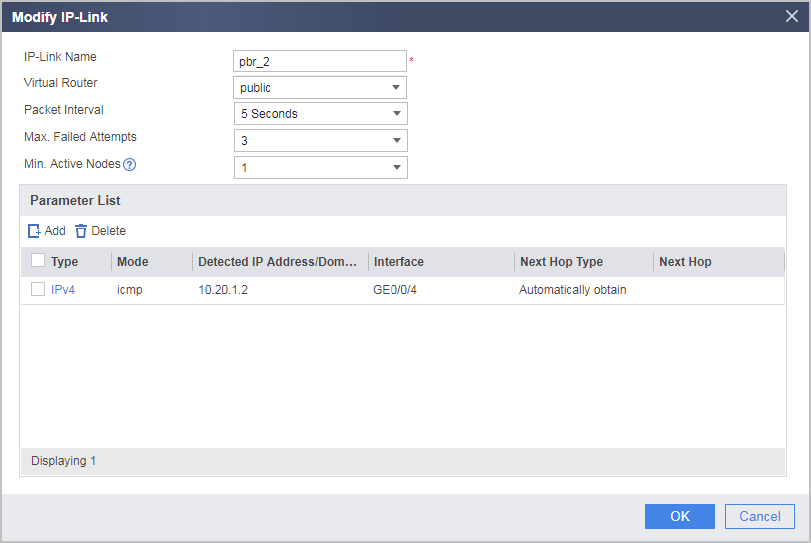
- Choose and enable IP-Link Function.
- Create PBR rule pbr_1 to allow the GE0/0/2 interface to forward service traffic to the Internet through ISP-A. Create PBR rule pbr_2 to allow the GE0/0/4 interface to forward entertainment traffic to the Internet through ISP-B.
Ensure that the FW has the route configuration that guides service traffic and entertainment traffic transmission even if PBR is unavailable.
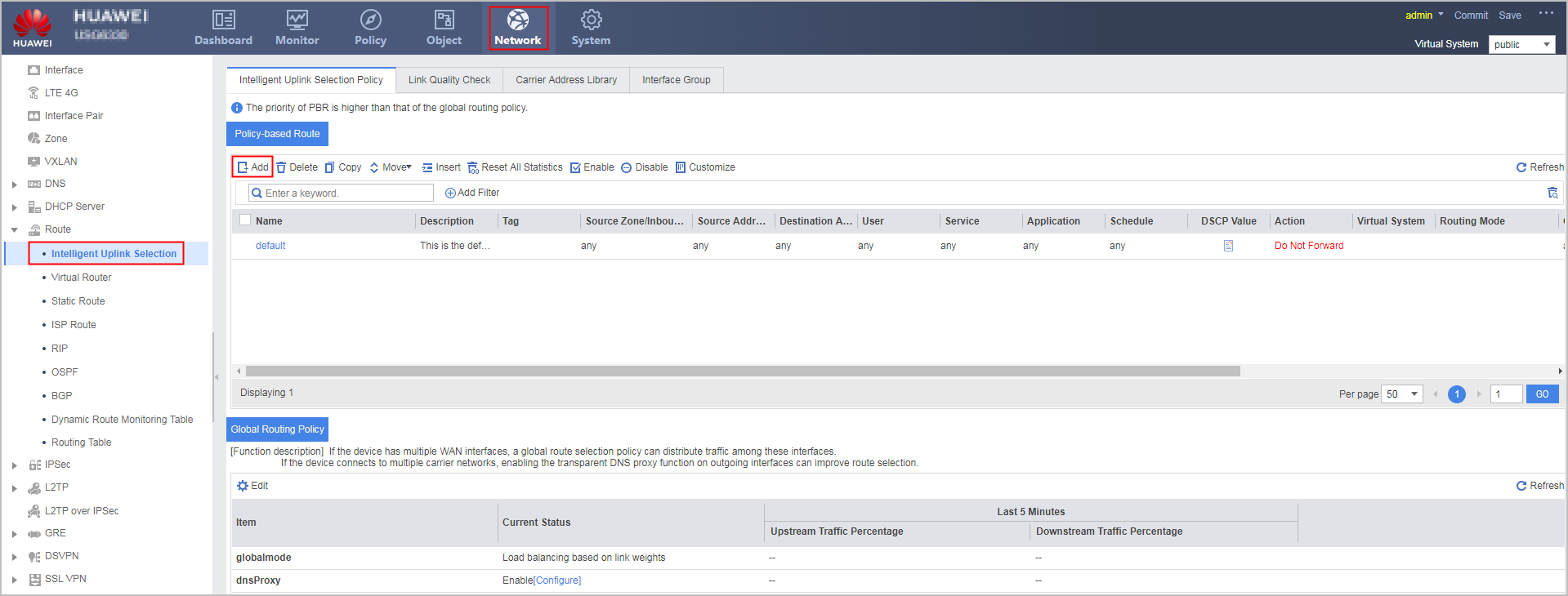
Choose . In the Policy-based Route area, click Add.
Configuration Scripts
#
interface GigabitEthernet0/0/2
 ip address 10.10.1.1 255.255.255.0
#
interface GigabitEthernet0/0/3
 ip address 10.1.1.1 255.255.255.0
#
interface GigabitEthernet0/0/4
 ip address 10.20.1.1 255.255.255.0
#
firewall zone trust
 set priority 85
 add interface GigabitEthernet0/0/3
#
firewall zone untrust
 set priority 5
 add interface GigabitEthernet0/0/2
 add interface GigabitEthernet0/0/4
#
security-policy
 rule name policy_sec_trust_untrust
  source-zone trust
  destination-zone untrust
  source-address 10.1.1.0 24
  action permit
#
 ip-link check enable
 ip-link name pbr_1
  destination 10.10.1.2 interface GigabitEthernet 0/0/2
 ip-link name pbr_2
  destination 10.20.1.2 interface GigabitEthernet 0/0/4
#
policy-based-route
 rule name pbr_1
  description pbr_1
  source-zone trust
  source-address 10.1.1.0 24
  application category Business_Systems
  track ip-link pbr_1
  action pbr egress-interface GigabitEthernet0/0/2 next-hop 10.10.1.2
 rule name pbr_2
  description pbr_2
  source-zone trust
  source-address 10.1.1.0 24
  application category Entertainment
  track ip-link pbr_2
  action pbr egress-interface GigabitEthernet0/0/4 next-hop 10.20.1.2
#
return