Web: Example for Configuring Source IP Address-Specific PBR
This section provides an example for configuring source IP address-specific PBR to forward the data through different links.
Networking Requirements
An enterprise has a marketing department and an R&D department. As shown in Figure 1, the FW is deployed at the intranet egress. Two links, IPS-A and IPS-B, connect to the Internet. ISP-A provides quick and stable Internet services but requires high charge. ISP-B requires low charge but provides slow Internet services.
Requirements are as follows:
- The marketing department has high requirements on the Internet service speed and therefore access the Internet through ISP-A.
- The R&D department has low requirements on the Internet service speed and therefore access the Internet through ISP-B.
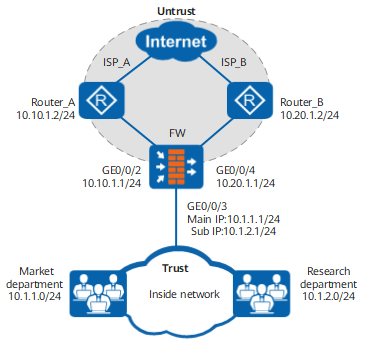

This example focuses on the configuration related to PBR. Configure other data such as NAT based on the actual networking.
Procedure
- Complete interface settings, such as IP address and security zone.
Choose , configure an IP address for the interface, and assign the interface to a security zone.
GigabitEthernet 0/0/2
Zone
untrust
IP Address
10.10.1.1/24
GigabitEthernet 0/0/3
Zone
trust
IP Address
10.1.1.1/24
10.1.2.1/24
GigabitEthernet 0/0/4
Zone
untrust
IP Address
10.20.1.1/24
- Configure a security policy between the Trust and Untrust zones to allow intranet users to access extranet resources. It is assumed that the intranet user network segments are 10.1.1.0/24 and 10.1.2.0/24.
Choose and click Add Security Policy to create a security policy.
Name
policy_sec_trust_untrust
Source Zone
trust
Destination Zone
untrust
Source Address/Region
10.1.1.0/24
10.1.2.0/24
Action
Permit
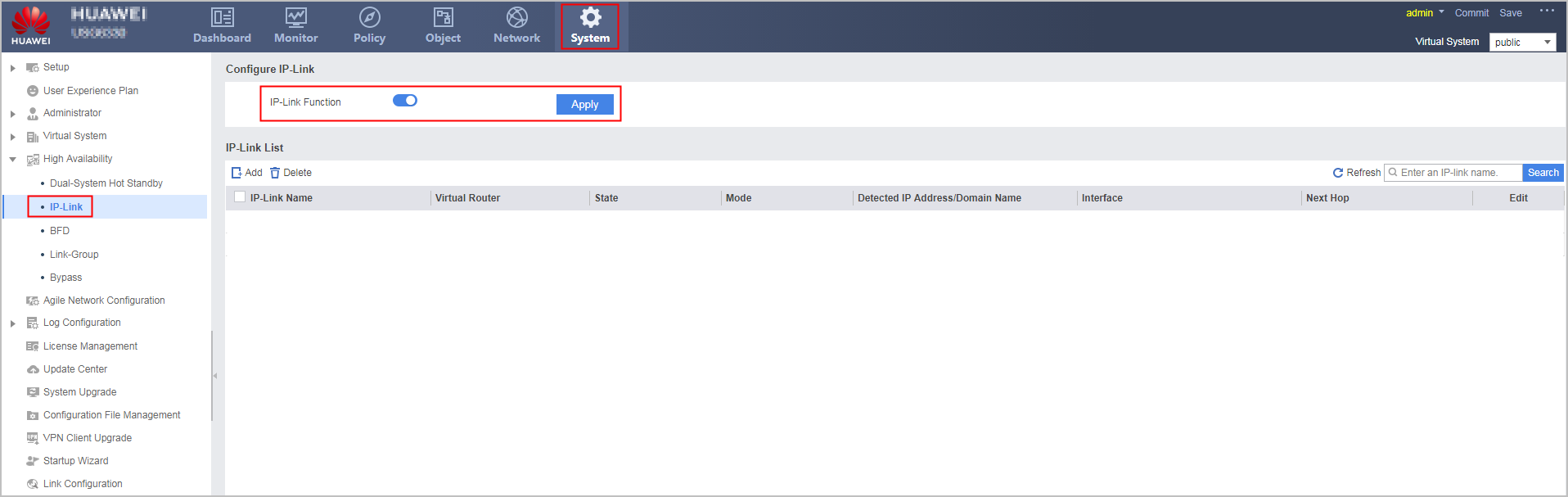
- Configure IP-link to detect link status.
- Choose and enable IP-Link Function.
- In IP-Link List, click Add and set the following parameters.
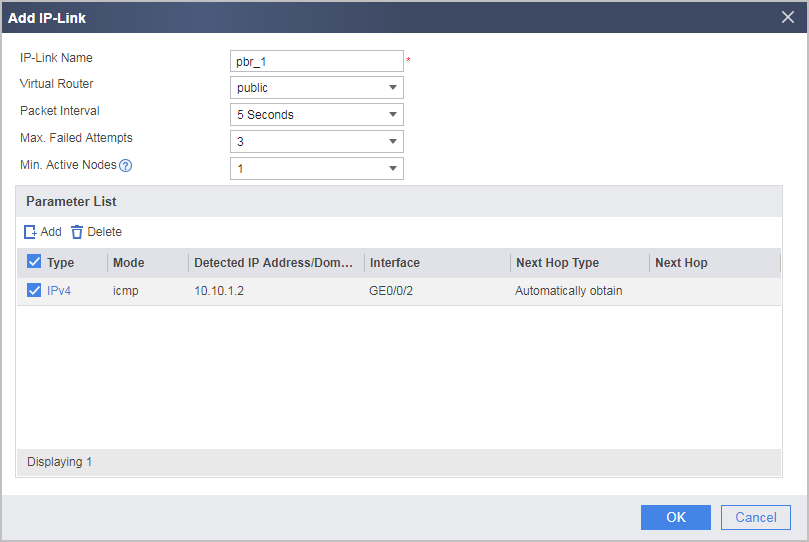
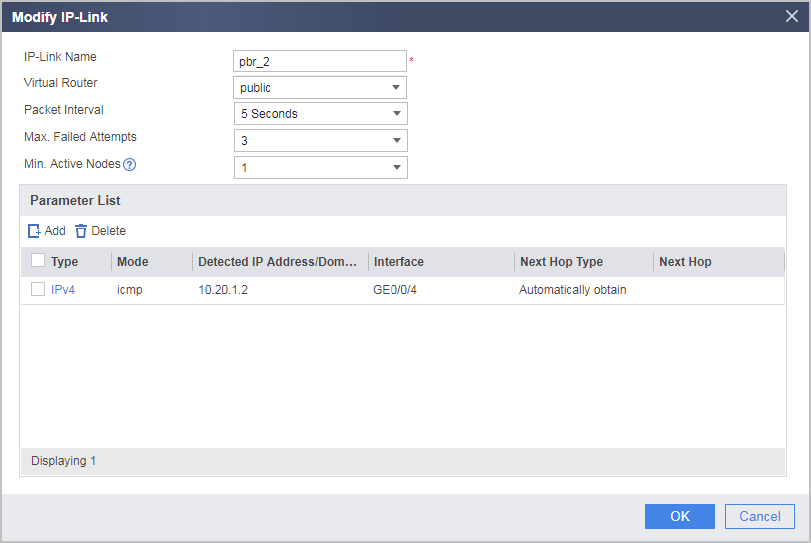
- Choose and enable IP-Link Function.
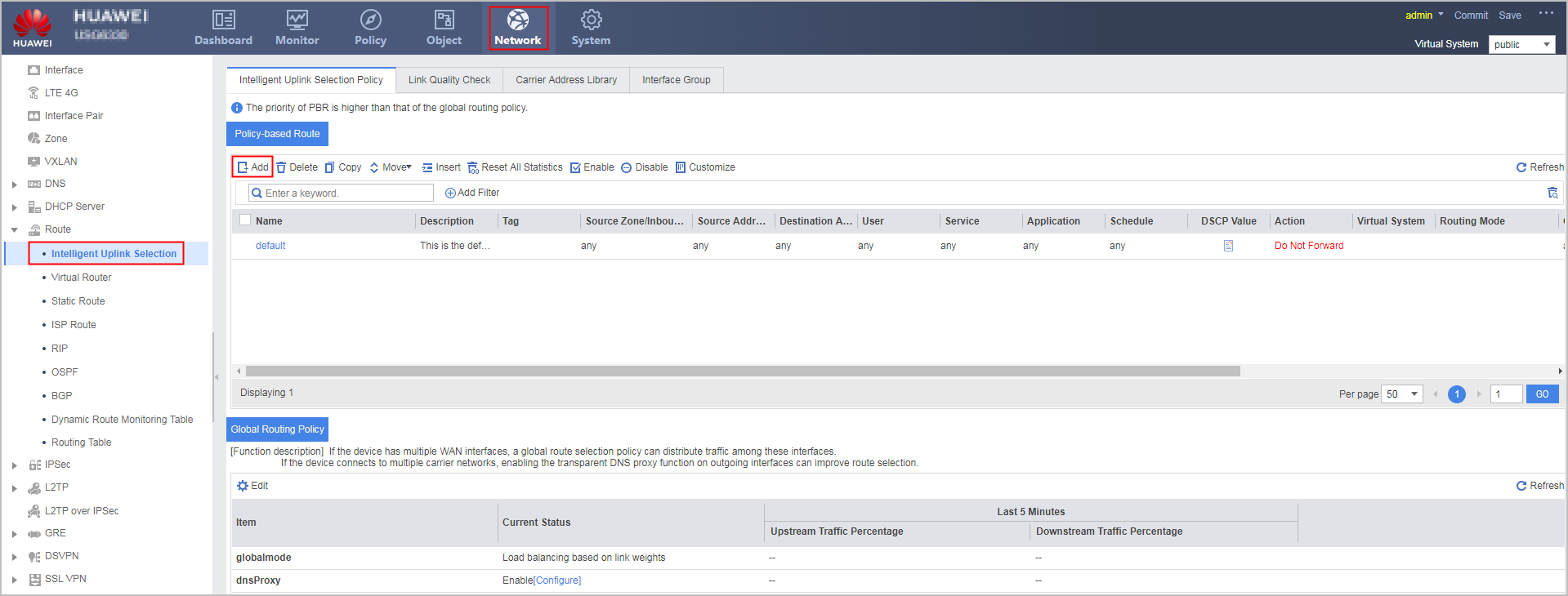
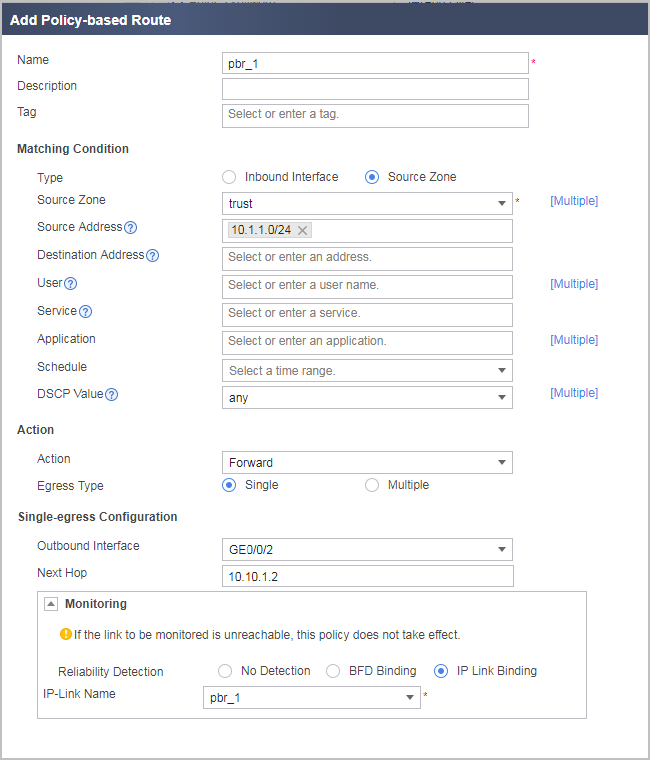
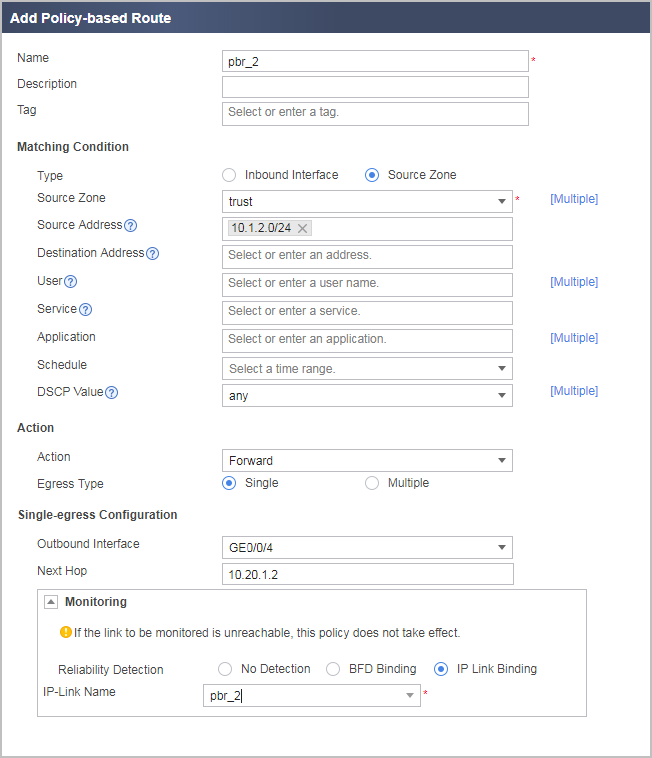
- Create PBR rule pbr_1 to forward packets from the marketing department to 10.10.1.2. Create PBR rule pbr_2 to forward packets from the R&D department to 10.20.1.2.
Ensure that the FW has the route configuration that guides the transmission of the traffic from the marketing and R&D departments even if PBR is unavailable.
Choose . In the Policy-based Route area, click Add.
Configuration Scripts
#
interface GigabitEthernet0/0/2
 ip address 10.10.1.1 255.255.255.0
#
interface GigabitEthernet0/0/3
 ip address 10.1.1.1 255.255.255.0
 ip address 10.1.2.1 255.255.255.0 sub
#
interface GigabitEthernet0/0/4
 ip address 10.20.1.1 255.255.255.0
#
firewall zone trust
 set priority 85
 add interface GigabitEthernet0/0/3
#
firewall zone untrust
 set priority 5
 add interface GigabitEthernet0/0/2
 add interface GigabitEthernet0/0/4
#
security-policy
 rule name policy_sec_trust_untrust
  source-zone trust
  destination-zone untrust
  source-address 10.1.1.0 24
  action permit
#
 ip-link check enable
 ip-link name pbr_1
  destination 10.10.1.2 interface GigabitEthernet 0/0/2
 ip-link name pbr_2
  destination 10.20.1.2 interface GigabitEthernet 0/0/4
#
policy-based-route
 rule name pbr_1
  description pbr_1
  source-zone trust
  source-address 10.1.1.0 24
  track ip-link pbr_1
  action pbr next-hop 10.10.1.2
 rule name pbr_2
  description pbr_2
  source-zone trust
  source-address 10.1.2.0 24
  track ip-link pbr_2
  action pbr next-hop 10.20.1.2
#
return