Web: Configuring IPv6 Users to Access the Internet Through Virtual Systems
This section describes how to configure virtual systems based on IPv6 forwarding.
Networking Requirements
As shown in Figure 1, area A in a large campus network deploys an IPv6 network and uses a FW as the access gateway. The network of area A comprises the R&D and non-R&D departments, and the two departments have different network access permissions. Requirements are as follows:
- Some employees in the R&D department can access the Internet, and all employees in the non-R&D department can access the Internet.
- The R&D and non-R&D departments are isolated from each other and cannot communicate.
- The service volumes of the R&D and non-R&D departments are nearly the same. Therefore, the same virtual system resources are allocated to them.
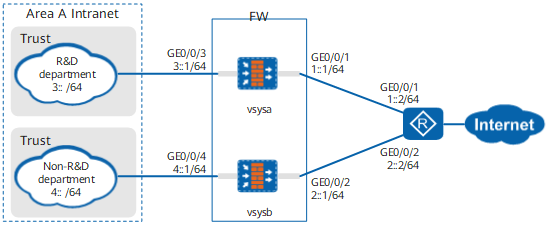
Data Planning
Item |
Data |
Description |
|---|---|---|
vsysa |
|
- |
vsysb |
|
- |
Resource class |
|
- |
Configuration Roadmap
- The public system administrator creates two virtual systems vsysa, and vsysb, assigns resources.
- The public system administrator configures IP addresses, routes, and security policies for vsysa.
- The public system administrator configures IP addresses, routes, and security policies for vsysb.
Procedure
- Enable the virtual system function.
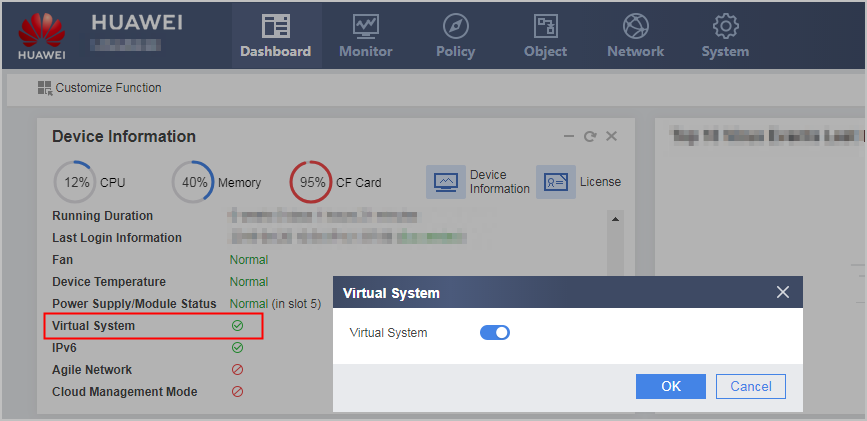
- Click Dashboard on the main menu. In the Device Information area, click Configure on the line of Virtual System to enable the virtual system function.
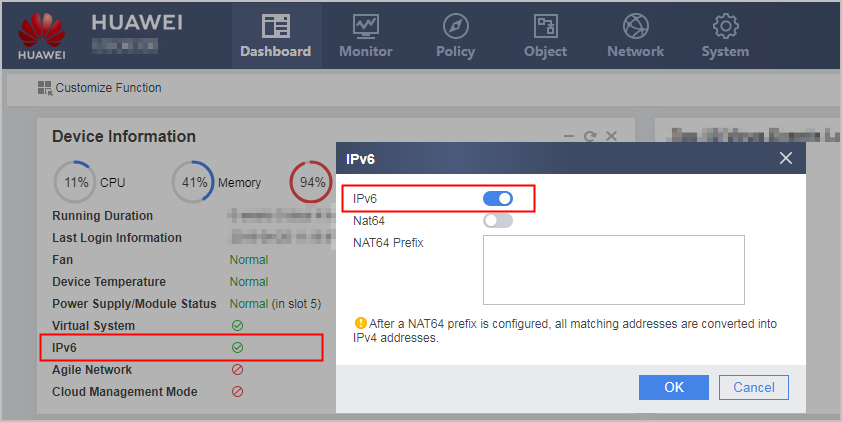
- Click Configure on the line of IPv6 to enable the IPv6 function.
- Click Dashboard on the main menu. In the Device Information area, click Configure on the line of Virtual System to enable the virtual system function.
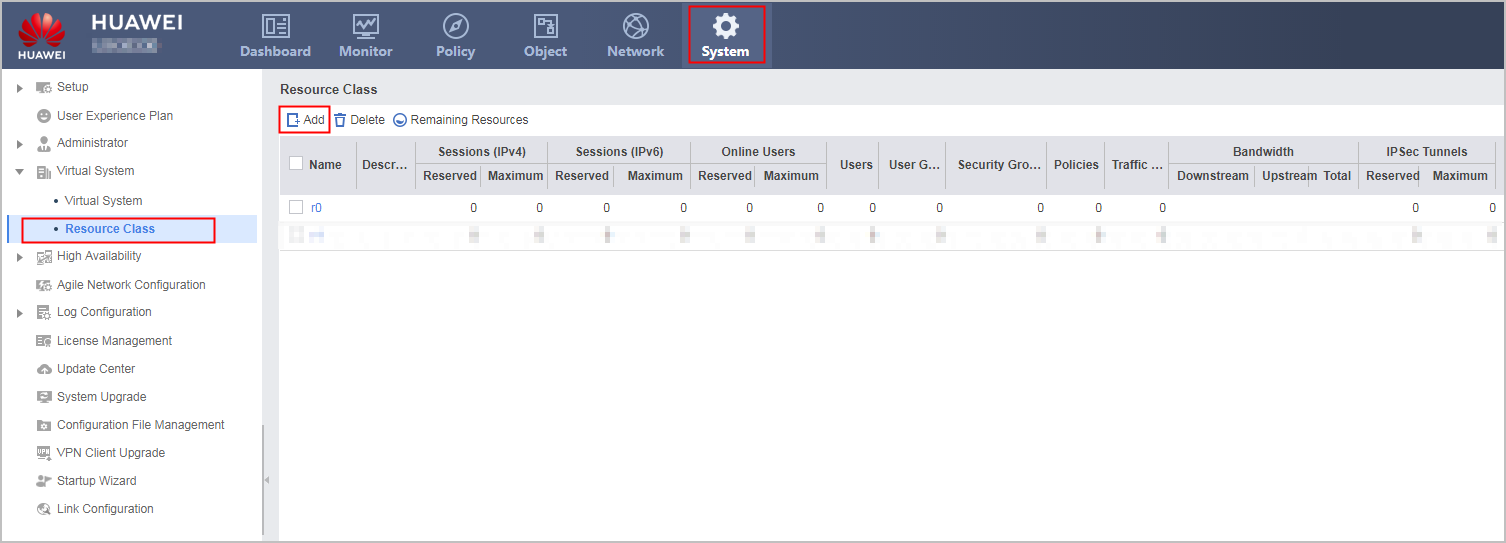
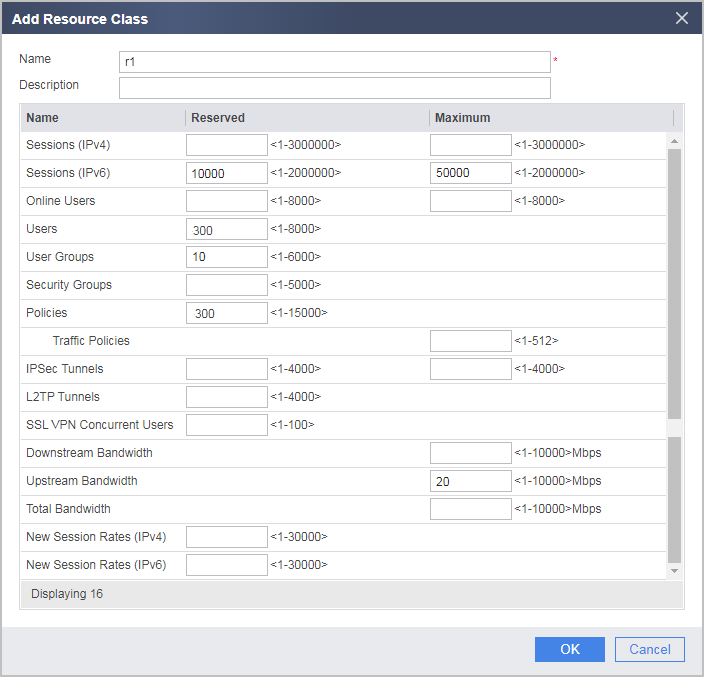
- Configure a resource class.
- In the root system, create virtual systems vsysa and vsysb and allocate resources to them.
- Choose .
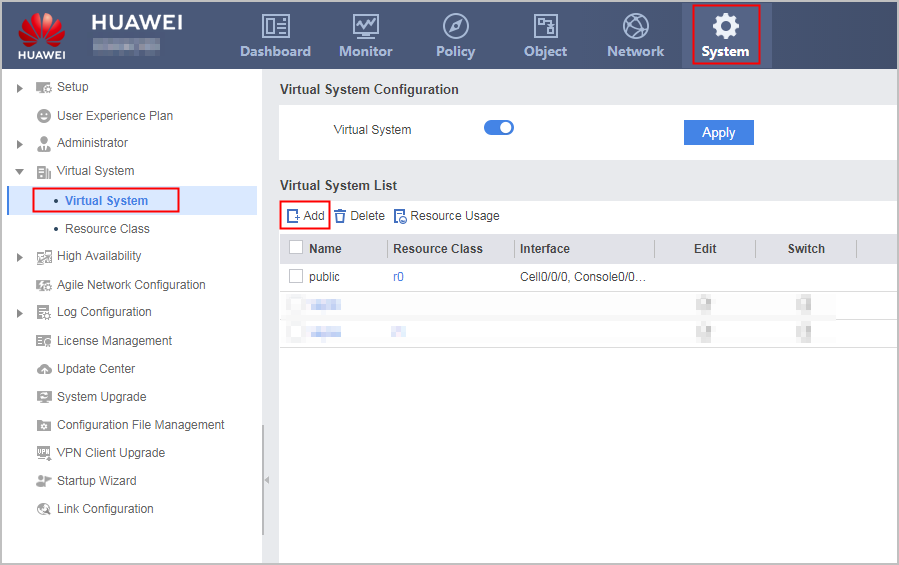
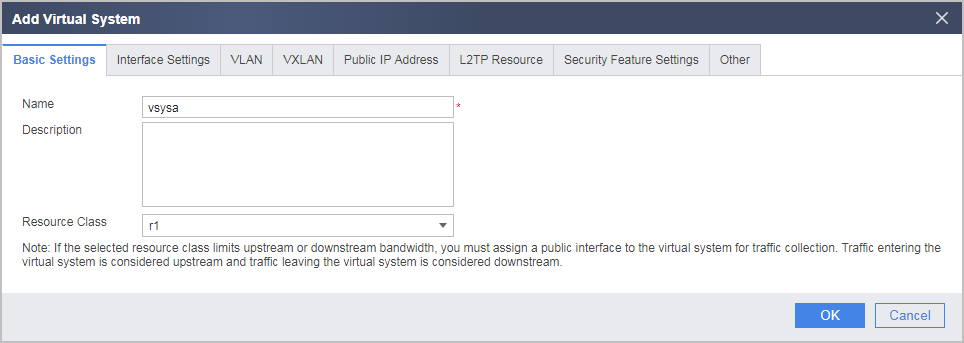
- Click Add and then the Basic Configuration tab and set the following parameters.
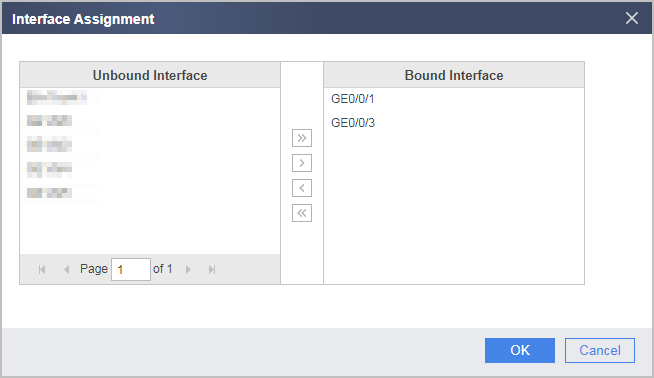
- Click the Interface Settings tab and allocate interfaces to the virtual system.
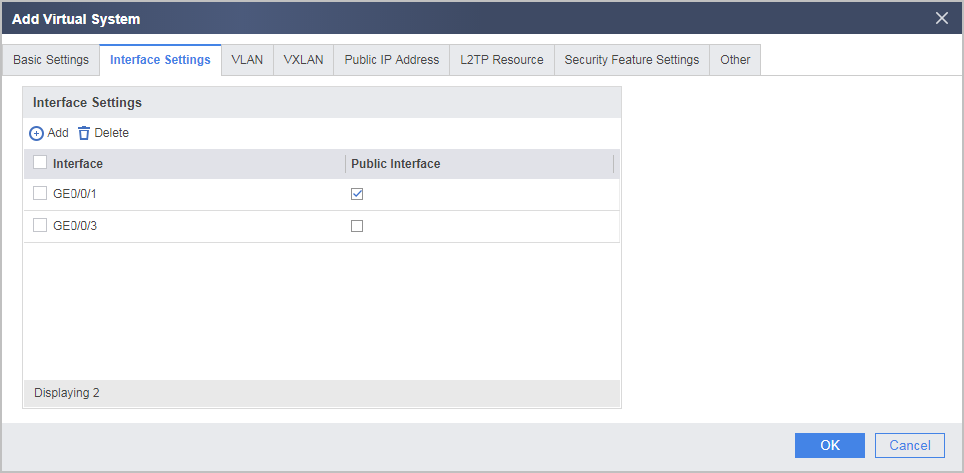
- Set GE0/0/1 as the public interface.

Bandwidth resource configurations in resource classes take effect only after the public interface is configured.
In this example, the bandwidth should be limited for intranet users to access the Internet. Set WAN interface GE0/0/1 as the public interface. Then all traffic from intranet users to the Internet is forwarded through GE0/0/1, which is called the outgoing direction. This function can work with Uplink Bandwidth configured in 2.b to limit the bandwidth for intranet users to access the Internet.
- Choose .
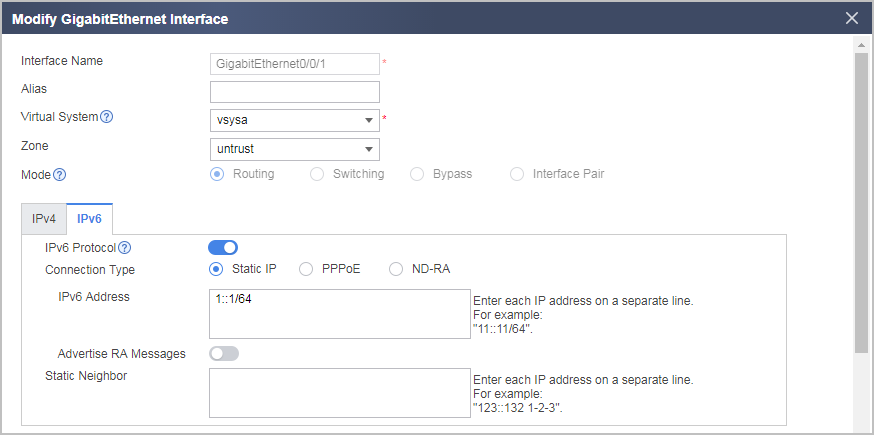
- Configure interface IPv6 addresses and security zones.
- Click the interface name and set the following parameters.
- Click the interface name and set the following parameters.
- Configure default routes.
- Choose .
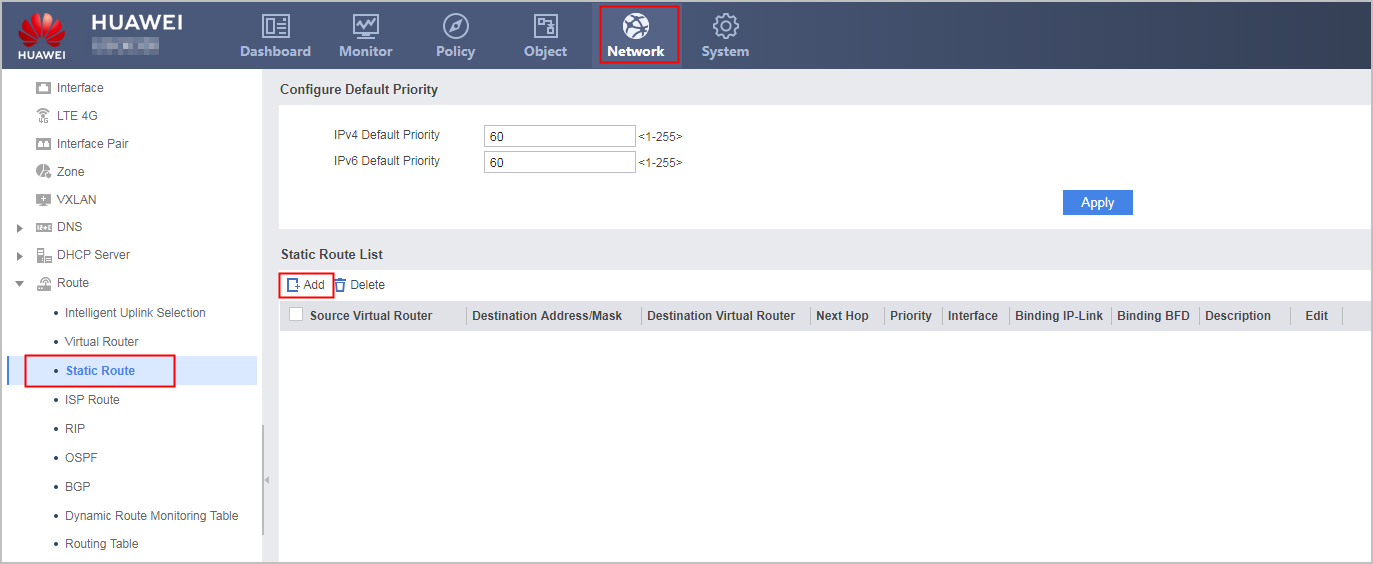
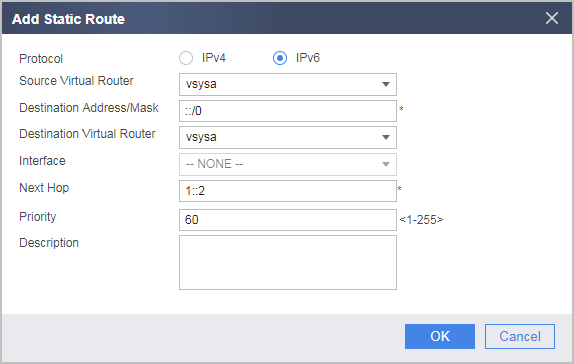
- Click Add and configure the following static route for vsysa.
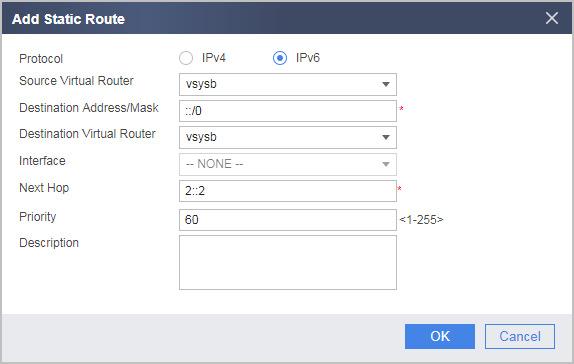
- Click Add and configure the following static route for vsysb.
- Choose .
- Configure security policies in vsysa.
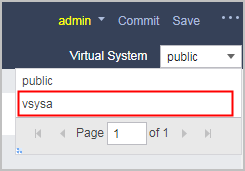
- Select vsysa from the Virtual System drop-down list in the upper right corner to access vsysa.
- Choose .
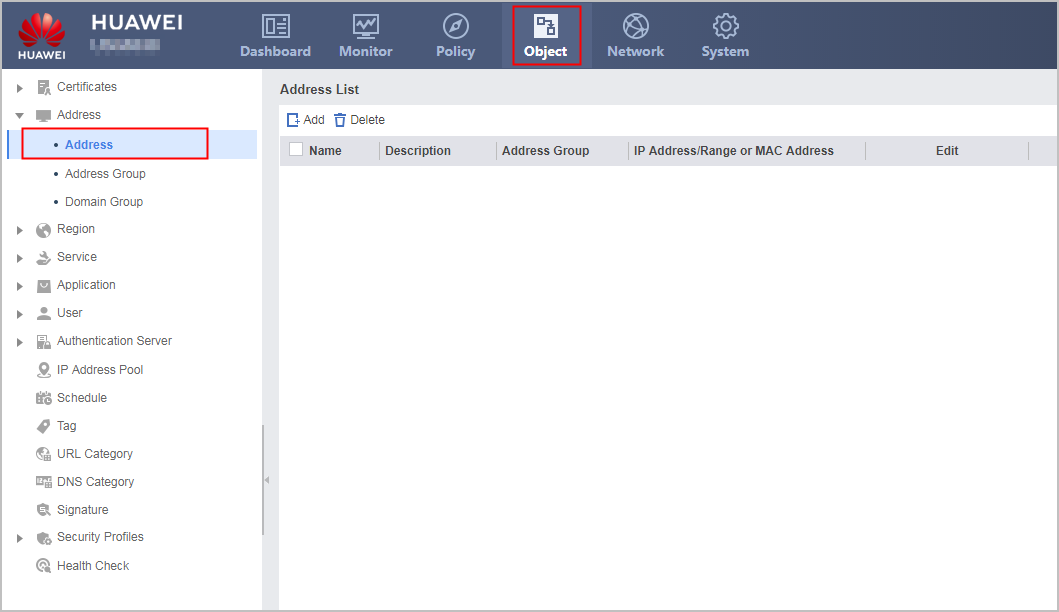
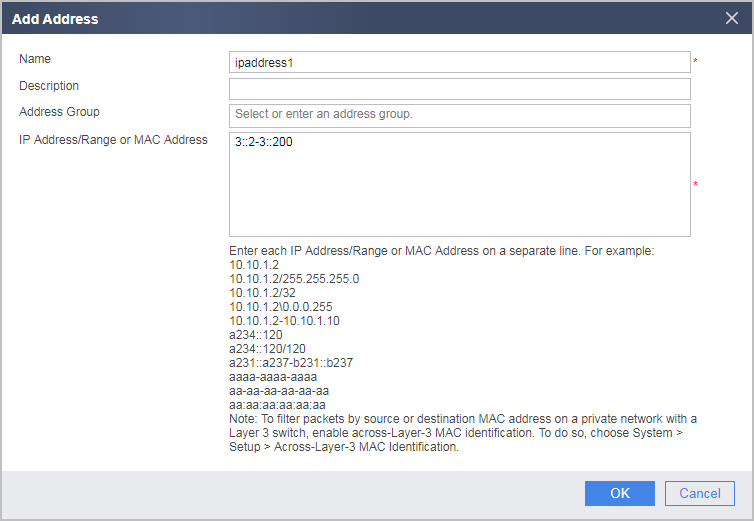
- Click Add and set the following IP address range.
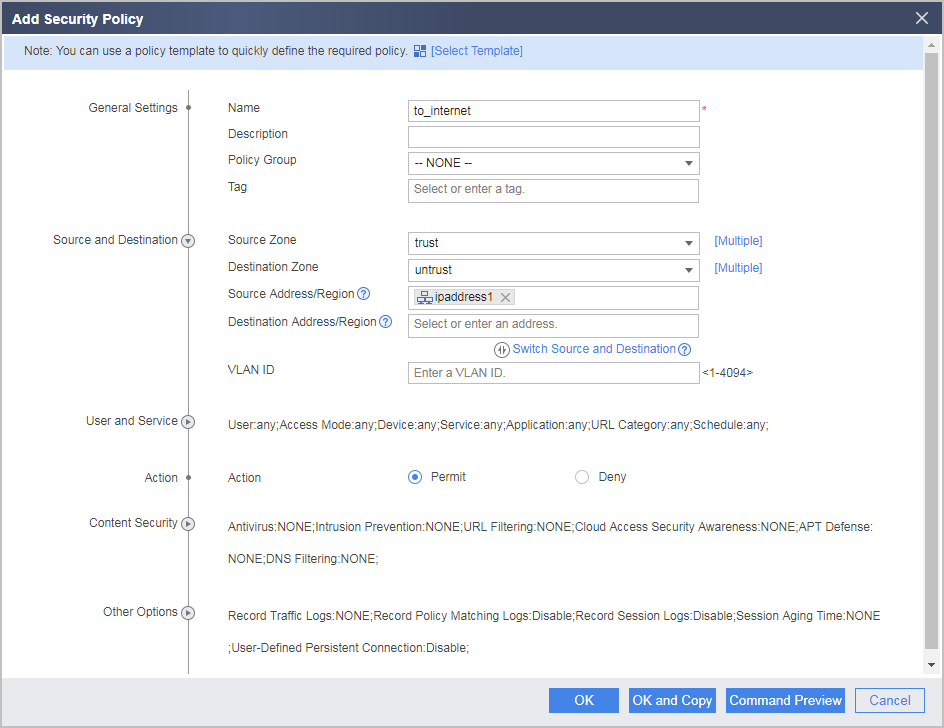
- Choose Add Security Policy and configure the following security policy for vsysa to allow R&D employees on a specific network segment to access the Internet. Packets from employees on other network segments to the Internet will match the default security policy and are denied.
- Select vsysa from the Virtual System drop-down list in the upper right corner to access vsysa.
- The public system administrator configures IP addresses, routes, and security policies for vsysb.
The configuration is similar to that of the R&D department except the following:
- The IP address of the inside interface is different.
- The public interface of vsysb is set to GE0/0/2.
- You do not need to create an IP address range for the non-R&D department. You only need to configure a security policy to allow all IP addresses to access the Internet.

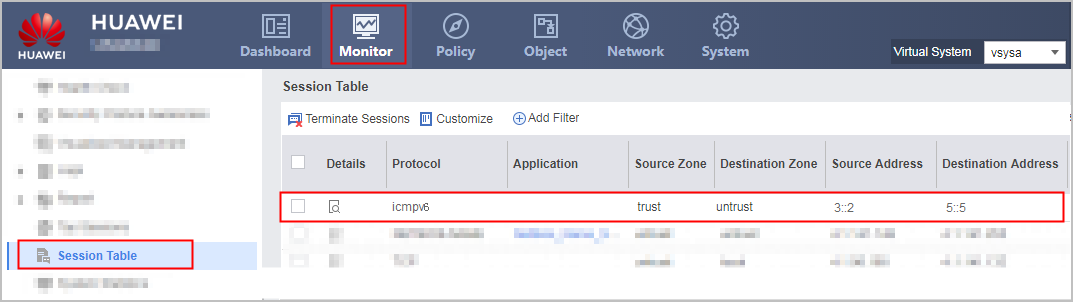
Configuration Scripts
Configuration script of the public system
#
sysname FW
#
ipv6
#
vsys enable
#
resource-class r1
 resource-item-limit ipv6 session reserved-number 10000 maximum 50000
 resource-item-limit policy reserved-number 300
 resource-item-limit user reserved-number 300
 resource-item-limit bandwidth 20 outbound
 resource-item-limit user-group reserved-number 10
#
vsys name vsysa 1
 assign resource-class r1
 assign interface GigabitEthernet0/0/1
 assign interface GigabitEthernet0/0/3
#
vsys name vsysb 2
 assign resource-class r1
 assign interface GigabitEthernet0/0/2
 assign interface GigabitEthernet0/0/4
#
interface GigabitEthernet0/0/1
 set public-interface
 ip binding vpn-instance vsysa
 ipv6 enable
 ipv6 address 1::1 64
#
interface GigabitEthernet0/0/2
 set public-interface
 ip binding vpn-instance vsysb
 ipv6 enable
 ipv6 address 2::1 64
#
interface GigabitEthernet0/0/3
 ip binding vpn-instance vsysa
 ipv6 enable
 ipv6 address 3::1 64
#
interface GigabitEthernet0/0/4
 ip binding vpn-instance vsysb
 ipv6 enable
 ipv6 address 4::1 64
#
ipv6 route-static vpn-instance vsysa :: 0 1::2
ipv6 route-static vpn-instance vsysb :: 0 2::2
#
return
Configuration script of vsysa
#
firewall zone trust
 set priority 85
 add interface GigabitEthernet0/0/3
#
firewall zone untrust
 set priority 5
 add interface GigabitEthernet0/0/1
#
ip address-set ipaddress1 type object
 address 0 range 3::2 3::200
#
security-policy
 rule name to_internet
  source-zone trust
  destination-zone untrust
  source-address address-set ipaddress1
  action permit
#
return
Configuration script of vsysb
#
firewall zone trust
 set priority 85
 add interface GigabitEthernet0/0/4
#
firewall zone untrust
 set priority 5
 add interface GigabitEthernet0/0/2
#
security-policy
 rule name to_internet
  source-zone trust
  destination-zone untrust
  action permit
#
return