Logging In to the Web UI Using HTTPS
By default, the device allows an administrator to log in to the FW web UI using HTTPS.
Prerequisites
The following browsers are recommended for logging in to the web UI of the device:
- Internet Explorer 10-11
- Firefox 62 and later
- Chrome 64 and later

By default, the FW supports TLS1.2. You can run the web-manager security version { { tlsv1 | tlsv1.1 | tlsv1.2 } * | all } command to change the supported protocols. If the browser uses SSL of outdated insecure versions, the login page cannot be accessed. In addition, using a browser of a much earlier version may also cause the login page to be inaccessible. In this case, upgrade the browser.
- JavaScript must be enabled; otherwise, errors may occur during screen display. You have to set JavaScript in different locations for each type of browsers.
- Internet Explorer: Choose and ensure that Active scripting is enabled.
Firefox: Choose and ensure that JavaScript is enabled.
JavaScript is enabled by default on version 23.0 and later. Therefore, the preceding configuration option is unavailable for them.
- Chrome: Choose and ensure that Allow all sites to run JavaScript is selected.
- If the web UI is inaccessible after the version upgrade, clear the historical cached data of the browser.
Procedure
- Connect the network interface of the administrator PC to management interface (MEth 0/0/0 or GigabitEthernet 0/0/0) using network cables or Layer-2 switches.
- Set the IP address of the administrator PC, within a range from 192.168.0.2 to 192.168.0.254.
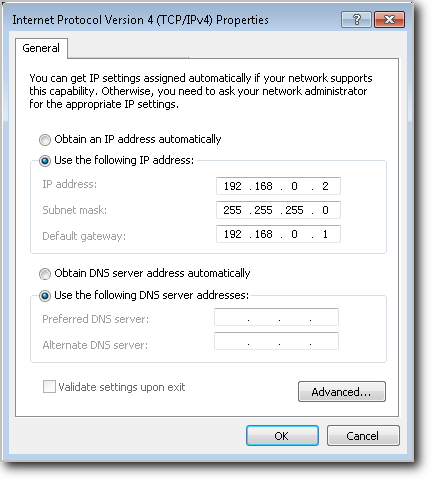
- Open the browser on the administrator PC. In the address box, enter the default IP address of the management interface (https://192.168.0.1:8443).
If the address is http://192.168.0.1, the device automatically uses the more secure HTTPS to access the web UI.
The browser prompts you with a message, saying that the certificate is insecure. Select to continue browsing. For security, you are advised to configure the specified certificate after logging in to the device. For details, refer to CLI: Example for Logging In to the Web UI Using HTTPS (Specified Certificate).
- On the login page, register the administrator account and password, and enter the registered User Name and Password. Click Login.
- You must register an administrator account and password upon first login to the device through HTTPS. The administrator created using this method has system-admin role permissions and web service type. The administrator cannot be a virtual system administrator account named manager-user@@vsys-name. If you have logged in to the device through the console port, the device does not display the account registration page. In this case, you can log in to the device's web system only using the configured administrator account and password.
The administrator account is a string of 1 to 64 case-sensitive characters, and cannot contain such characters as the vertical bar (|), backslash (\), slashes (/), colon (:), asterisk (*), ampersand (&), question mark (?), apostrophe, equal sign (=), number sign (#), straight quotation mark ("), less than sign (<), greater than sign (>), and at sign (@). It is recommended to be different from command keywords.
- To enhance security, a password must meet the following requirements:
- The password is a string that contains 8 to 64 characters.
- The password must meet the minimum strength requirements, that is,The password needs to contain at least three types of the following characters: uppercase letters (A to Z), lowercase letters (a to z), digits (0 to 9), and special characters, such as exclamation points (!), at signs (@), number signs (#), dollar signs ($), and percent (%).
- The password cannot contain more than two identical characters in a row.
- The password cannot be the same as the user name or reverse of the user name.
- Please keep the administrator account and password you registered safe for your next login. After three consecutive login failures, the web UI is automatically locked out for 30 minutes to forbid any user login.
- You can set the language to Simplified Chinese, English, Spanish, or Portuguese. When you log in to the system in Spanish or Portuguese, the system automatically switches the character encoding mode to UTF-8 if the system character encoding mode is GBK. If the automatic switching fails, you should log in to the English environment and choose to manually switch the character encoding mode. For manual switching, see System Character Encoding.
Follow-up Procedure
Use HTTPS to log in to the web UI for management and configuration. You can also create more administrators. For details, refer to Administrator.