Web: Example for Enabling Remote Users to Access the Headquarters through SSL VPN (LDAP Authentication + LDAP Authorization)
Networking Requirements
As shown in Figure 1, mobile employees need to access resources at the Headquarters using SSL VPN. An LDAP server is used to authenticate users.

The FW supports MS Active Directory (AD LDAP), Sun ONE LDAP, and Open LDAP servers. This section uses the Sun ONE LDAP server as an example.
Requirements are as follows:
- Executives need to remotely obtain IP addresses and access the intranet smoothly and securely. They also need to remotely access the Webmail and ERP systems on web UIs.
- Employees need to remotely access the Webmail and ERP systems on web UIs.
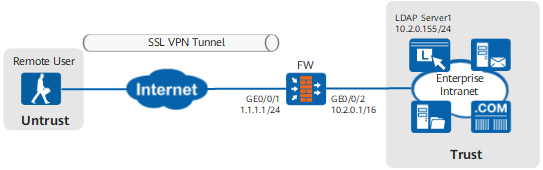
Procedure
- Configure interfaces.
- Choose .
- Click
 of GE0/0/1 and set the parameters as follows.
Zone
untrust
IPv4
IP address
1.1.1.1/24
Default Gateway
1.1.1.2
- Click OK.
- Repeat the preceding steps to set the parameters for GE0/0/2.
Zone
trust
IPv4
IP address
10.2.0.1/16
- Configure security policies.
- Choose .
- Click Add.
- Configure security policy policy_sslvpn_1 and set the parameters as follows:
Name
policy_sslvpn_1
Source Zone
untrust
Destination Zone
local
Destination Address/Region
1.1.1.1/32
Service
https
Action
Permit
- Click OK.
- Repeat the preceding steps to configure security policy policy_sslvpn_2 as follows:
Name
policy_sslvpn_2
Source Zone
local
Destination Zone
trust
Destination Address/Region
10.2.0.10/32,10.2.0.11/32,
Action
Permit
- Repeat the preceding steps to configure security policy policy_sslvpn_3 as follows:
Name
policy_sslvpn_3
Source Zone
untrust
Destination Zone
trust
Source Address/Region
172.16.1.1-172.16.1.100
Destination Address/Region
10.2.0.0/16
Action
Permit
- Repeat the preceding steps to configure security policy policy_ldap_server as follows:
Name
policy_ldap_server
Source Zone
local
Destination Zone
trust
Destination Address/Region
10.2.0.155/32
Action
Permit
- Choose and set parameters for the FW to connect to the LDAP server.
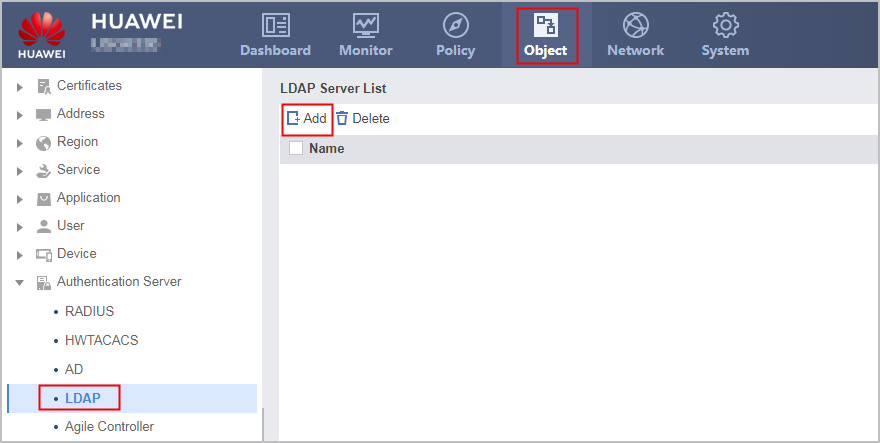
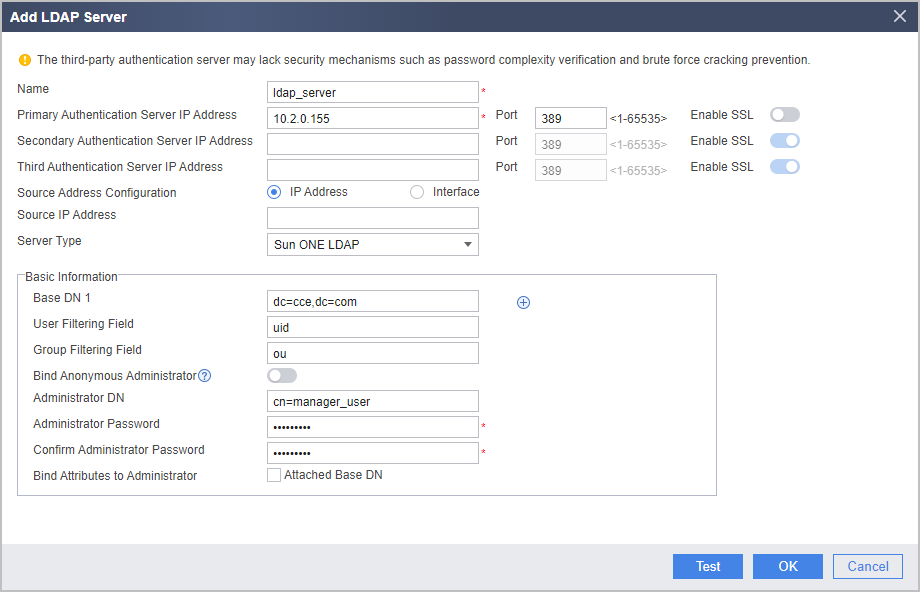
For the V600R007C20 version, whether to enable SSL for LDAP authentication cannot be configured on the web UI. When you configure the LDAP server on the web UI, no SSL (no-ssl) is enabled by default. To enable SSL (ssl), click CLI Console in the lower right corner of the web page. On the CLI configuration page that is displayed, run the ldap-server authentication 10.2.0.155 389 ssl command in the corresponding LDAP server template view. When ssl is deployed, it must also be enabled on the LDAP server. For details, see the operating system guide of the LDAP server. From V600R007C20SPC100, you can configure whether to enable SSL for LDAP authentication on the Web UI. The following uses no-ssl as an example.
To check parameters, such as DN, of the LDAP server, use software (such as LDAP Browser/Editor) to connect to the LDAP server. The LDAP Browser/Editor is used as an example. The LDAP server attributes and mappings between the server attributes and parameters on the FW are as follows.
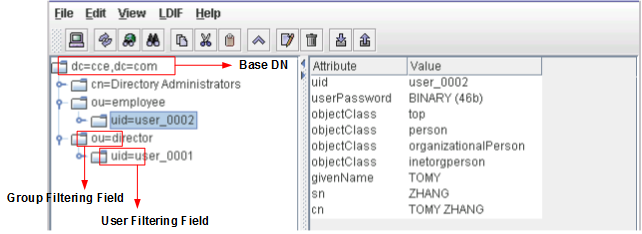
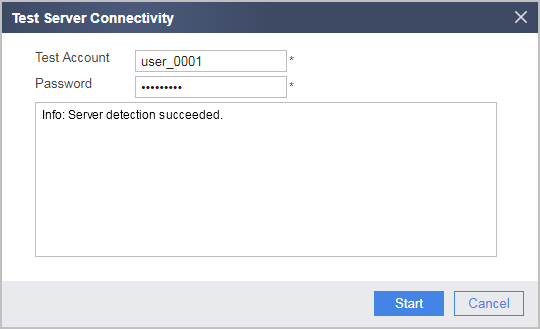
Click Test. In the dialog box that is displayed, click OK and enter the test account and password. Click Start to check the connectivity to the LDAP server.
The user name and password used for the test must be the same as those on the LDAP server.
- Choose and click Add to create an authentication domain.
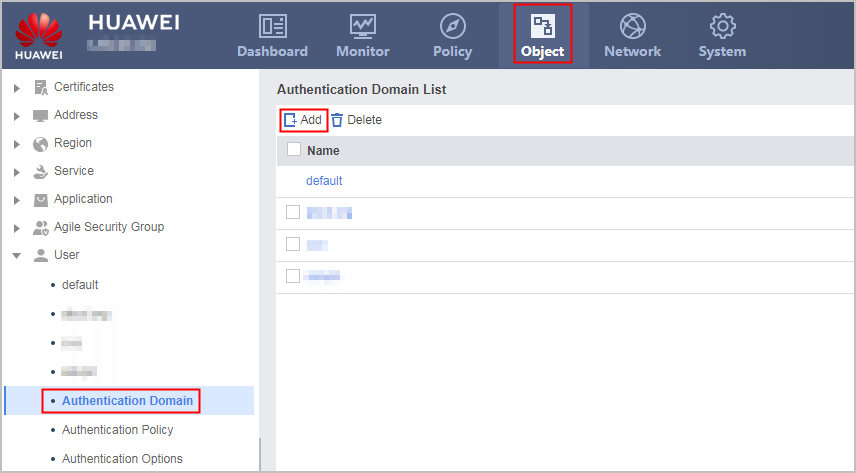
When AD or LDAP authentication is used, the authentication domain name configured on the FW must be the same as that configured on the authentication server. In this example, the domain name on the LDAP server is cce.com. Therefore, the authentication domain name must be set to cce.com on the FW.
- Choose and click Add to create a policy for importing data from the server.
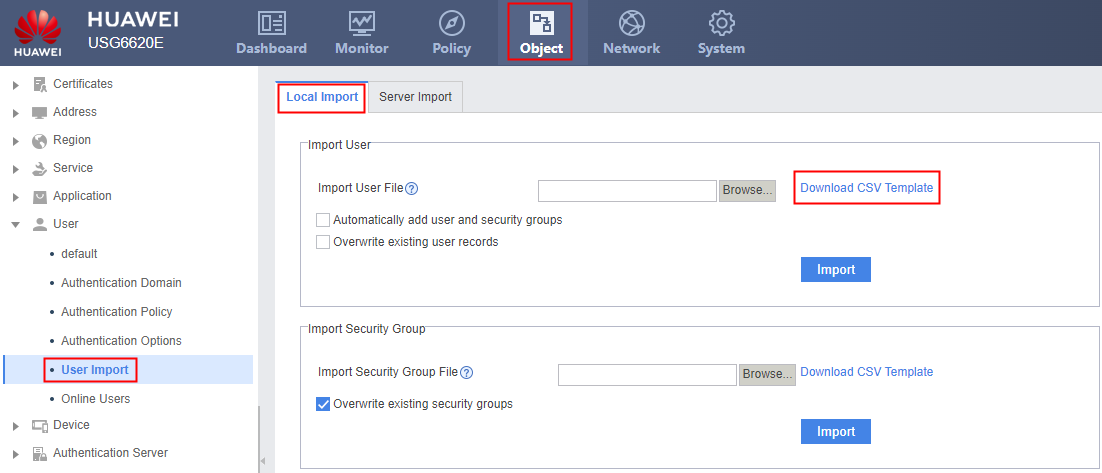
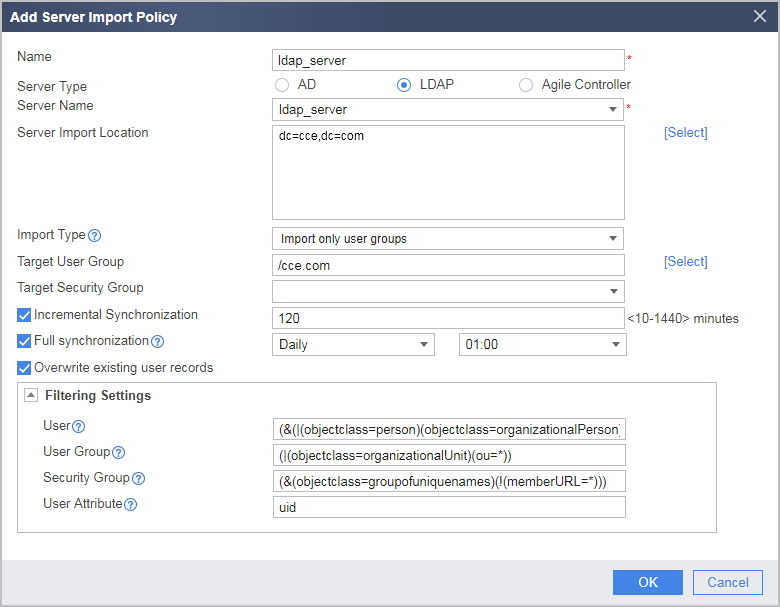
After the policy is created, click
 to import the organizational structures from the authentication server to the FW.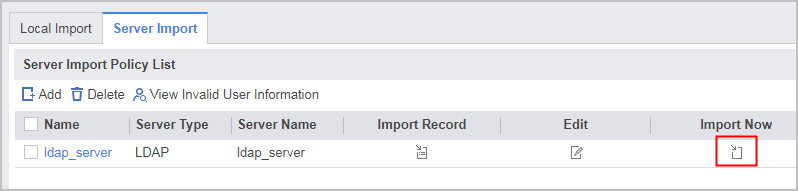
After the import succeeds, choose to view the organizational structure information.
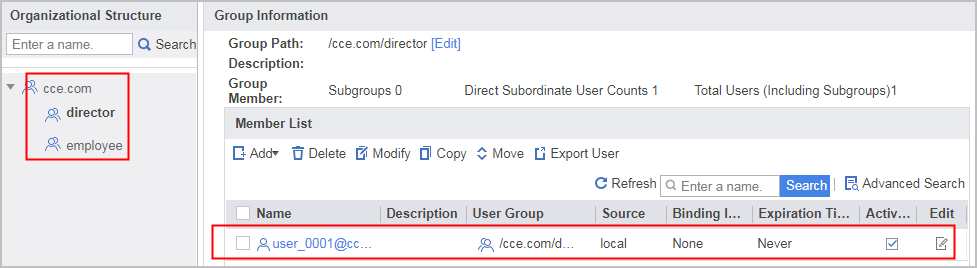
- Choose and select cce.com.
- For Scenario, select Online behavior management and SSL VPN access, and configure parameters as the following figure.
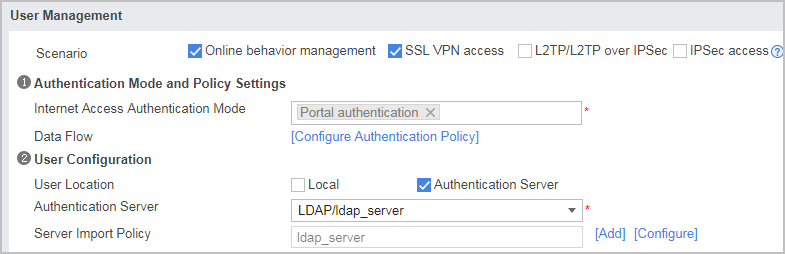
- Set the authorization mode to LDAP server authorization.
The authorization mode cannot be configured on the web UI. You need to log in to the CLI console to configure the authorization mode.
- Click
 on the lower right of the page.
 - Click in the CLI Console (Disconnected) dialog box to connect to the CLI console.
- After the connection succeeds, run the following commands:
<FW> system-view
[FW] aaa
# Create authorization scheme ldap and set the authorization mode to LDAP.
[FW-aaa] authorization-scheme ldap
[FW-aaa-author-ldap] authorization-mode ldap
[FW-aaa-author-ldap] quit
# Apply the authorization scheme to the authentication domain.
[FW-aaa] domain cce.com
[FW-aaa-domain-cce.com] authorization-scheme ldap
- Click
- For Scenario, select Online behavior management and SSL VPN access, and configure parameters as the following figure.
- Configure an SSL VPN gateway, including the gateway address, user authentication, and maximum number of concurrent users.
- Choose .
- Click the Add, configure an SSL VPN gateway and set the parameters as follows.
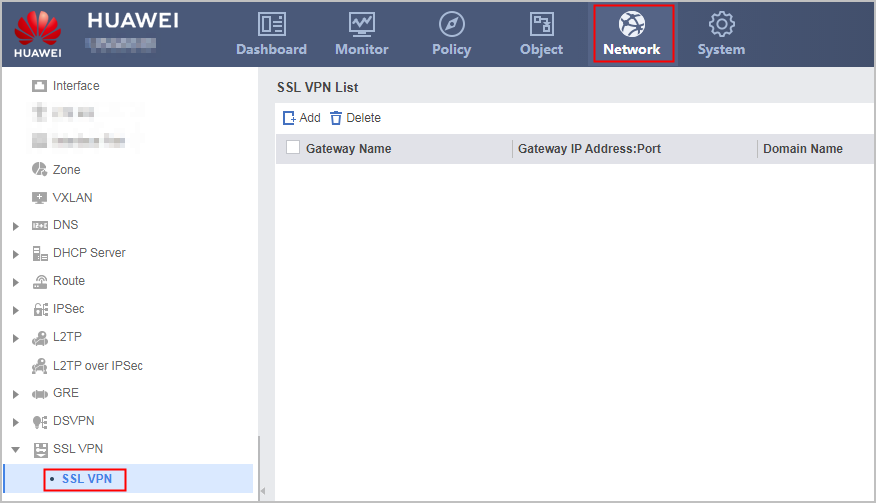
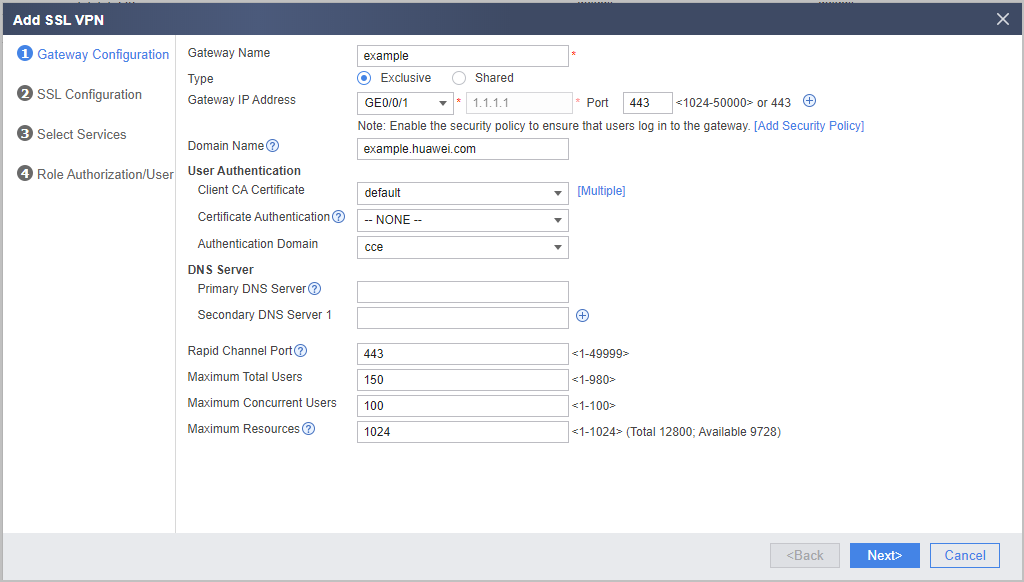
If the virtual gateway is bound to an authentication domain, the user name entered for login must not carry the authentication domain information. If the user name carries an authentication domain name, the gateway considers the at sign (@) and the string following it as a part of the user name, not an authentication domain name. For example, if the virtual gateway has been bound to the authentication domain cce.com, you must enter user_0001, not user_0001@cce.com, as the user name.
- Click Next.
- Set SSL parameters.
- Set SSL parameters to the default values.
- Click Next.
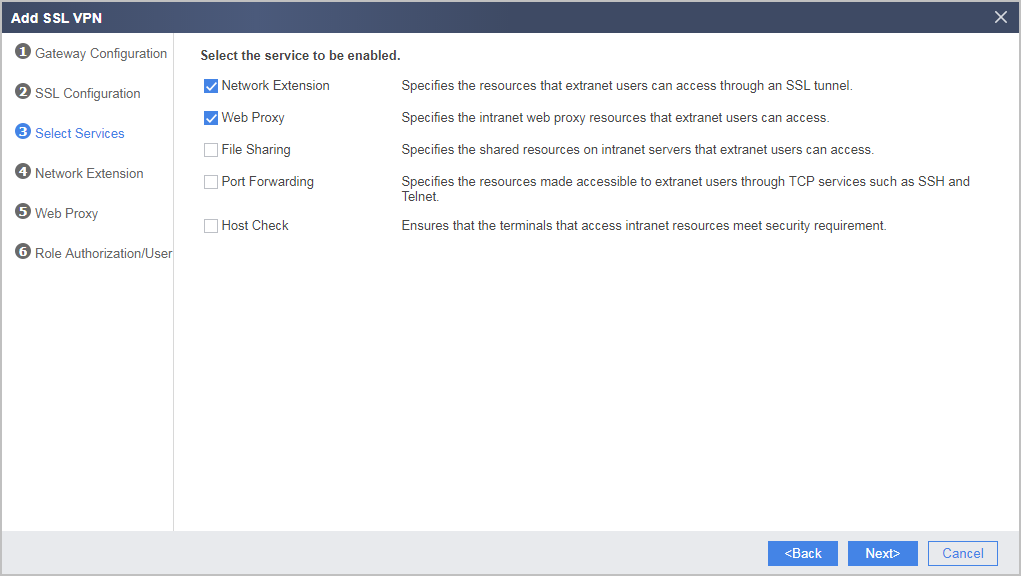
- Select the services to be enabled.
- Select Web Proxy and Network Extension.
- Click Next.
- Select Web Proxy and Network Extension.
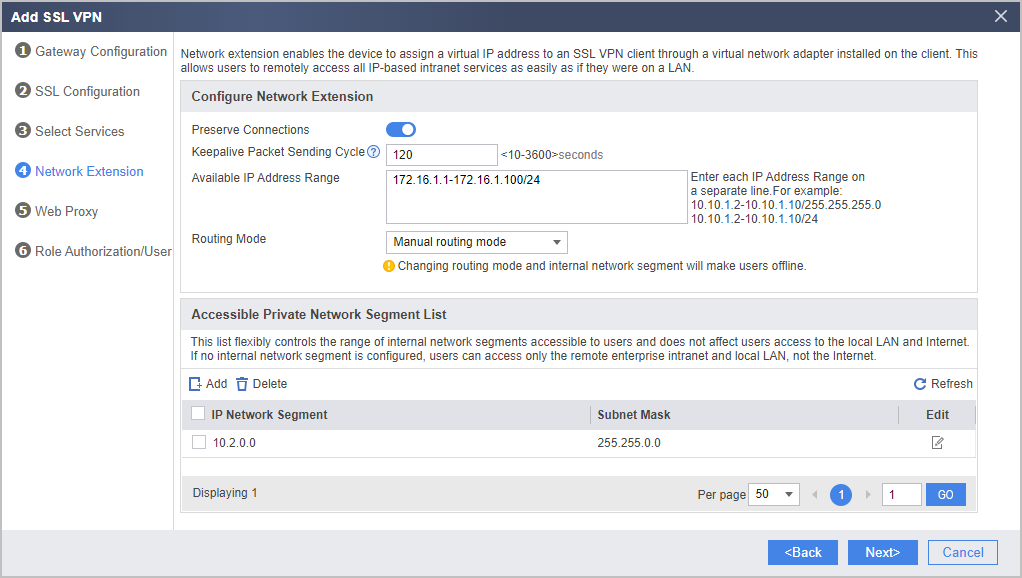
- Configure the network extension function.
- Set the range of IP addresses and accessible intranet subnets as follows.
- Click Next.
- Set the range of IP addresses and accessible intranet subnets as follows.
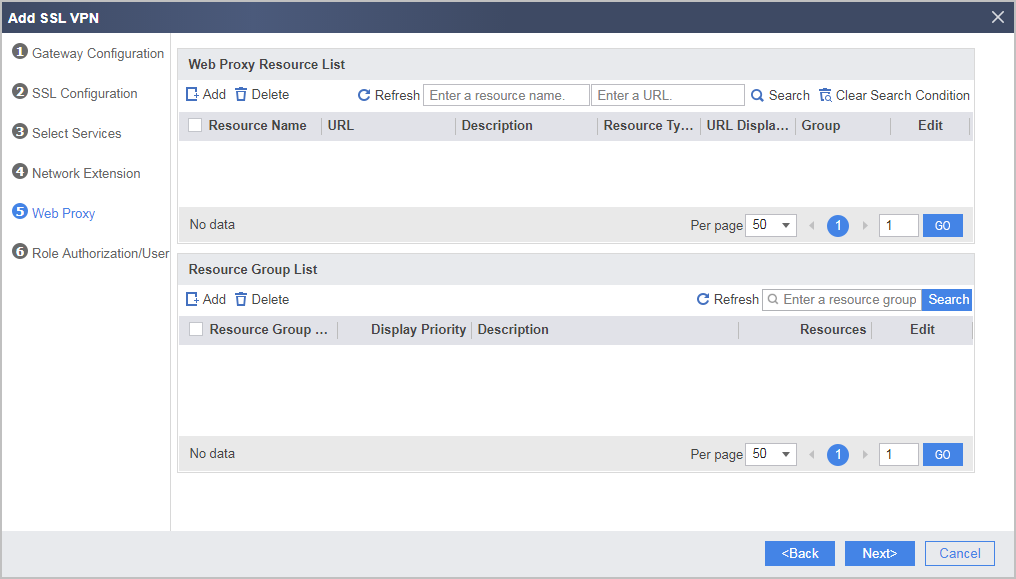
- Configure the web proxy function and add resources Webmail and ERP.
- Under Web Proxy Resource List, click Add.
- Add web proxy resource Webmail as follows:
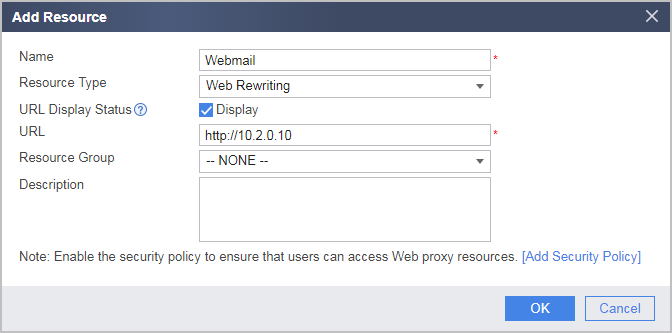
- Click OK.
- Repeat the preceding steps to add web proxy resource ERP as follows:
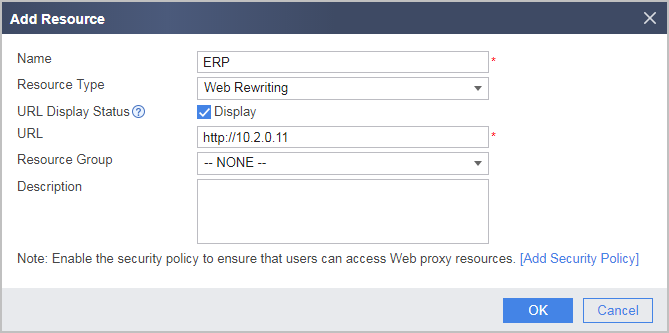
- Click OK.
- Click Next.
- Under Web Proxy Resource List, click Add.
- Configure SSL VPN role authorization/users.
- In List of Authorized Roles, click Add.
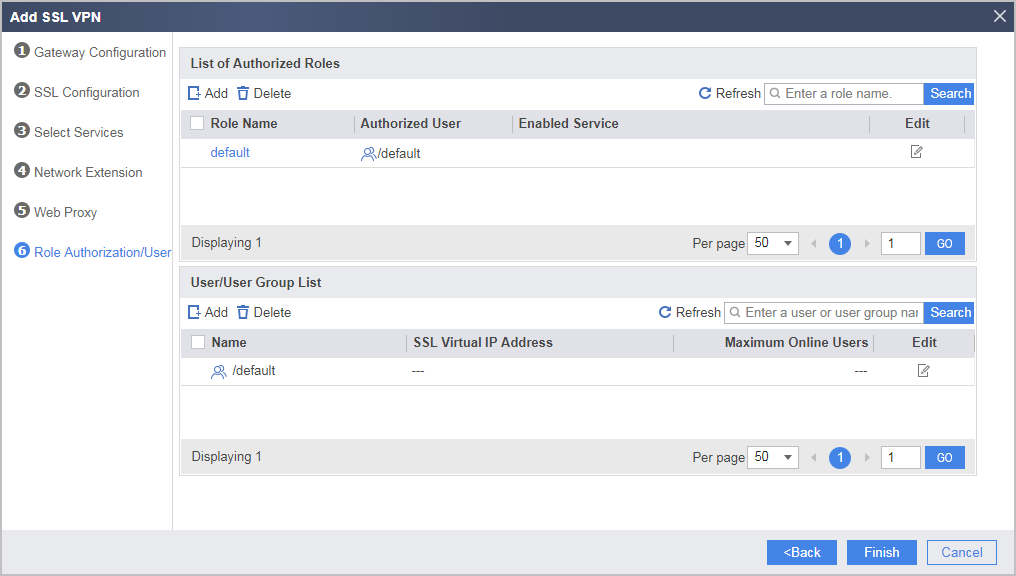
- Set the role of the director group and associate it with related permissions.
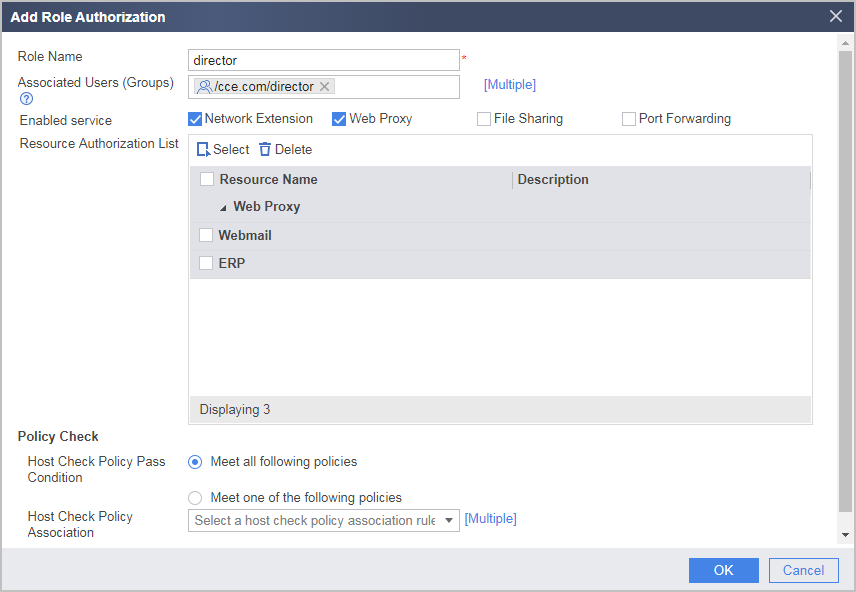
- Click OK.
- Set the role of the employee group and associate it with related permissions.
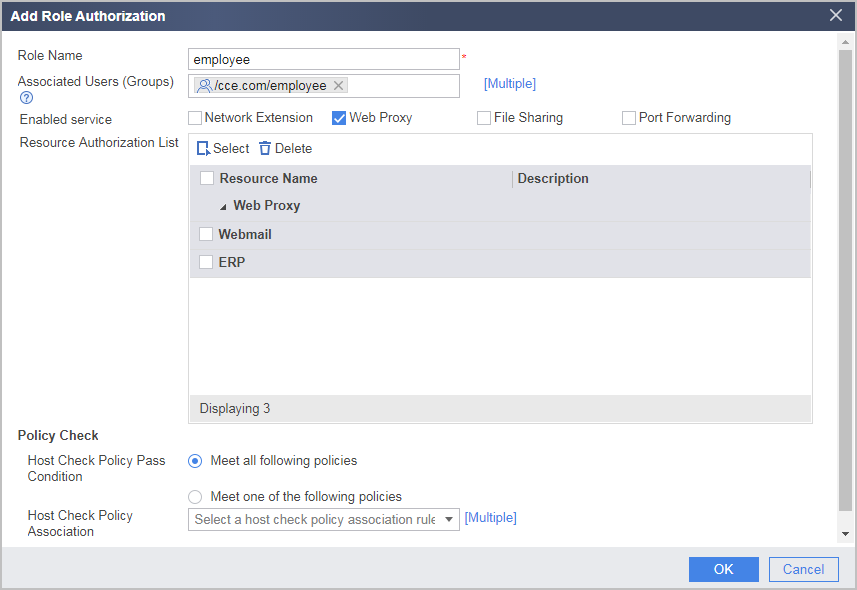
- Click OK.
- Click Finish.
- In List of Authorized Roles, click Add.
Verifying the Configuration
- Enter example.huawei.com or https://1.1.1.1 in the address bar of the browser as a remote user to access the SSL VPN login page. Upon the first access, install the controls as prompted.
The Active control version required on clients depends on the version of the virtual gateway. If you need to change the Active control version, you must uninstall the old version before installing the new one. Otherwise, the browser will be stuck at the control loading page.
If the client is a PC, run the following commands to uninstall the control:
PC> regsvr32 SVNIEAgt.ocx -u -s
PC> del %systemroot%\SVNIEAgt.ocx /q
PC> del %systemroot%\"Downloaded Program Files"\SVNIEAgt.inf /q
PC> cd %appdata%
PC> rmdir svnclient /q /s
- Enter the user name and password on the login page to log in to the SSL VPN gateway.
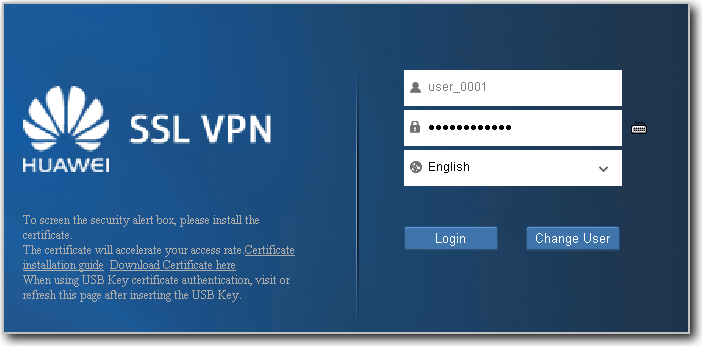
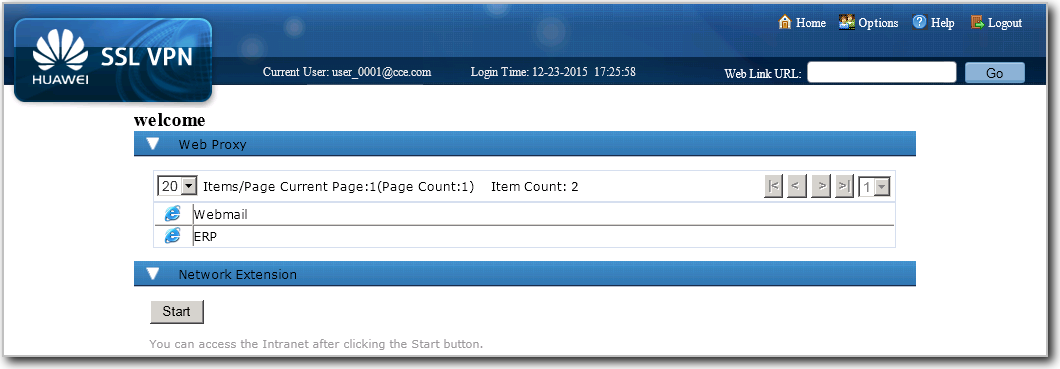
- If you log in to the SSL VPN gateway as senior administrator user_0001, you can use the web proxy and network extension services. Click Webmail and ERP to use the corresponding services. Click Start. The virtual network interface card (NIC) is automatically installed. After the virtual IP address is obtained, you can use services as if you were on a LAN.
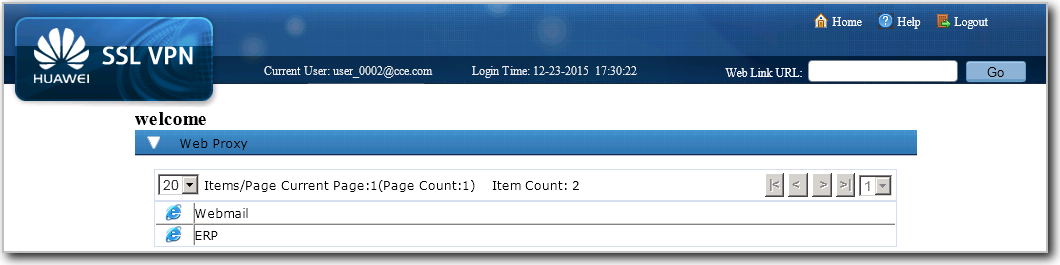
- If you log in to the SSL VPN gateway as common employee user_0002, you can use only the web proxy service. Click Webmail and ERP to use the corresponding services.
Configuration Script
#
ldap-server template ldap_server
 ldap-server authentication 10.2.0.155 389 no-ssl
 ldap-server authentication base-dn dc=cce,dc=com
 ldap-server authentication manager uid=manager_user %$%$M#._~J4QrR[kJu7PUMtHUqh_%$%$
 ldap-server group-filter ou
 ldap-server authentication-filter (objectclass=*)
 ldap-server user-filter uid
 ldap-server server-type sun-one
 undo ldap-server authentication manager-with-base-dn enable
#
interface GigabitEthernet0/0/1
 ip address 1.1.1.1 255.255.255.0
#
interface GigabitEthernet0/0/2
 ip address 10.2.0.1 255.255.0.0
#
firewall zone trust
 set priority 85
 add interface GigabitEthernet0/0/2
#
firewall zone untrust
 set priority 5
 add interface GigabitEthernet0/0/1
#
 user-manage import-policy ldap_server from ldap
 server template ldap_server
 server basedn dc=cce,dc=com
 server searchdn dc=cce,dc=com
 destination-group /cce.com
 user-attribute uid
 user-filter (&(|(objectclass=person)(objectclass=organizationalPerson))(uid=*))
 group-filter (|(objectclass=organizationalUnit)(ou=*))
 import-type user-group
 import-override enable
 sync-mode incremental schedule interval 120
 sync-mode full schedule daily 01:00
#
aaa
 authentication-scheme ldap
  authentication-mode ldap
 authorization-scheme ldap
  authorization-mode ldap
 #
 domain cce.com
  authentication-scheme ldap
  authorization-scheme ldap
  ldap-server ldap_server
  service-type internetaccess ssl-vpn
  reference user current-domain
  new-user add-temporary group /cce.com auto-import ldap_server
#
v-gateway example interface GigabitEthernet0/0/1 private example.huawei.com
v-gateway example authentication-domain cce.com
v-gateway example max-user 150
v-gateway example cur-max-user 100
#
v-gateway example
basic
  ssl timeout 5
  ssl lifecycle 1440
 service
  web-proxy enable
  web-proxy web-link enable
  web-proxy proxy-resource Webmail http://10.2.0.10 show-link
  web-proxy proxy-resource ERP http://10.2.0.11 show-link
  network-extension enable
  network-extension keep-alive enable
  network-extension netpool 172.16.1.1 172.16.1.100 255.255.255.0
  network-extension mode manual
  network-extension manual-route 10.2.0.0 255.255.0.0
 role
  role director condition all
  role director network-extension enable
  role director web-proxy enable
  role director web-proxy resource ERP
  role director web-proxy resource Webmail
  role employee condition all
  role employee web-proxy enable
  role employee web-proxy resource ERP
  role employee web-proxy resource Webmail
#
security-policy
 rule name policy_sslvpn_1
  source-zone untrust
  destination-zone local
  destination-address 1.1.1.1 32
  service https
  action permit
 rule name policy_sslvpn_2
  source-zone local
  destination-zone trust
  destination-address 10.2.0.10 32
  destination-address 10.2.0.11 32
  action permit
 rule name policy_sslvpn_3
  source-zone untrust
  destination-zone trust
  source-address range 172.16.1.1 172.16.1.100
  destination-address 10.2.0.0 16
  action permit
 rule name policy_ldap_server
  source-zone local
  destination-zone trust
  destination-address 10.2.0.155 32
  action permit

# The following configuration takes effect only one time and is not saved into the configuration file.  execute user-manage import-policy ldap_server
# The following configurations are saved in the database and are not displayed in the configuration file.  v-gateway example
  vpndb
 group /cce.com/director
   group /cce.com/employee
  role
 role director group /cce.com/director
 role director group /cce.com/employee