Configuring the User Experience Plan Using the Web UI
This section describes how to configure the user experience plan on the web UI.
Prerequisites
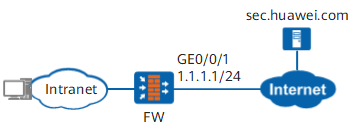
The FW is deployed at the border of the intranet as the security gateway. The FW can communicate with sec.huawei.com over the Internet. By configuring the user experience plan function, the FW can send the collected information to the data feedback server, helping Huawei service personnel learn about device operating information, service application information, and actual protection effectiveness. The data feedback server analyzes the information, which helps continuously improve the accuracy of IPS/AV signatures and AIE algorithms, identify network threats, and enhance the device security protection effectiveness.
Procedure
- Configure content security-related functions. This step is required only when the feedback information includes Security logs, Attack data, or Passive DNS information. Details are as follows:
- Security logs: Security log data can be fed back only after the IPS, antivirus, attack defense, or URL filtering function is enabled on the FW.
- Attack data: Attack data can be fed back only after IPS, attack evidence collection of antivirus, or AIE function is enabled on the FW.
- Passive DNS information: The passive DNS information can be fed back only when the security service that processes DNS traffic, such as intrusion prevention and DNS filtering, is enabled on the FW.
- Set the IP address and security zone of the interface.
- Choose .
- Click GE0/0/1 and set the parameters as follows:
Zone
untrust
IPv4
IP Address
1.1.1.1/24
- Click OK.
- Configure the DNS server and ensure that the FW can correctly resolve domain name sec.huawei.com.
- Choose .
- In DNS Server List, click Add.
- Configure the DNS server as follows:
DNS server address
2.2.2.2
- Click OK.
- Configure a security policy to allow the FW to access sec.huawei.com, data feedback server and DNS server.
- Choose .
- Click Add Security Policy.
- Configure a security policy to allow the FW to access sec.huawei.com and data feedback server.
Name
policy_sec_huawei_com
Source Zone
local
Destination Zone
untrust
Service
TCP:src-port:0-65535;dst-port:80 (for communication with sec.huawei.com)
TCP:src-port:0-65535;dst-port:8446 (for communication with the data feedback server)
Action
Permit
- Configure a security policy to allow the FW to access DNS server.
Name
policy_dns_server
Source Zone
local
Destination Address
2.2.2.2/32
Service
DNS
Action
Permit
- Configure the user experience plan.
- Choose , and select Country to the country where the device resides.
- Choose .
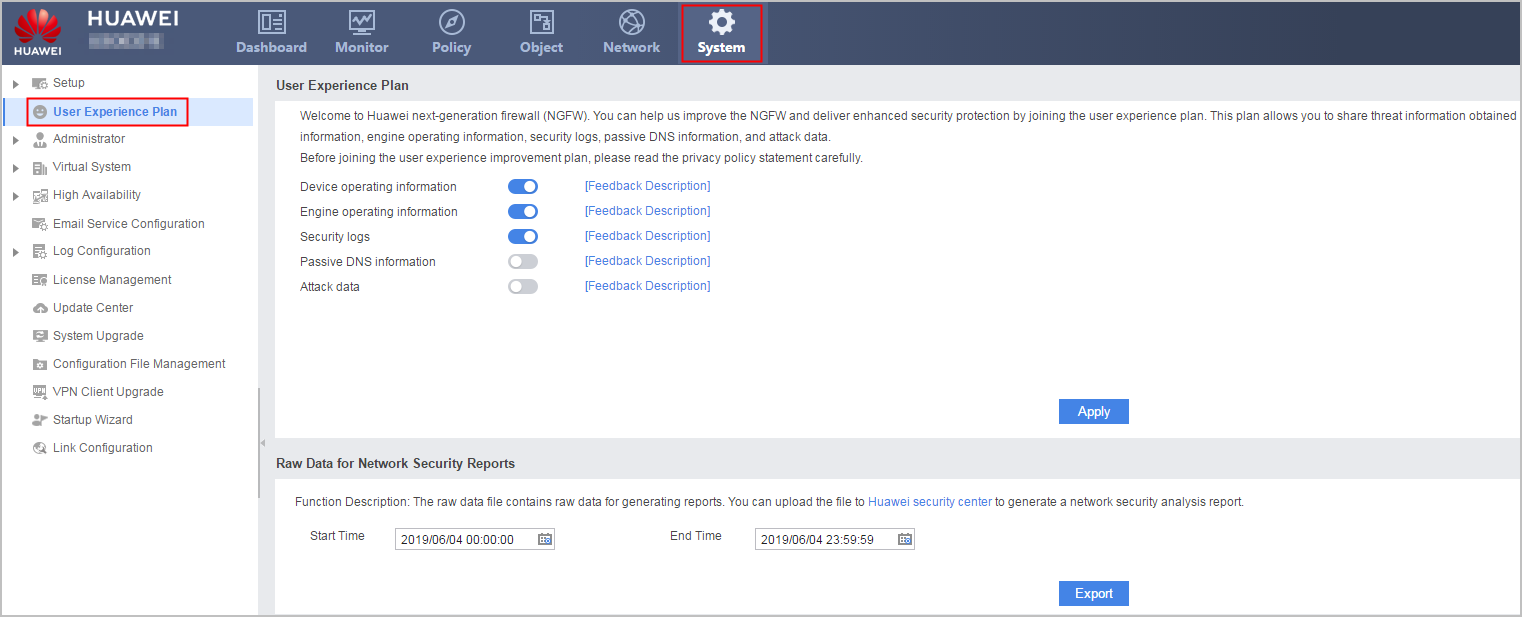
- Set the time range for exporting data in Raw Data for Network Security Reports. The time range cannot contain more than 31 days. Click Export and save the original report data files locally.
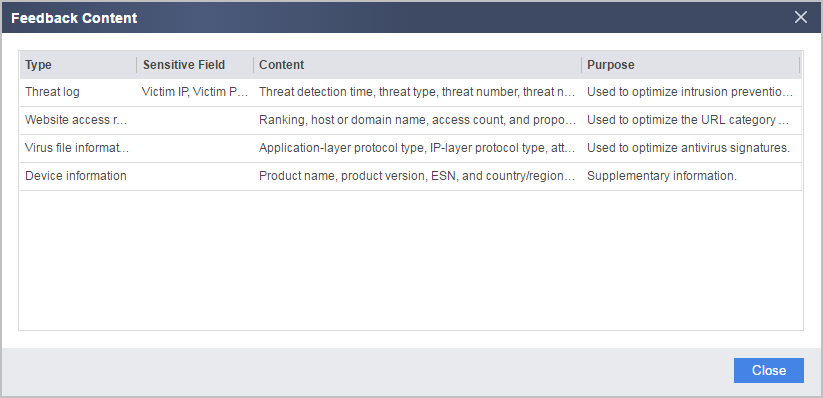
- Click Feedback Description next to Device operating information, Engine operating information, Security logs, Passive DNS information, or Attack data to view feedback content details.
For example, click Feedback Description next to Security logs. Security logs feedback content details are displayed as follows.

Attack data may contain sensitive information such as personal data. To feed back attack data, load the URL remote query component package on the FW. If the component package is not loaded, the configuration items of attack data feedback are unavailable on the web UI.
Threat logs in security log information have sensitive fields: IP address and port of the attack target and source URL. To feed back sensitive fields and display them in Sensitive Field and Content, load the URL remote query component package on the FW. Otherwise, sensitive fields cannot be fed back or displayed.
- Enable Device operating information, Engine operating information, Security logs, Passive DNS information, or Attack data function.
- Click Apply. After reading the privacy policy statement, click Agree.
To ensure that you can properly use the device, determine whether to enable the user experience improvement plan function. The user experience improvement plan function may send network threat information and service statistics on the device to the data feedback server for analysis so that the threat prevention capability of the device can be improved. This function may involve transferring or processing users' communication contents or personal data. Huawei Technologies Co., Ltd. alone is unable to transfer or process the content of users' communications and personal data. It is suggested that you activate the user data-related functions based on the applicable laws and regulations in terms of purpose and scope of usage. You are obligated to take considerable measures to ensure that the content of users' communications and personal data are fully protected when the content is being transferred and processed.
- Optional: When the user experience plan function is enabled, to view Threat log historical feedback records, load the URL remote query component package on the FW, and log in to the device with an audit administrator account.
- Optional: Click Historical feedback. The following table describes the fields in the historical feedback records.
Field
Description
Threat Detection Time
Time when the device detects the threat
Threat Name
Threat name
Threat Type
Threat type:
- Virus
- Intrusion
- Botnet, Trojan horse, and worm
- Attack
Threat ID
ID of a threat
Application
Application type of traffic
Protocol
Protocol type of traffic
Source URL
Source URL of the threat on the attack target
Attacker IP: Port
IP address and port of the attacker
Attack Region
Region where the attacker resides
Attack Target IP: Port
IP address and port of the attack target
Attack Target Region
Region where the attack target resides
Attack Target City
City where the attack target resides