Web: Example for Configuring the Flow Probe
This example describes the typical application and configuration method of the flow probe function.
Networking Requirements
On an enterprise campus network, the network administrator needs to use the flow probe function on the FW to collect network-layer and transport-layer information of traffic passing through the FW. It then sends the collected information to the HiSec Insight for analysis and evaluation. In this way, threats and APT attacks on the network can be identified.
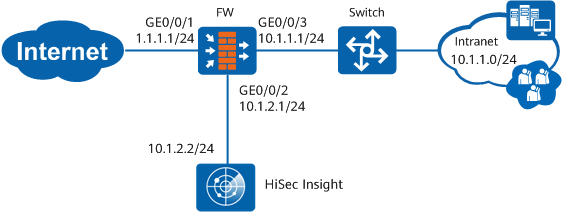
Procedure
- Set interface IP addresses and assign the interfaces to security zones.
- Click
 of GE0/0/1 and set the parameters as follows:
IP Address
1.1.1.1
Subnet Mask
255.255.255.0
Zone
untrust
- Click
- Configure security policies.
- Choose .
- Click Add.
- Configure a security policy between the Local and DMZ security zones to allow the FW to send the information collected by the flow probe to the HiSec Insight.
Name
policy_to_cis
Source Zone
local
Destination Zone
dmz
Source Address/Region
10.1.2.1/24
Destination Address/Region
10.1.2.2/24
Service
udp
Action
Permit
- Configure a security policy between the Trust and Untrust security zones to allow intranet users to access the Internet.
Name
policy_to_Internet
Source Zone
trust
Destination Zone
untrust
Source Address/Region
10.1.1.0/24
Action
Permit
- Configure the flow probe.
- Set parameters for the interconnection between the FW and HiSec Insight.
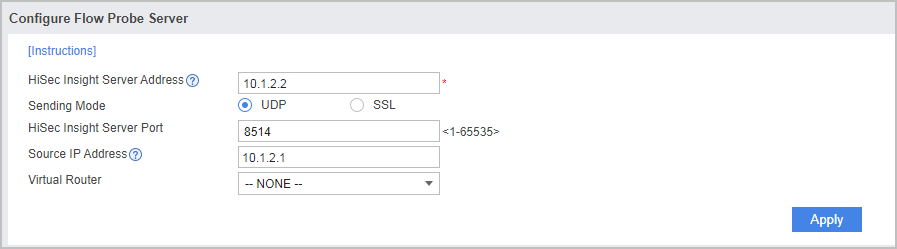
- Click Add in Flow Probe Policy List and configure a flow probe policy as follows.
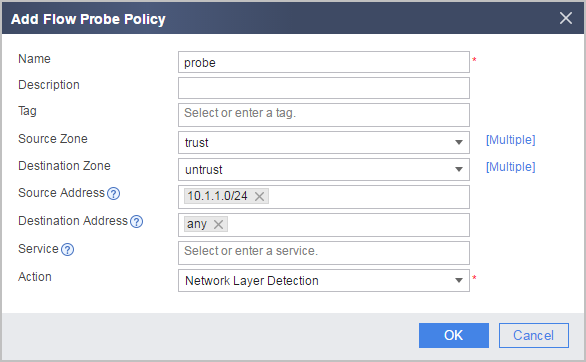

If you want the flow probe to collect SSL-encrypted traffic information, you can use the ECA (Encrypted Communication Analytics,) function. That is, set the action of the flow probe policy to Network Layer and Application Layer Detection (Including Encrypted Communication Analytics). For traffic matching the flow probe policy, the ECA function collects SSL protocol negotiation information, packet statistics information, and DNS and HTTP protocol information of the traffic. Then it sends the information to the HiSec Insight in metadata format. The HiSec Insight analyzes and assesses the information to identify malicious encrypted traffic.
- Set parameters for the interconnection between the FW and HiSec Insight.
- Configure the HiSec Insight.
Configure the third-party data source function on the HiSec Insight. If the FW needs to send collected data to the HiSec Insight in SSL mode, you must configure the relevant certificate under the server certificate function node of the HiSec Insight.
- Click Operation corresponding to Big Data Basic Service and configure the third-party data source.

- Click Add and configure the name and IP address of the data source.
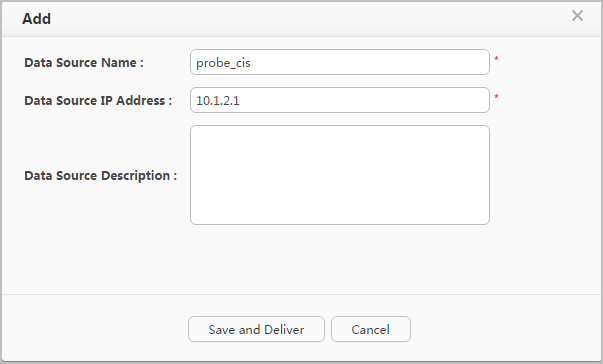
- Click Operation corresponding to Big Data Basic Service and configure the third-party data source.
Verification
For traffic matching the flow probe policy, choose on the HiSec Insight web UI to search for the source IP address of the traffic. If a result can be found, the HiSec Insight has received data sent from the FW flow probe.
Configuration Scripts
#
interface GigabitEthernet 0/0/1
 undo shutdown
 ip address 1.1.1.1 255.255.255.0
#
interface GigabitEthernet 0/0/2
 undo shutdown
 ip address 10.1.2.1 255.255.255.0
#
interface GigabitEthernet 0/0/3
 undo shutdown
 ip address 10.1.1.1 255.255.255.0
#
firewall zone trust
 set priority 85
 add interface GigabitEthernet 0/0/3
#
firewall zone untrust
 set priority 5
 add interface GigabitEthernet 0/0/1
#
firewall zone dmz
 set priority 50
 add interface GigabitEthernet 0/0/2
#
security-policy
 rule name policy_to_cis
  source-zone local
  destination-zone dmz
  source-address 10.1.2.0 mask 255.255.255.0
  destination-address 10.1.2.0 mask 255.255.255.0
  service udp
  action permit
 rule name policy_to_Internet
  source-zone trust
  destination-zone untrust
  source-address 10.1.1.0 mask 255.255.255.0
  action permit
#
flow-probe metadata-collect server ip 10.1.2.2
flow-probe metadata-collect source ip 10.1.2.1
#
flow-probe-policy
 rule name probe
  source-zone trust
  destination-zone untrust
  source-address 10.1.1.0 mask 255.255.255.0
  action probe network-layer