Web: Example for Implementing URL Filtering on Encrypted HTTPS Traffic
You can configure the function of filtering encrypted traffic to implement URL filtering for encrypted HTTPS traffic.
Networking Requirements
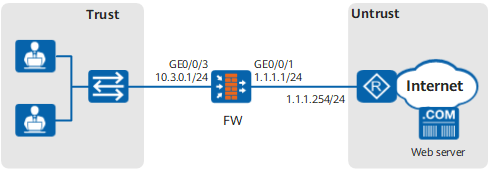
As shown in Figure 1, the FW is deployed at the network border as the enterprise's gateway to implement URL filtering on HTTPS requests sent by users to access the Internet.
An enterprise allows employees to access most websites except pornographic and illegal websites. In addition, the enterprise wants to:
Configuration Roadmap
- Set the IP address and security zone of the interface.
Create the URL filtering profile url_profile_01.
- Add www.example1.com and www.example2.com to the whitelist. Employees can access the whitelisted websites.
- Add www.example3.com and www.example4.com to the blacklist. Employees are not allowed to access the blacklisted websites.
- Set the URL filtering level to Medium to block access requests for pornographic and illegal websites.
- Enable the function of filtering encrypted traffic to perform URL filtering on encrypted HTTPS traffic.
- Configure a security policy and reference the URL filtering profile url_profile_01 to control the URL access requests of the enterprise employees.
Procedure
- Set the IP address and security zone of the interface.
- Configure URL filtering profiles.
- Choose .
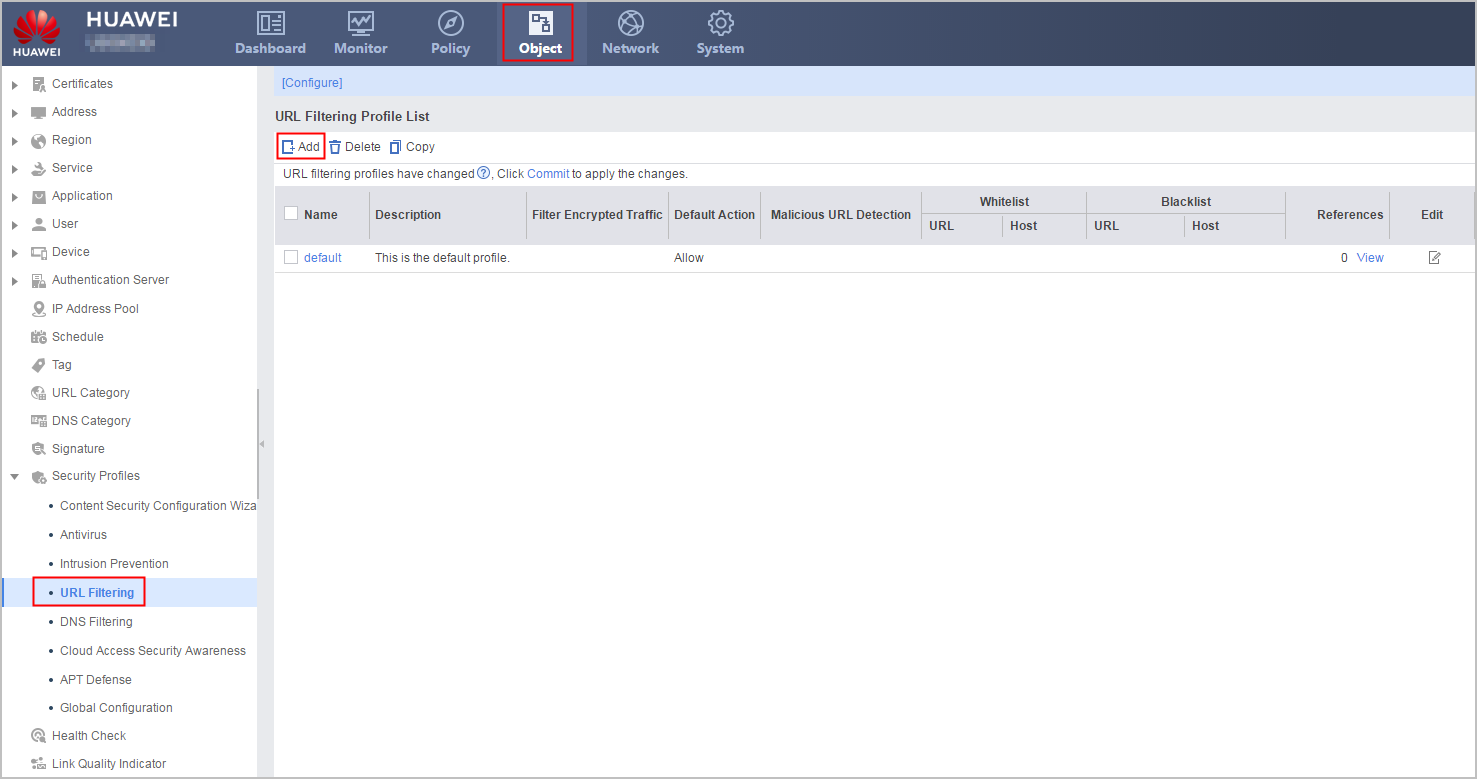
In URL Filtering Profile, click Add and set the parameters as follows:
Name url_profile_01
Filter Encrypted Traffic Enable
Default Action Allow
NOTE:If you want to deny URLs outside the whitelist, you can set the default action to deny so that the FW uses the default action when the remote query service is unavailable. In this manner, URLs outside the whitelist can be denied.
If you want to permit URLs outside the blacklist, you can set the default action to permit so that the FW uses the default action when the remote query service is unavailable. In this manner, URLs outside the blacklist can be permitted.
Whitelist URL www.example1.com
www.example2.com
Blacklist URL www.example3.com
www.example4.com
URL Filtering Level Select Medium to block the access to all pornographic and illegal websites.
- Click OK.
- Choose .
- Reference URL filtering profiles in security policies.
- Click Save on the upper right of the web page, and click OK in the dialog box that is displayed.
- Click Commit on the upper right of the web page, and click OK in the dialog box that is displayed.

Verification
Employees can access most websites, but not pornographic and illegal websites.
Choose . You can view the URL logs generated when the FW blocks employee's access to a website, and find that Filtering Type is Predefined. For example:

Employees can access www.example1.com and www.example2.com but cannot access www.example3.com or www.example4.com.
Choose . You can view the URL logs generated when the FW blocks employee's access to a website, and find that Filtering Type is Blacklist or Whitelist.
Configuration Scripts
#
interface GigabitEthernet0/0/1
 undo shutdown
 ip address 1.1.1.1 255.255.255.0
#
interface GigabitEthernet0/0/3
 undo shutdown
 ip address 10.3.0.1 255.255.255.0
#
firewall zone trust
 set priority 85
 add interface GigabitEthernet0/0/3
#
firewall zone untrust
 set priority 5
 add interface GigabitEthernet0/0/1
#
profile type url-filter name url_profile_01
 add blacklist url www.example3.com
 add blacklist url www.example4.com
 add whitelist url www.example1.com
 add whitelist url www.example2.com
 category pre-defined control-level medium
 https-filter enable
#
security-policy
 rule name policy_sec_01
  source-zone trust
  destination-zone untrust
  source-address 10.3.0.0 mask 255.255.255.0
  profile url-filter url_profile_01
  action permit
#
return