Web: Configuring the Google Account Control Function
Networking Requirements
As shown in Figure 1, the FW is deployed as a gateway on the network edge of an enterprise. Some enterprises attempt to allow employees to log in to Google services only with specified enterprise accounts but not their personal accounts. To achieve this, configure the Google account control function on the FW.
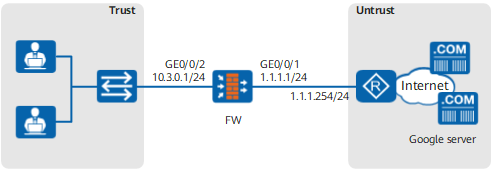
Configuration Roadmap
- Set IP addresses for interfaces and assign the interfaces to security zones.
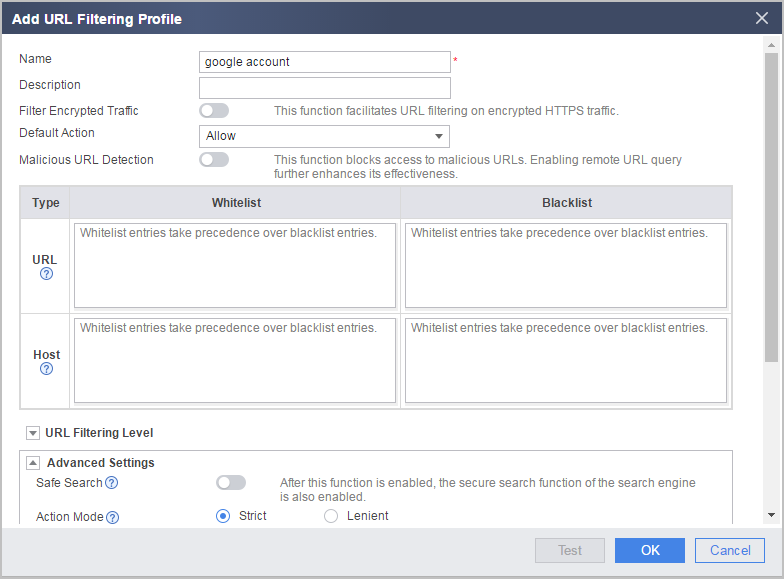
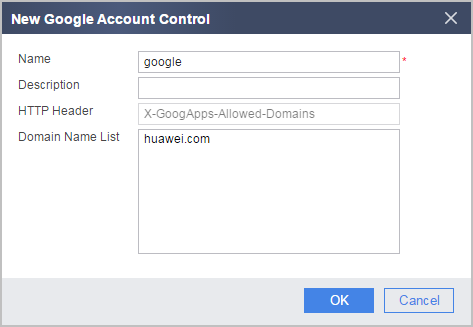
- Create the URL filtering profile google account and Configure the google account control function.
- Configure the security policy and reference the URL filtering profile google account.
- Configure SSL-encrypted traffic detection to decrypt HTTPS traffic.
- Configure the SSL decryption certificate and import and install the SSL decryption certificate to the intranet PC.
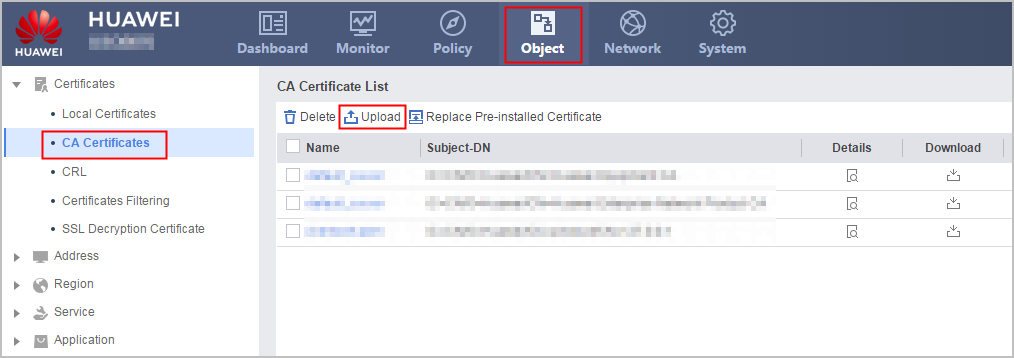
- Optional: Import the CA certificate of the certificate authority trusted by the enterprise and specify the imported CA certificate as the server CA certificate. The FW checks whether the server certificate is trusted based on the server CA certificate.
Note that over 100 common server CA certificates have been preset on the FW by default, which can be used to verify most server certificates. Generally, these default CA certificates are enough and you do not need to import other CA certificates. In some cases, however, if the preset CA certificates cannot verify the peer server certificates, you need to import other CA certificates. This section describes how to import a CA certificate as a configuration step.
- Configure the detection profile and SSL-encrypted traffic detection policy.
Procedure
- Configure IP addresses for interfaces and assign interfaces to security zones.
- Choose .
Click
 of GE0/0/1 and set required parameters.
Security zone
untrust
IPv4
IP address
1.1.1.1/24
- Click OK.
According to the previous steps, add GE0/0/2 to the Trust zone.
Set the parameters as follows for GE0/0/2 and use default values for other parameters:
Security zone
trust
IPv4
IP address
10.3.0.1/24
- Create the URL filtering profile google account and Configure the google account control function.
- Configure the security policy and reference the URL filtering profile google account.
- Configure SSL-encrypted traffic detection.
- Configure two SSL decryption certificates and import and install the SSL decryption certificate on an intranet PC.
-
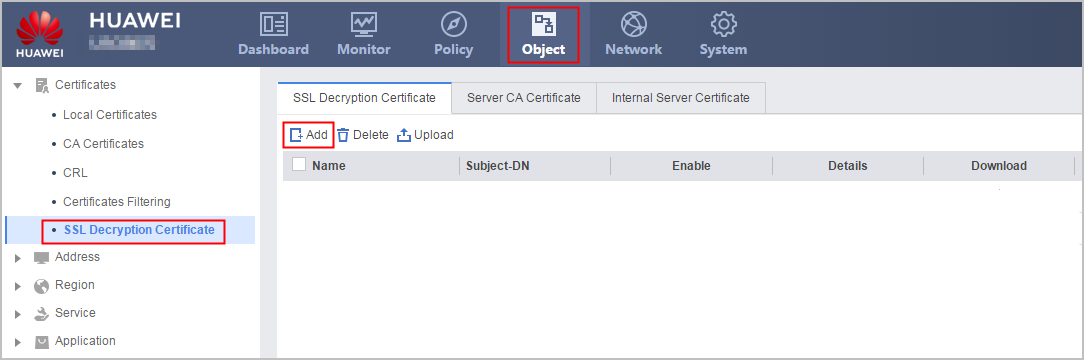
Click the SSL Decryption Certificate tab. Click Add and configure an SSL decryption certificate as follows.
Certificate Name
ssl-server-ca
FQDN
www.example.com
Country/Area
China(CN)
Locality
Trust-Network
- Click OK.
Click
 of the SSL decryption certificate and download the SSL decryption certificate to the administrator PC.
File Format
Export files in PKCS12 format
Password/Confirm Password
Hello@123

The password specified here is used to protect the key file in the certificate. You are required to enter this password when you install the certificate later.
- Click OK.
- Send the certificate file that you export to the intranet user and require the user to install the certificate on the PC and trust it. For how to install the trusted certificate, see Installing an SSL Decryption Certificate on a Client. If the certificate is not installed, normal access may be blocked.
-
- Optional: Import the CA certificates of the certificate authorities that the enterprise trusts. Specify the CA certificate used by the FW to verify the server certificate.
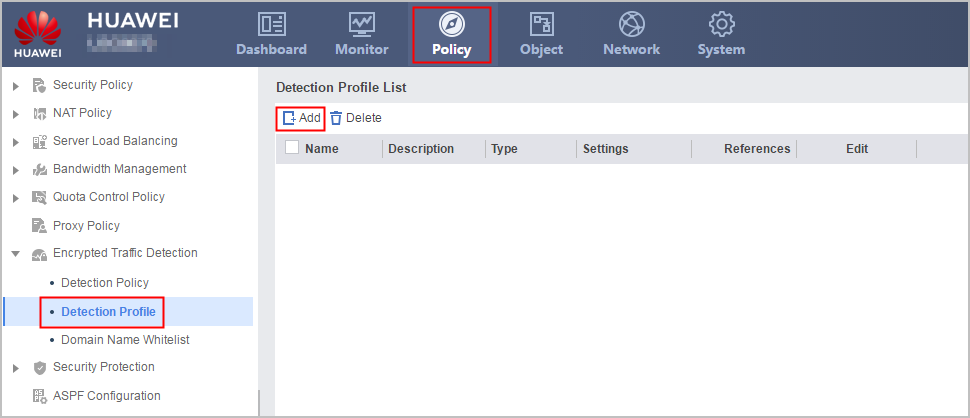
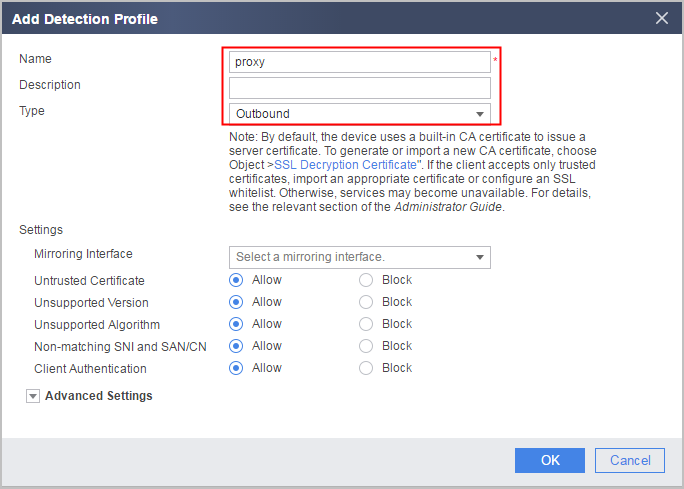
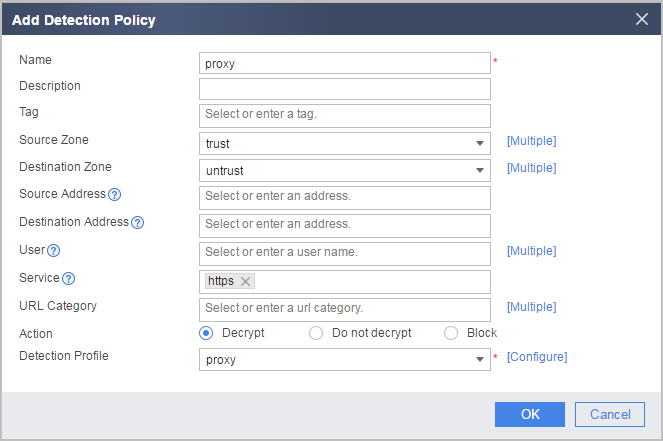
- Configure the detection profile and SSL-encrypted traffic detection policy.
- Configure two SSL decryption certificates and import and install the SSL decryption certificate on an intranet PC.
- Click Save on the upper right of the web page, and click OK in the dialog box that is displayed.
- Click Commit on the upper right of the UI, and click OK in the dialog box that is displayed.
Verification
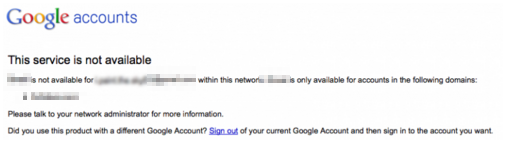
- Enterprise users use their individual accounts for login. A message is displayed, indicating that the service is inaccessible. If they use accounts ending with huawei.com for login, the login succeeds.
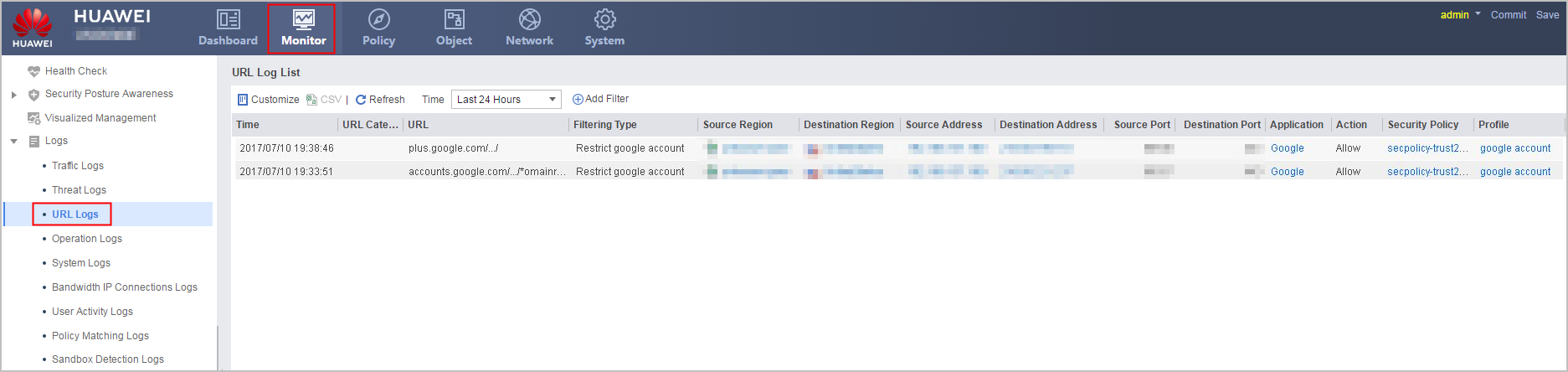
Check URL logs by choosing . You can find Google Account Control logs matching rules in the URL filtering profile.
Configuration Scripts
#
 app-proxy built-in-ca trust filename ssl-server-ca
 app-proxy ca trust filename server_ca.cer
#
pki entity ssl-server-ca
 common-name ssl-server-ca
 fqdn www.example.com
 locality Trust Network
 country CN
#
interface GigabitEthernet0/0/1
 undo shutdown
 ip address 1.1.1.1 255.255.255.0
#
interface GigabitEthernet0/0/2
 undo shutdown
 ip address 10.3.0.1 255.255.255.0
#
firewall zone trust
 set priority 85
 add interface GigabitEthernet0/0/2
#
firewall zone untrust
 set priority 5
 add interface GigabitEthernet0/0/1
#
web-apps-control type restrict-google-account name google
 add header content huawei.com
#
profile type url-filter name google account
 restrict-google-account name google
#
security-policy
 rule name secpolicy-trust2untrust
  source-zone trust
  destination-zone untrust
  source-address 10.3.0.1 mask 255.255.255.0
  service https
  profile url-filter google account
  action permit
#
profile type decryption name proxy
  detect type outbound
#
decryption-policy
 rule name proxy
  source-zone trust
  destination-zone untrust
  service https
  action decrypt profile proxy
#
return