Web Example: Configuring APT Defense With Local Sandbox Inspection Enabled
This section provides an example for configuring APT defense with local sandbox inspection enabled.
Networking Requirements
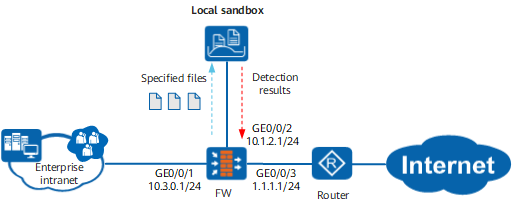
As shown in Figure 1, the enterprise intranet connects to the Internet through the FW and router and has a local sandbox deployed. The local sandbox has a reachable route to the FW. The FW interworks with the local sandbox to send risky traffic identified by the FW to the local sandbox for detection. The FW periodically obtains detection results from the local sandbox and updates the list of malicious files or URLs in the cache based on the detection results. When subsequent traffic with the same features matches the malicious file or URL list, the specified action, such as block, is performed to protect users on the intranet from APT attacks.
Data Planning
Item |
Data |
|---|---|
Local sandbox |
Local sandbox information:
Profile size:
|
FW |
|
Configuration Roadmap
Set interface IP addresses and assign the interfaces to security zones.
Configure security policies so that the enterprise intranet users, local sandbox, and FW can properly communicate.
- Configure the local sandbox on the FW.
- Configure an APT defense profile on the FW.
Configure malicious URL detection.
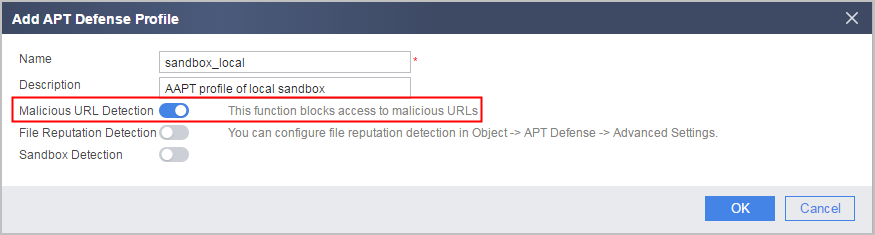
When this function is enabled, the device matches traffic against cached malicious URLs. If the traffic matches a malicious URL, the device blocks the URL, and the traffic does not need to be sent to the sandbox for inspection. If the traffic does not match a malicious URL, the traffic is sent to the sandbox for inspection.
Configure file reputation detection.
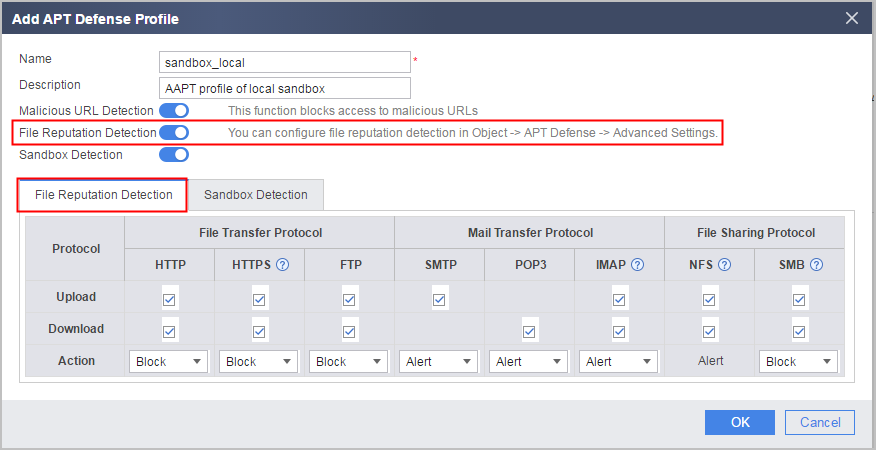
When this function is enabled, the device matches traffic against cached malicious files. If the traffic matches a malicious file, the device performs the specified action, and the traffic does not need to be sent to the sandbox for inspection. If the traffic does not match a malicious file, the traffic is sent to the sandbox for inspection.
-
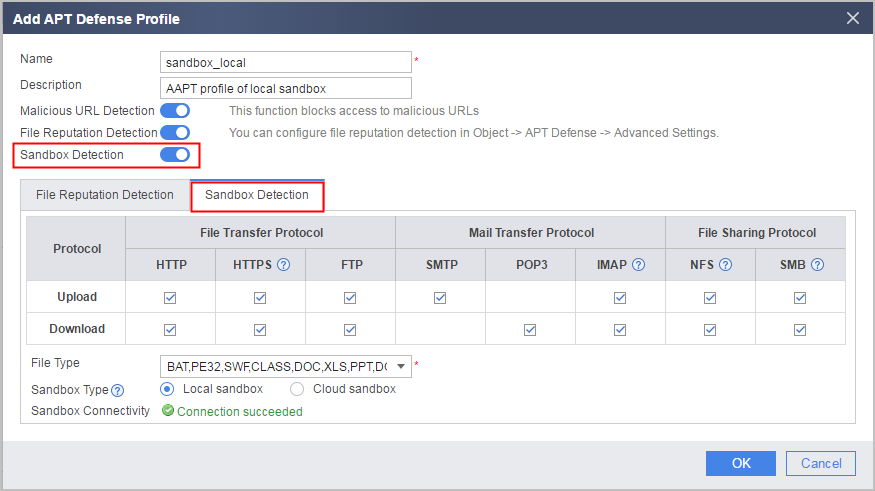
Configure the protocol type, transfer direction, and type of files sent to the sandbox for inspection.
Procedure
- Set interface IP addresses and assign the interfaces to security zones.
- Click
 of GE0/0/1 and set the parameters as follows:
IP address
10.3.0.1
Subnet mask
255.255.255.0
Security zone
trust
- Click
- Configure security policies so that the enterprise intranet users, local sandbox, and FW can properly communicate.
- Configure the local sandbox.
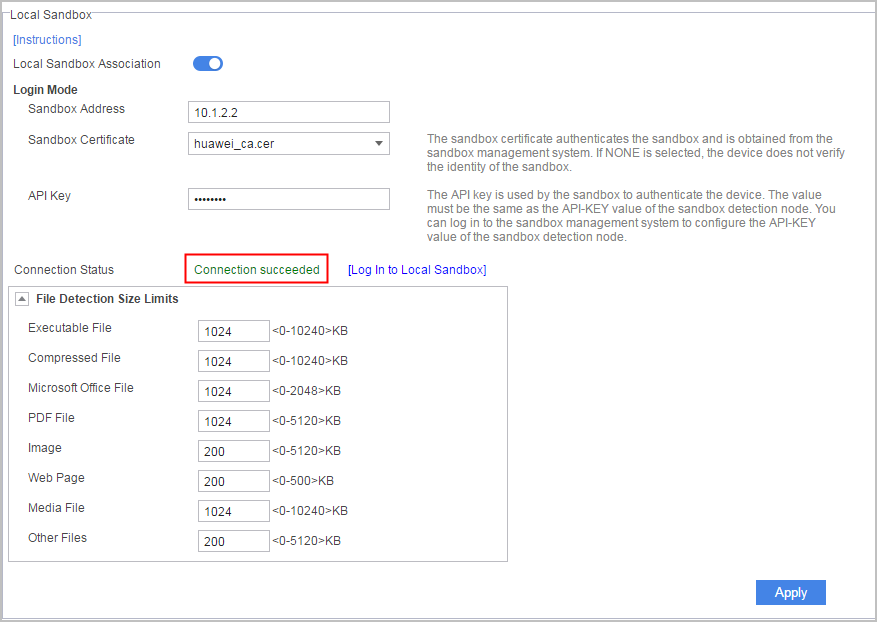
- Choose .
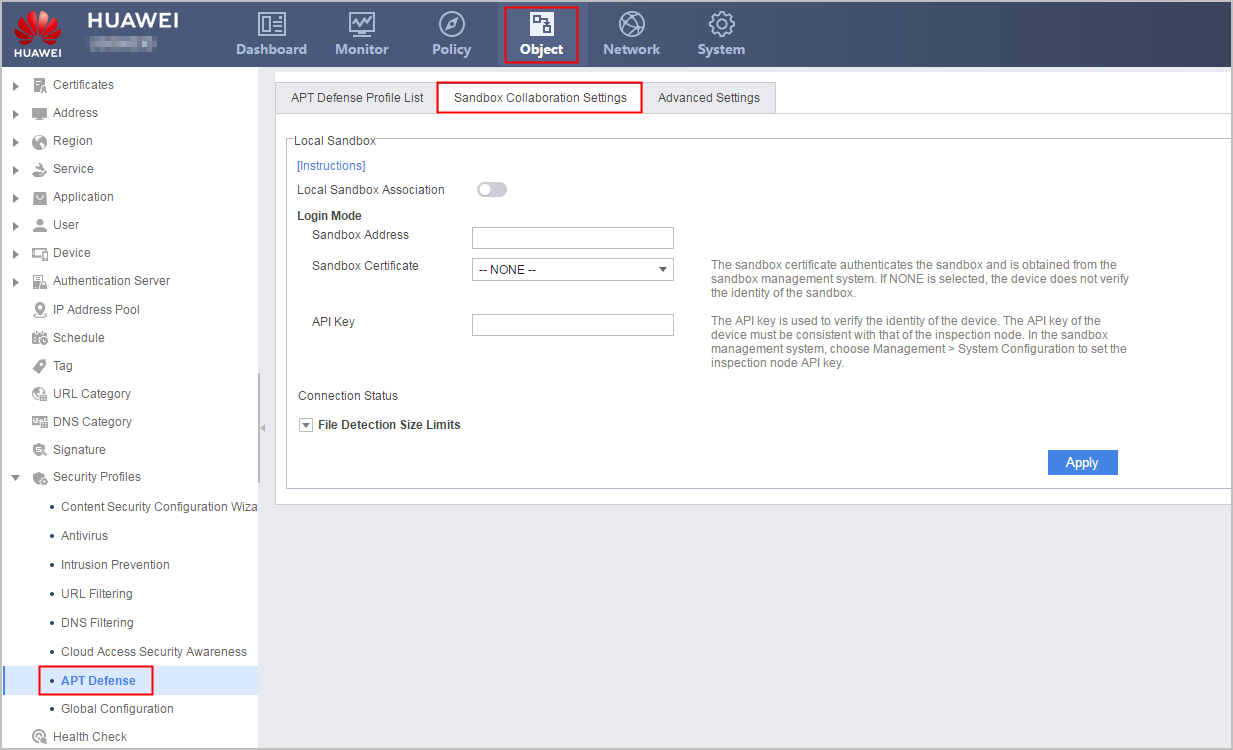
- Configure the local sandbox based on the following parameters:
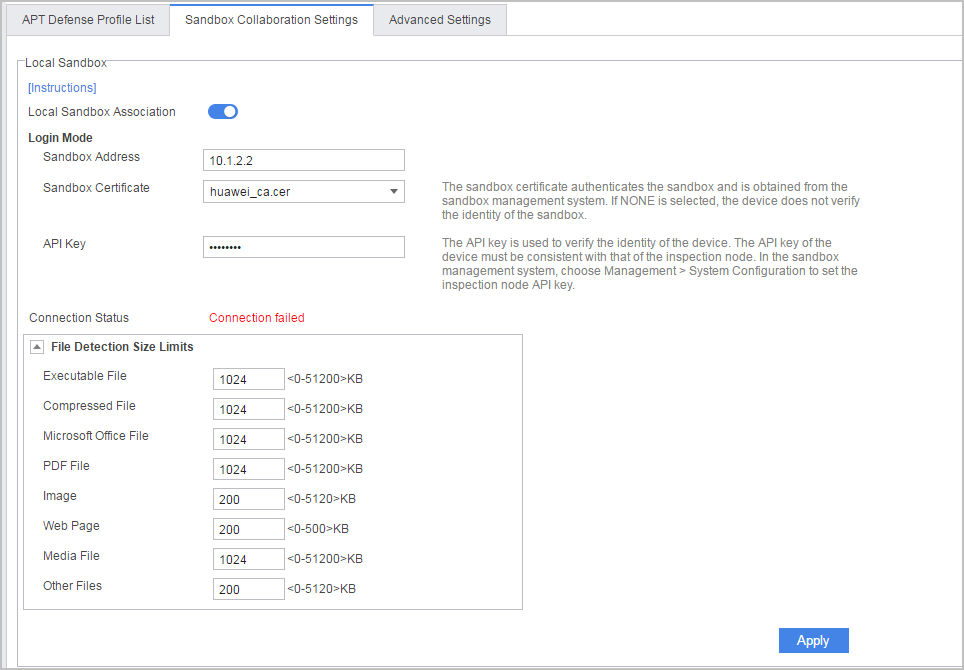
- Choose .
- Configure the APT defense profile.
- Click Add in the APT Defense Profile List page.
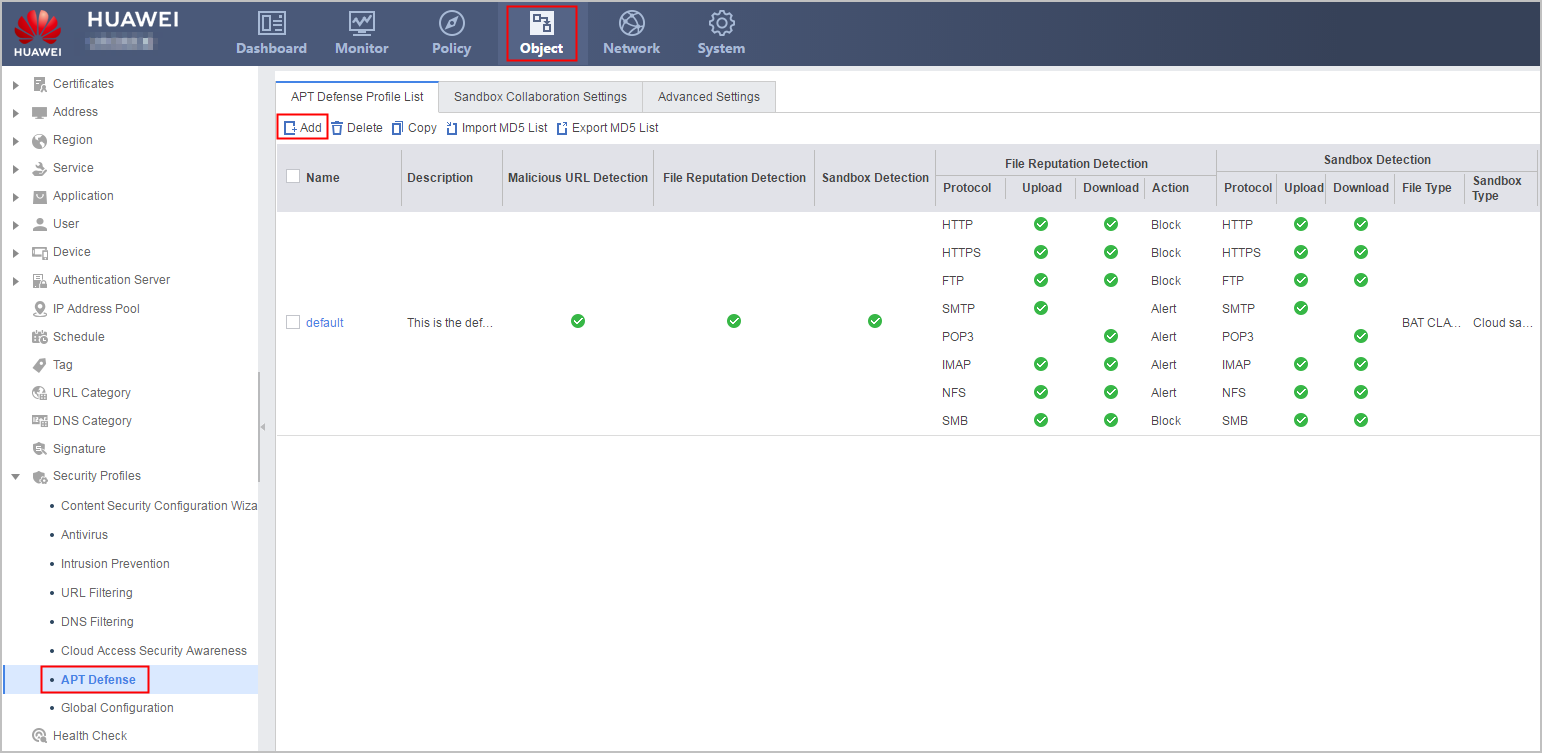
- Configure the name and description of the APT defense profile.
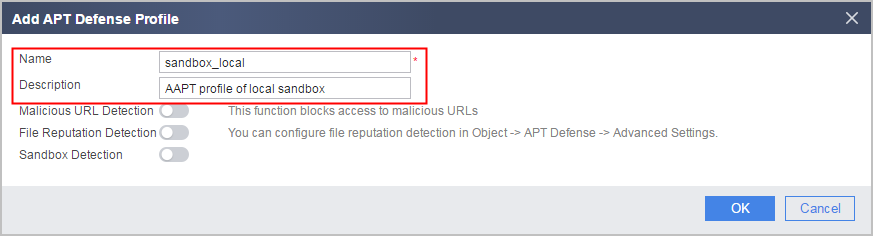
- Enable malicious URL detection.
- Enable file reputation detection and specify the protocol, traffic direction, and action for malicious file detection. The default settings are used in this example.
- Configure sandbox inspection parameters.
- Click Add in the APT Defense Profile List page.
- Reference the APT defense profile in security policies.
- In Security Policy List, search for the security policy for the intranet to access the Internet (policy name: policy_to_Internet) and click . Choose and select sandbox_local.
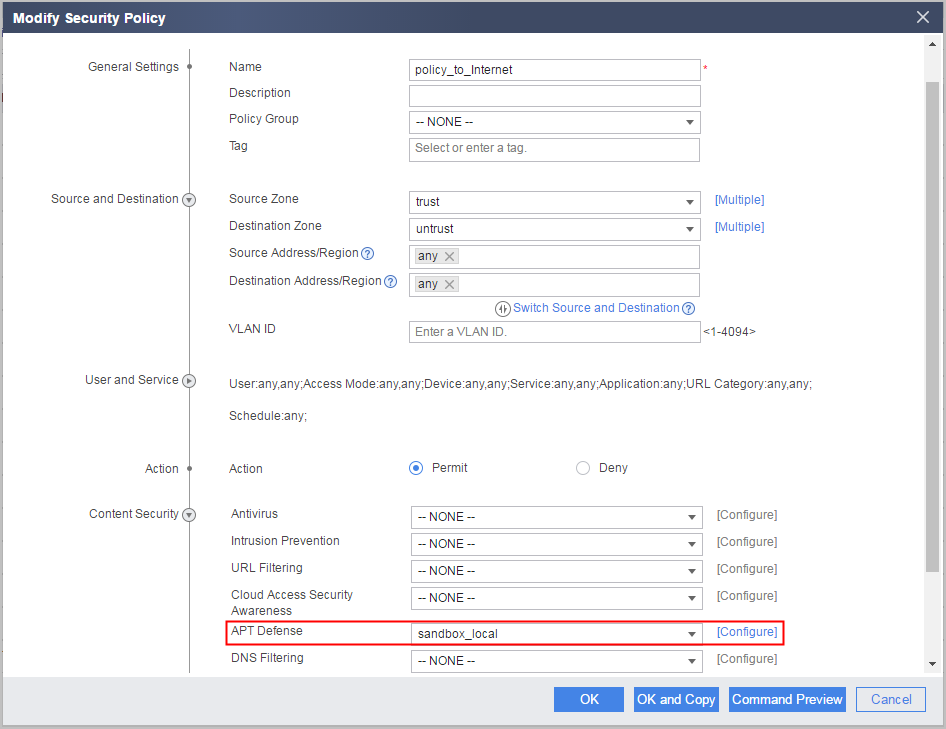
- In Security Policy List, search for the security policy for the intranet to access the Internet (policy name: policy_to_Internet) and click
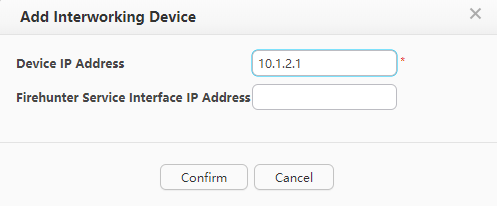
- Log in to the local FireHunter (https://10.1.2.2:32229), choose , and add an interworking device.
Verification
- Choose . You can find that the status of the connection with the local sandbox is Connection succeeded.
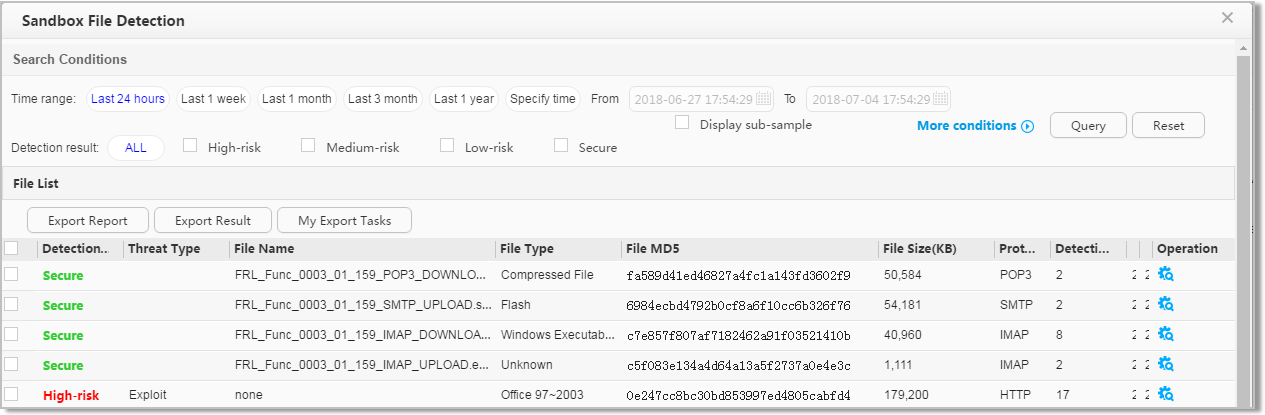
- Click Login at the right side of Connection Status. After logging in to the local sandbox, check the files submitted to the local sandbox and detection results.
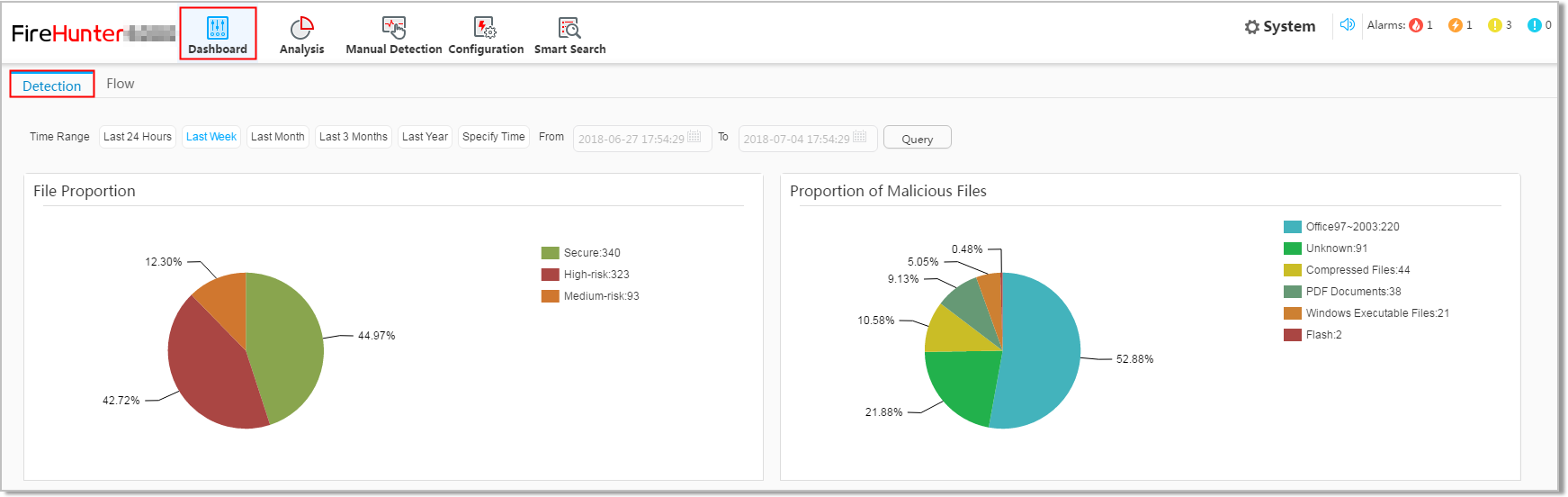
You can view the detailed detection information by clicking the proportion chart.
Configuration Scripts
#
interface GigabitEthernet0/0/1
 undo shutdown
 ip address 10.3.0.1 255.255.255.0
#
interface GigabitEthernet0/0/2
 undo shutdown
 ip address 10.1.2.1 255.255.255.0
#
interface GigabitEthernet0/0/3
 undo shutdown
 ip address 1.1.1.1 255.255.255.0
#
firewall zone trust
 set priority 85
 add interface GigabitEthernet0/0/1
#
firewall zone untrust
 set priority 5
 add interface GigabitEthernet0/0/3
#
firewall zone dmz
 set priority 50
 add interface GigabitEthernet0/0/2
#
sandbox default
 type FireHunter
 ip 10.1.2.2 port 5002
 server-certificate huaweica.cer
 api-key %^%#f=m6Gr>@I,'B\BIZ)9z%\Kq|Ly&^Y3Ewc#$&#\p1%^%#
 linkage enable
 file-set EXE max-size 1024
 file-set GZIP max-size 1024
 file-set OFFICE max-size 1024
 file-set PDF max-size 1024
 file-set PICTURE max-size 200
 file-set WEB max-size 200
#
profile type aapt name sandbox_local
 description AAPT profile of local sandbox
 file-reputation enable
 malicious-url enable
 file-type BAT CLASS PE32 SWF DOC XLS PPT DOCX
 sandbox-type local
#
security-policy
  rule name policy_to_sandbox
  source-zone local
  destination-zone dmz
  action permit
 rule name policy_to_Internet
  source-zone trust
  destination-zone untrust
  profile aapt sandbox_local
  action permit
#
return