CLI Example: Configuring APT Defense With Cloud Sandbox Inspection Enabled
This section provides an example for configuring APT defense with cloud sandbox inspection enabled.
Networking Requirements
As shown in Figure 1, the enterprise intranet is connected to the Internet through a FW and a router, and a cloud sandbox is deployed. The FW interworks with the cloud sandbox to send risky traffic identified by the FW to the cloud sandbox for detection. The FW periodically obtains detection results from the cloud sandbox and updates the list of malicious files or URLs in the cache based on the detection results. When subsequent traffic with the same features matches the malicious file or URL list, the specified action, such as block, is performed to protect users on the intranet from APT attacks.
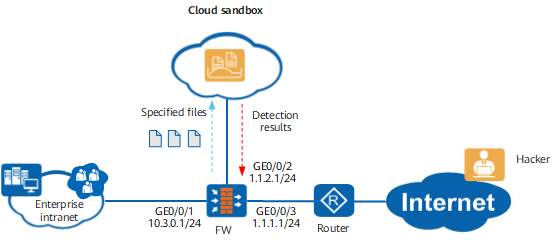
Data Planning
Item |
Data |
Description |
|---|---|---|
Cloud sandbox |
Cloud sandbox information:
Size limits on files sent to the sandbox for detection:
|
Before configuring the cloud sandbox, apply for a cloud account on isecurity.huawei.com. |
FW |
|
- |
Configuration Procedure
Obtain and activate the license of the cloud sandbox and load the cloud sandbox component.
Set interface IP addresses and assign the interfaces to security zones.
Configure the DNS server and ensure that the FW can correctly resolve domain name sec.huawei.com.
Configure security policies so that the enterprise intranet users, cloud sandbox, and FW can properly communicate.
- Configure the cloud sandbox on the FW.
- Configure an APT defense profile on the FW.
Configure malicious URL detection.
When this function is enabled, the device matches traffic against cached malicious URLs. If the traffic matches a malicious URL, the device blocks the URL, and the traffic does not need to be sent to the sandbox for inspection. If the traffic does not match a malicious URL, the traffic is sent to the sandbox for inspection.
Configure file reputation detection.
When this function is enabled, the device matches traffic against cached malicious files. If the traffic matches a malicious file, the device performs the specified action, and the traffic does not need to be sent to the sandbox for inspection. If the traffic does not match a malicious file, the traffic is sent to the sandbox for inspection.
-
Configure the protocol type, transfer direction, and type of files sent to the sandbox for inspection.
Procedure
- Obtain and activate the license of the cloud sandbox. For details, see License Management.
- Load the cloud sandbox component. For details, see System Upgrade.
- Apply for cloud account huawei on isecurity.huawei.com. For details, see Huawei Cloud Sandbox Guide.
- Set interface IP addresses and assign the interfaces to security zones.
# Set the IP address of interface GigabitEthernet0/0/1 and add it to the Trust zone.
<sysname> system-view
[sysname] interface GigabitEthernet 0/0/1
[sysname-GigabitEthernet0/0/1] ip address 10.3.0.1 24
[sysname-GigabitEthernet0/0/1] quit
[sysname] firewall zone trust
[sysname-zone-trust] add interface GigabitEthernet 0/0/1
[sysname-zone-trust] quit
# Set the IP address of interface GigabitEthernet0/0/2 and add it to the Untrust zone.
[sysname] interface GigabitEthernet 0/0/2
[sysname-GigabitEthernet0/0/2] ip address 1.1.2.1 24
[sysname-GigabitEthernet0/0/2] quit
[sysname] firewall zone untrust
[sysname-zone-untrust] add interface GigabitEthernet 0/0/2
[sysname-zone-untrust] quit
# Set the IP address of interface GigabitEthernet0/0/3 and add it to the Untrust zone.
[sysname] interface GigabitEthernet 0/0/3
[sysname-GigabitEthernet0/0/3] ip address 1.1.1.1 24
[sysname-GigabitEthernet0/0/3] quit
[sysname] firewall zone untrust
[sysname-zone-untrust] add interface GigabitEthernet 0/0/3
[sysname-zone-untrust] quit
- Configure the DNS server and ensure that the FW can correctly resolve domain name sec.huawei.com.
[sysname] dns resolve
[sysname] dns server 10.2.0.70
- Configure security policies so that the enterprise intranet users, cloud sandbox, and FW can properly communicate.
# Configure a security policy in the direction from the FW to the cloud sandbox.
[sysname] security-policy
[sysname-policy-security] rule name policy_to_sandbox
[sysname-policy-security-rule-policy_to_sandbox] source-zone local
[sysname-policy-security-rule-policy_to_sandbox] destination-zone untrust
[sysname-policy-security-rule-policy_to_sandbox] action permit
[sysname-policy-security-rule-policy_to_sandbox] quit
# Configure a security policy in the direction from the Internet to the enterprise intranet.
[sysname-policy-security] rule name policy_to_Enterprise
[sysname-policy-security-rule-policy_to_Enterprise] source-zone untrust
[sysname-policy-security-rule-policy_to_Enterprise] destination-zone trust
[sysname-policy-security-rule-policy_to_Enterprise] action permit
[sysname-policy-security-rule-policy_to_Enterprise] quit
[sysname-policy-security] quit
- Set the country where the FW device resides.
[sysname] country CN
- Configure the cloud sandbox.
[sysname] sandbox cloud
[sysname-sandbox-cloud] linkage enable
[sysname-sandbox-cloud] file-set exe max-size 1024
[sysname-sandbox-cloud] file-set gzip max-size 1024
[sysname-sandbox-cloud] file-set office max-size 1024
[sysname-sandbox-cloud] file-set pdf max-size 1024
[sysname-sandbox-cloud] quit
[sysname] cloud account-name huawei
- Configure the name and description of the APT defense profile.
[sysname] profile type aapt name sandbox_cloud
[sysname-profile-aapt-sandbox_cloud] description AAPT profile of cloud sandbox
- Enable malicious URL detection.
[sysname-profile-aapt-sandbox_cloud] malicious-url enable
- Enable file reputation detection and specify the protocol, traffic direction, and action for malicious file detection. The default settings are used in this example.
[sysname-profile-aapt-sandbox_cloud] file-reputation enable
- Configure sandbox inspection parameters.
[sysname-profile-aapt-sandbox_cloud] file-type DOC DOCX PDF PPT PPTX RAR
[sysname-profile-aapt-sandbox_cloud] sandbox-type cloud
[sysname-profile-aapt-sandbox_cloud] quit
- Reference the APT defense profile in security policies.
[sysname] security-policy
[sysname-policy-security] rule name policy_to_Enterprise
[sysname-policy-security-rule-policy_to_Enterprise] profile aapt sandbox_cloud
[sysname-policy-security-rule-policy_to_Enterprise] quit
[sysname-policy-security] quit
[sysname] quit
Verification
- Run the linkage try command. The command output shows that the FW interworks with the cloud sandbox.
<sysname> system-view
[sysname] sandbox cloud
[sysname-sandbox-cloud] linkage try
Info: Try link to cloud sandbox success!
[sysname-sandbox-cloud] quit
- Run the display aapt file submit information command to check the information on the files submitted to the sandbox for detection recently.
[sysname] display aapt file submit information
Slot 11 Cpu 0:
 File Name: eicar.123.docx
 Hash: 355r966e4b109096e938e7136a887b83
 Type: docx
 Size: 160 Bytes
 Submit Result: Success
 Sandbox Type: Cloud sandbox
 Submit Time: 2017-01-09 12:02:20
Configuration Scripts
#
 dns resolve
 dns server 10.2.0.70
#
interface GigabitEthernet0/0/1
 undo shutdown
 ip address 10.3.0.1 255.255.255.0
#
interface GigabitEthernet0/0/2
 undo shutdown
 ip address 1.1.2.1 255.255.255.0
#
interface GigabitEthernet0/0/3
 undo shutdown
 ip address 1.1.1.1 255.255.255.0
#
firewall zone local
 set priority 100
#
firewall zone trust
 set priority 85
 add interface GigabitEthernet0/0/1
#
firewall zone untrust
 set priority 5
 add interface GigabitEthernet0/0/2
 add interface GigabitEthernet0/0/3
#
profile type aapt name sandbox_cloud
 description AAPT profile of cloud sandbox
 file-reputation enable
 malicious-url enable
 file-type DOC DOCX PDF PPT PPTX RAR
 sandbox-type cloud
#
country CN
#
sandbox cloud
 linkage enable
 cloud account-name huawei
 file-set EXE max-size 1024
 file-set GZIP max-size 1024
 file-set OFFICE max-size 1024
 file-set PDF max-size 1024
#
security-policy
 rule name policy_to_sandbox
  source-zone local
  destination-zone untrust
  action permit
 rule name policy_to_Enterprise
  source-zone untrust
  destination-zone trust
  profile aapt sandbox_cloud
  action permit
#
return