Using the Antivirus Signature Database to Defend Against Known Viruses
The antivirus signature database on the FW is used to defend against known viruses.
Faced Problems
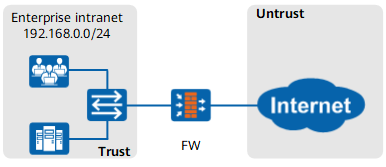
As shown in Figure 1, an enterprise deploys the FW as a gateway to connect the intranet to the Internet.
The enterprise uses FTP or mails to receive files from the Internet to process services. Intranet users often receive files infected with viruses, seriously compromising network security.
Solution
With the antivirus function, the FW detects viruses in files transmitted over the network. When detecting a file infected with a virus, the FW blocks the file or generates an alarm, protecting the intranet against known viruses on the Internet.
FWThe FW provides an antivirus signature database that contains known viruses. The FW matches the signature of a file transmitted over the network with signatures in the antivirus signature database. If a match is found, the FW considers the file to be virus-infected.

To ensure the accuracy of the virus detection result, you are advised to update the antivirus signature database every day.
Reference the antivirus profile in the security policy that permits the access from the intranet to the Internet to detect viruses in files transmitted over the network.
Click Add Security Policy. Configure matching conditions for the security policy as required and reference antivirus profile default in the security policy.
The FW provides a default antivirus profile named default to scan for viruses in files transmitted through HTTP, FTP, SMTP, POP3, IMAP, NFS, and SMB and provides default actions.
Generally, the antivirus profile can be directly referenced in the security policy. Set security policy parameters as follows:
Name
policy1
Source Zone
trust
Destination Zone
untrust
Source Address/Region
192.168.0.0/255.255.255.0
Action
permit
Content Security
Antivirus
default
- Click OK.
Verification
Use the web browser of an intranet host to access the https://www.eicar.org/ and download the EICAR test file to test the antivirus effect. The FW disables the web browser from downloading the EICAR test file. In addition, the information is displayed in the web browser.
When the hard disk is installed, choose . You can find the logs generated when the FW blocks the EICAR test file.
Configuration Scripts
The configuration script related to the example is as follows:
#
security-policy
 rule name policy1
  source-zone trust
  destination-zone untrust
  source-address 192.168.0.0 mask 255.255.255.0
  profile av default
  action permit
#