Antivirus Does Not Take Effect
This section describes how to troubleshoot the fault when viruses are detected on the protected network after antivirus is configured.
Symptom
As shown in Figure 1, the FW is deployed at the enterprise network border as a security gateway. The antivirus function is enabled on the FW to secure the intranet against viruses.
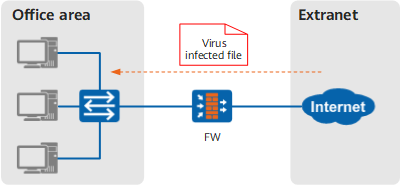
When PC1 at 10.3.0.2 in the office area receives an email from the extranet, the system security software on PC1 detects a virus in the email attachment, and the virus ID is 8000.
Procedure
Determine the security policy that is matched when PC1 receives the email.
Choose . Click Advanced Search and set the query conditions, such as the start time, end time, and destination address, to determine the matched security policy.
Check whether the matched security policy references an antivirus profile.
If no, create an antivirus profile and reference the profile in the security policy. For how to create an antivirus profile, see Configuring Antivirus. For how to configure the security policy, see Configuring a Security Policy.
If yes, go to Cause two: The antivirus profile on the FW is incorrect to check whether the antivirus profile is correctly configured.
Choose and find the antivirus profile referenced in the security policy.
Check the action of the antivirus profile.
If the action for a mail transfer protocol is Alert, the FW fails to block the virus-infected file. You must change the action to Delete Attachment.
Check whether any application exception is configured in the antivirus profile.
If yes, check whether the exception is configured for the application that PC1 uses to receive the email. If yes, delete the application exception.
Check whether any virus exception is configured in the antivirus profile.
If a virus exception is configured and the virus ID is the same as the ID (8000) of the virus detected on PC1, determine whether this virus is a real virus. If yes, you need to delete the virus exception to block files infected by this virus.
Cause one: The security policy on the FW is incorrectly configured. (No antivirus profile is referenced.)
Cause two: The antivirus profile on the FW is incorrect.
Cause three: The versions of the antivirus signature database on the FW are out of date.
Choose to check whether the current Antivirus Signature Database is the latest version.
If the antivirus signature database is not the latest version, update it. For how to update it, see Updating the Antivirus Signature Database.
If the fault persists, contact Huawei technical support personnel.