Configuring a Predefined Application
This section describes how to query details on predefined applications and how to configure port mapping.
Context
Multiple well-known applications are predefined on the FW. You can use the Web UI to query details on applications to help reference applications correctly in policies, for details to reference Mechanism.
Predefined applications support port mapping. If a user uses an ephemeral port for a well-known service, enable the port mapping function for the FW to identify the well-known service and accurately process the service data.
Procedure
- Configure
the application identification mode.
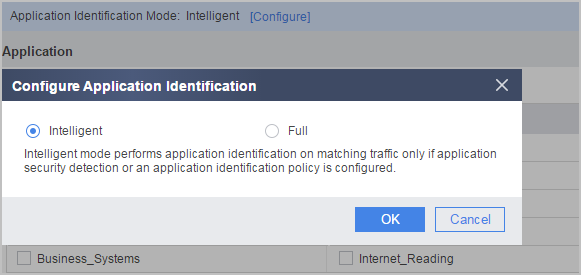
Choose , click Configure to configure the application identification mode.
- Intelligent Identification: in this mode, the FW identifies the applications of matching traffic only when the application identification policy or content security detection function is configured.
- Full Identification: in this mode, the FW identifies the applications of all traffic, which deteriorates performance.
- Query the details on a predefined application.
- Search for the application you need to query. You can
specify certain conditions or enter the application name to search
for the application.

An obsolete application is in gray and strikethrough on the web UI. In this case, you can view the application information but cannot configure it.
Select Filter. The system displays five columns: Category, Subcategory, Label, Data Transmission Model, and Risk Level. Select values for one or more columns. The application list at the lower part of the interface is refreshed. You can use filtering conditions flexibly. For example, you can filter applications only by category or risk level, or by both.
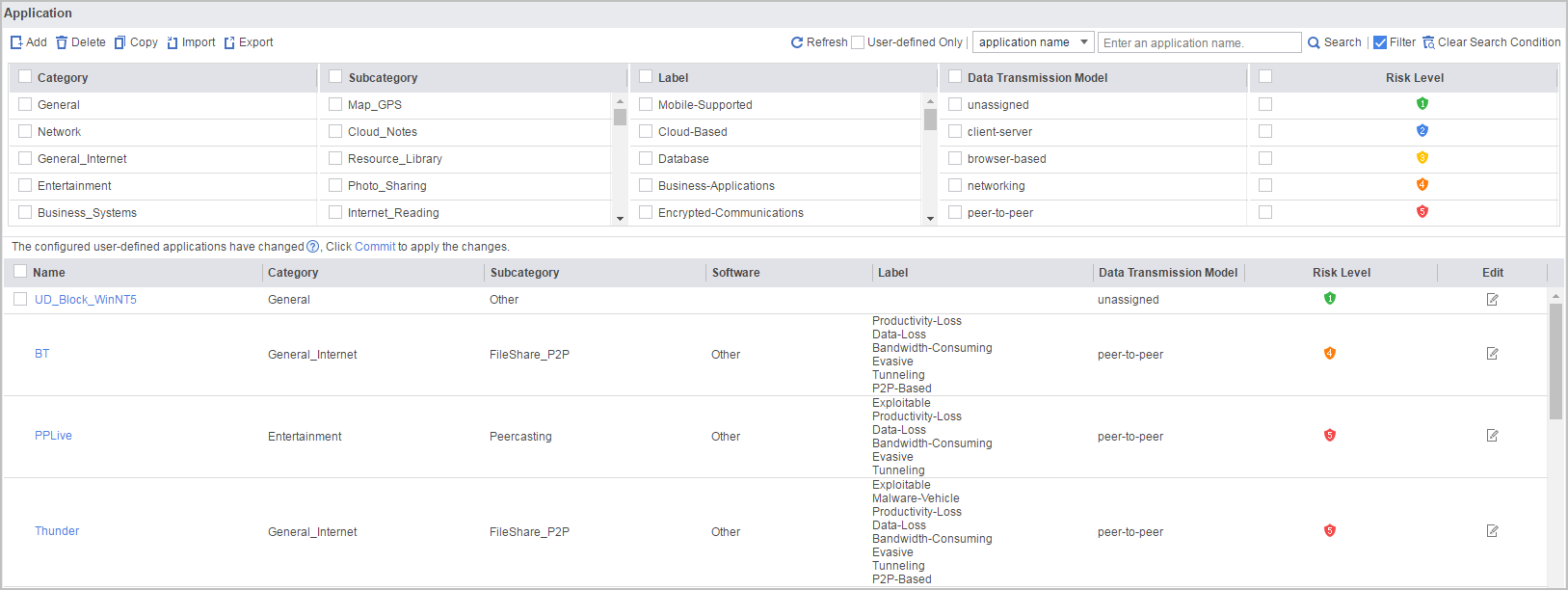
Enter the name of the specified application in the search box and click Search. The system displays only the specified application.
- Click
 of the
application to display its details.
of the
application to display its details.
- Search for the application you need to query. You can
specify certain conditions or enter the application name to search
for the application.
- Configure port mapping.
- Find the mapped application and click its .
- Find the mapped application and click its