Immediate Update
You can always update signature databases anytime you want.
Networking Requirements
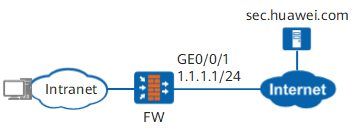
The FW is deployed at the border of the internal network as the security gateway. The FW can communicate with sec.huawei.com through the Internet. Through immediate update, the FW can automatically download the signature databases and update the local signature databases. For scheduled and immediate updates, signature database download addresses (IP address of the server configured on the FW or the IP address of the proxy server) and update procedures are the same. The two update modes differ in that immediate update can be performed at any time whereas scheduled update must be implemented at the specified time.
Procedure
- Purchase the license for the signature database update service and activate it on the device. For details, see License Management.
The antivirus signature database, IPS signature database, and malicious domain name signature database are license-controlled. Without the license, the update will fail.
- Check whether the free space of the memory and CF card meets the update requirements. For details about the CF card space and memory space required by each signature database, see Preparation.
- Set the IP address and security zone of the interface.
- Configure the update center address.
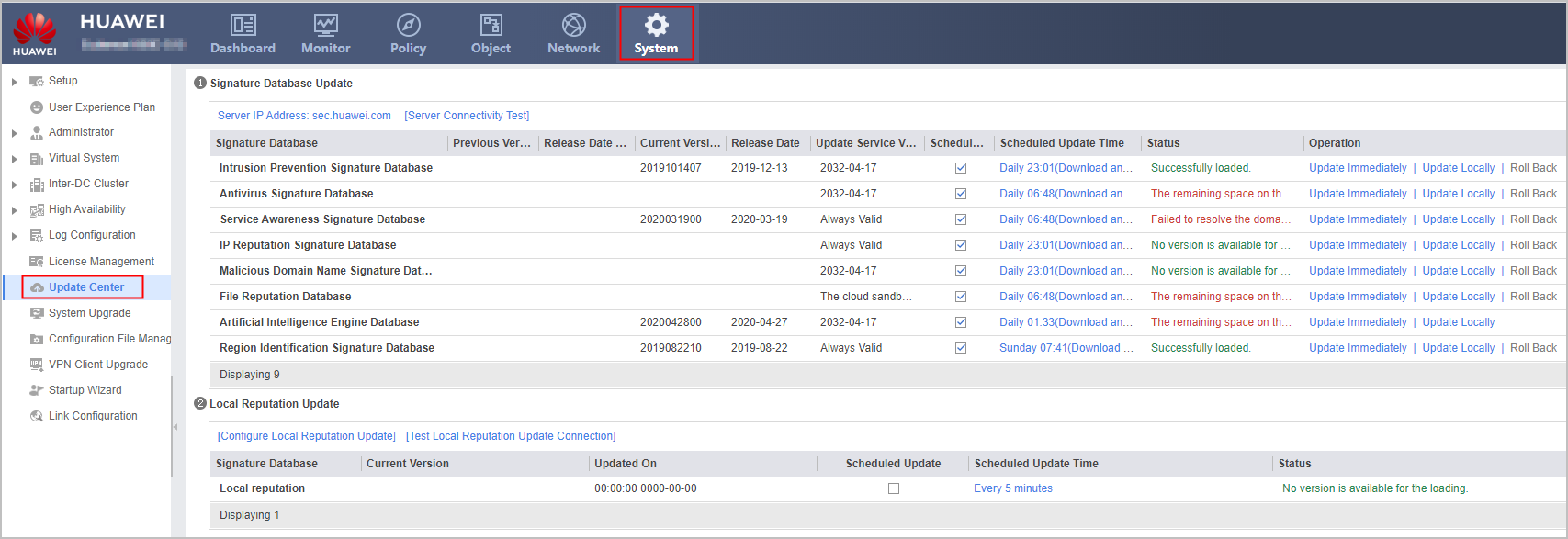
- Choose .
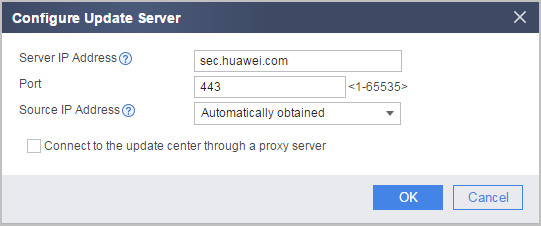
- In the Configure Update Server dialog box that is displayed, set the IP address of the update server. This example uses the default configuration. To adjust parameter settings, see the following table.
- Choose .
- Configure the DNS server and ensure that the FW can correctly resolve domain name sec.huawei.com.
When the FW connects to the Internet through a VPN instance, you must run the dns server vpn-instance vpn-instance-name command on the CLI Console to bind the VPN instance to the DNS server.
- Configure a security policy to allow the FW to access sec.huawei.com and DNS server.
- Configure immediate update.
Click Update Immediately for the specified signature database.

During immediate update, if normal services of the FW are interrupted, you can abort the update process. Wait for the network environment to improve before retrying the update.
Follow-up Procedure
- After the update is complete, you can view that Status is The online upgrade succeeded.. Current Version is the target version, and Previous Version is the source version.
When Status displays an update failure, click Server Connectivity Test to locate the cause for the update failure.
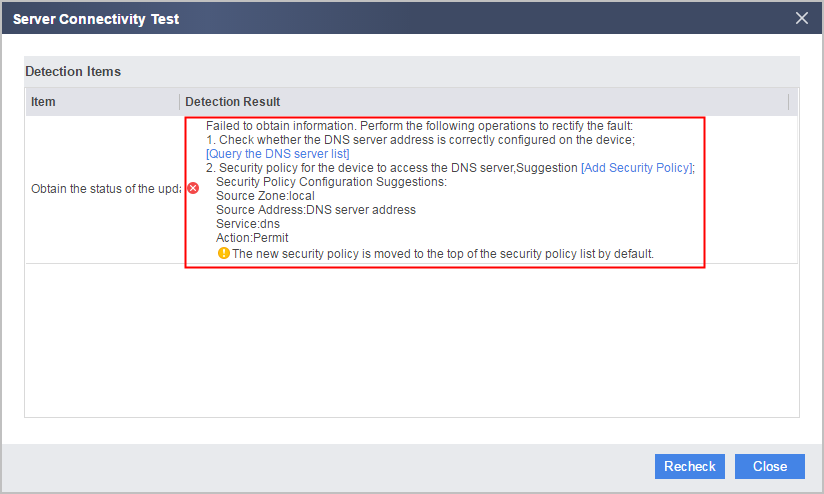
After you click Server Connectivity Test, the system automatically checks the connectivity between the FW and security center. A window is displayed on the web UI to show the detection procedure and provide the cause and handling suggestion in case of a connection failure.
For example, when you obtain the upgrade server information, the system displays "Failed to obtain information" and provides handling suggestions, as shown in the following figure. In this case, you can modify the configuration according to the handling suggestions, and then click Recheck to verify the connection.