Querying the Category of a URL
The FW and Huawei security center (isecurity.huawei.com) provide the function of querying URL category information. You can enter a URL to query its category.
Query Mode
You can query the category of a URL in two ways:
-
Query URL categories on the web UI of the FW. The query result may be a predefined category, user-defined category, or no matching URL category. The query scope is locally cached categories.
Log in to the web UI of the FW and choose . Enter a URL in the search text box and click Search to view URL category information.

-
Online query modes are as follows:
On the Huawei security center, query the category to which a URL belongs. The query result is a predefined category.
Log in to Huawei security center and choose . Enter a URL in the search text box and click Query to view URL category information.
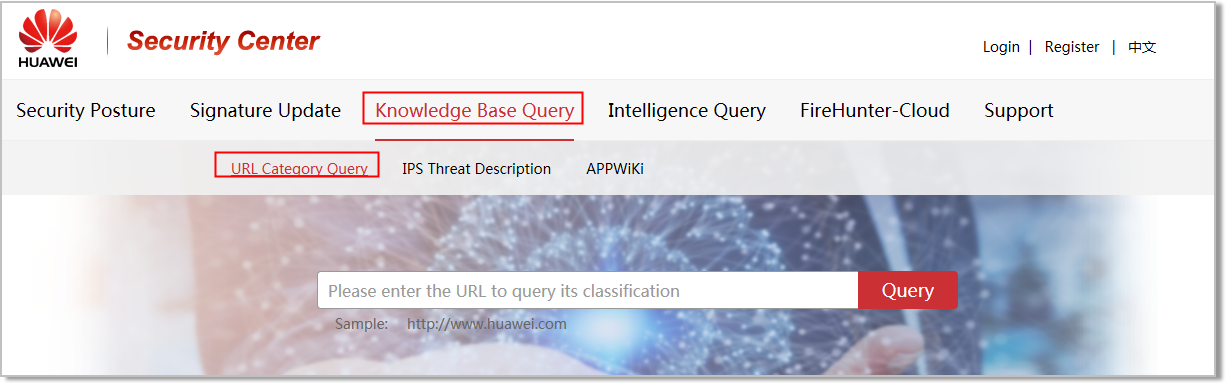
Log in to the web UI of the FW and choose . Click Online Query URL Category. The URL category query page of Huawei security center is displayed. Enter the URL to be queried in the text box.
If the query results in two query modes are different, check whether the FW supports URL remote query.
Modifying the Category to Which a URL Belongs
The content of a predefined URL category cannot be modified. To modify the category to which a URL belongs, use a user-defined URL category. If you think the URL category information is incorrect, send feedback information to Huawei security center to modify it. For example:
If you do not want to change the action of the Education/Science category, add www.example1.com to a user-defined URL category and set the action to Block for the user-defined URL category. Because the user-defined URL category has a higher matching priority than the predefined URL category, the action of the user-defined URL category is taken.
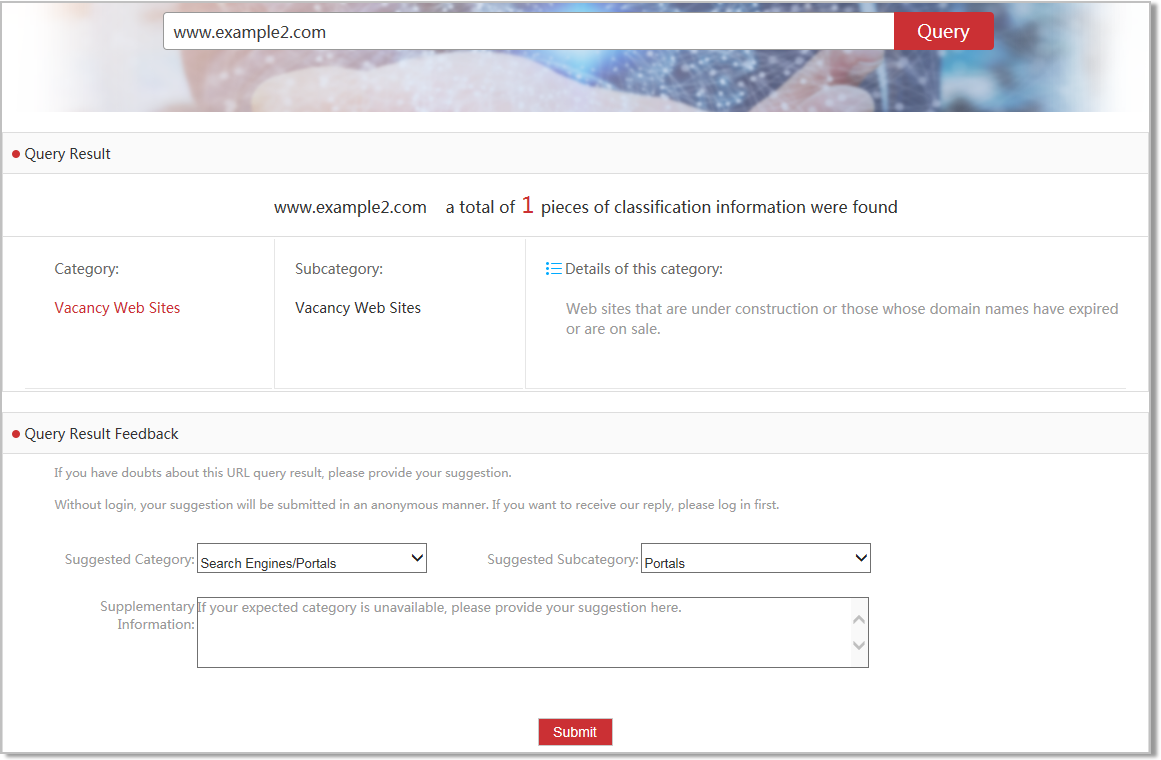
If the administrator considers that the category of www.example2.com is inaccurate, the administrator can send feedback to Huawei security center and provide the recommended category. The category modification method is as follows:
Log in to Huawei security center and choose . Enter www.example2.com in the text box and click Query to view the result. If the category of www.example2.com is inaccurate, set Suggested Category and Suggested Subcategory in the Query Result Feedback area and click Submit.