Enabling the Function of Blocking Malicious and Low-Reputation URLs
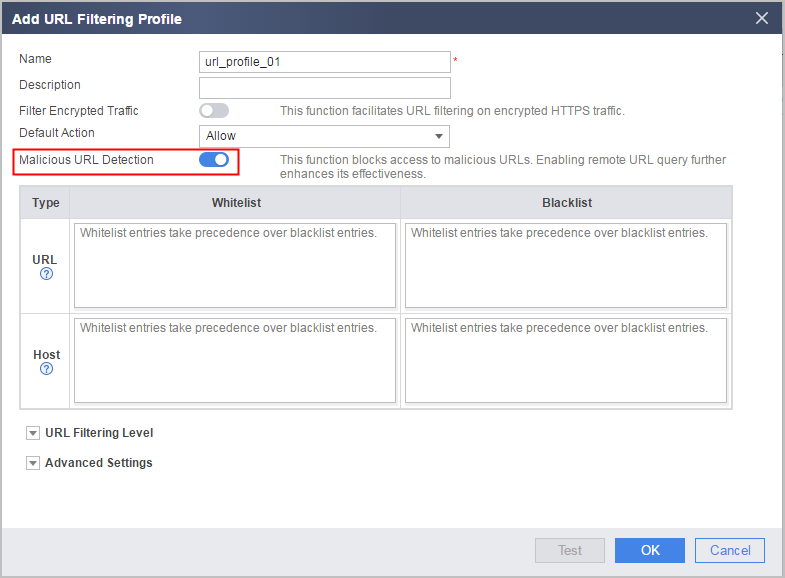
After the malicious URL and URL reputation detection function is enabled, the device can block URLs that may cause threats, including low-reputation and malicious URLs. By default, malicious URL detection and URL reputation detection are disabled.
Configuration on the Web UI
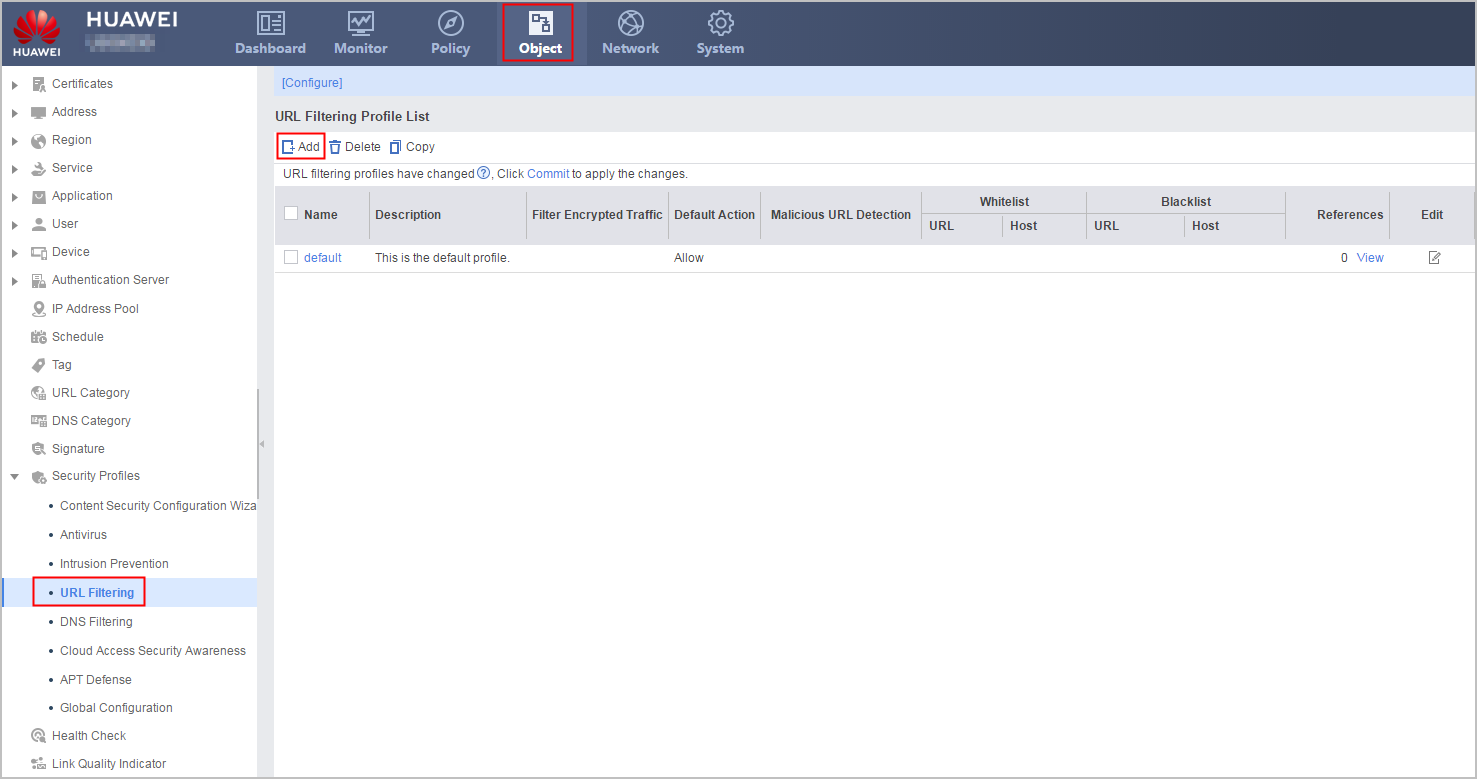
- Create a URL filtering profile.
- Reference the profile on security policies. For details on how to configure security policies, see Configuring a Security Policy Using the Web UI.
- Click Commit.
The configuration does not take effect immediately after you create or modify the profile. You must click Commit on the upper right of the interface to apply the configuration. To save time, you can commit the configuration after all operations on the profile are complete.
Configuration on the CLI
- Create a URL filtering profile.
profile type url-filter name name
- Enable malicious URL detection and URL reputation detection.
- Reference the profile on security policies. For details on how to configure security policies, see Configuring a Security Policy Using the CLI.
- Return to the system view and commit the configuration.
The new or modified security profile does not take effect until you run the engine configuration commit command to commit the configuration. To save time, you can submit the configuration after all operations on the profile are complete.
Configuration Example
<sysname> system-view
[sysname] profile type url-filter name url_profile_01
[sysname-profile-url-filter-url_profile_01] malicious url-filter enable