< Home

Configuring URL Categories

URL categories may be user-defined or predefined. You can either create user-defined categories or use the predefined categories to filter URLs.

Context

The web configuration of URL categories supports the following functions:
  • Create user-defined categories or add user-defined categories to predefined categories.
  • Clone user-defined and predefined URL categories.
  • Delete user-defined URL categories.
  • Import and export user-defined URL categories.
  • Query URL categories.

Procedure

  1. Choose Object > URL Category.
  2. Click Add to create a user-defined category.

    Parameter Description
    Name

    Name of a user-defined URL category

    Description

    Description of a user-defined URL category

    URL

    URL rule, which can be in exact matching, prefix matching, suffix matching, or keyword matching mode.

    A URL rule must meet the following requirements:
    • If the URL rule does not contain any space or question mark (?), the length is 4 to 255 characters after system pre-processing. If the URL rule contains spaces or question marks (?) (not at the end), the URL rule must be enclosed by double quotation marks (""), and the length is 6 to 255 characters after system pre-processing. The system removes prefix http:// from the URL rule during pre-processing.

    • If the URL rule contains double quotation marks (""), you need to replace them with escape characters "%22". For example, if the URL is www.example.com/abc/def?"gh, you need to enter www.example.com/abc/def?%22gh.

    • * indicates wildcard, which appears at the beginning, middle, or end of a URL and indicates suffix matching, keyword matching, and prefix matching, respectively. For example:
      • When the URL is configured as *abc, all URLs ending with abc are matched.
      • When the URL is configured as *a*bcd*, all URLs containing a and bcd in sequence are matched.
      • When the URL is configured as bcd*, all URLs starting with bcd are matched.
    • If a URL does not contain any wildcard, the URL must contain at least four consecutive characters, such as abcd. If the URL contains wildcard, it must contain at least three consecutive characters except the wildcard, such as *abc, *abc*, abc**, and *a*bcd.
    • If the entered URL ends with .*, there must be at least three common characters before .*. Take *.*.* as an example. It ends with .*. However, it does not contain three common characters before .*.

    • If the total length of the entered URL is 4, only one * exists at the beginning, and the length of the remaining common characters is 3, the last character cannot be .. Take *ab. as an example. Its total length is 4 and begins with *, and the length of the remaining common characters is 3. However, its last character is ..

    Host

    Host rule, which can be in exact matching, prefix matching, suffix matching, or keyword matching mode.

    A host rule must meet the following requirements:
    • The value is a character string and the length is 4 to 255 characters, without special character slash (/), back slash (\), number sign (#), double quotation mark ("), question mark (?), or space.

    • * indicates wildcard, which appears at the beginning, middle, or end of a domain name and indicates suffix matching, keyword matching, and prefix matching, respectively. For example:
      • When a domain name is configured as *abc, all domain names ending with abc are matched.
      • When a domain name is configured as *a*bcd*, all domain names containing a and bcd in sequence are matched.
      • When a domain name is configured as bcd*, all domain names starting with bcd are matched.
    • If a domain name does not contain any wildcard, the domain name must contain at least four consecutive characters, such as abcd. If the domain name contains wildcard, it must contain at least three consecutive characters except the wildcard, such as *abc, *abc*, abc**, and *a*bcd.
    • If the entered domain name ends with .*, there must be at least three common characters before .*. Take *.*.* as an example. It ends with .*. However, it does not contain three common characters before .*.

    • If the total length of the entered domain name is 4, only one * exists at the beginning, and the length of the remaining common characters is 3, the last character cannot be .. Take *ab. as an example. Its total length is 4 and begins with *, and the length of the remaining common characters is 3. However, its last character is ..

  3. Click OK.
  4. In URL Category List, click or a category name to add the URL/Host to a specific predefined category.

    Parameter Description

    URL

    URL rule, which can be in exact matching, prefix matching, suffix matching, or keyword matching mode.

    A URL rule must meet the following requirements:
    • If the URL rule does not contain any space or question mark (?), the length is 4 to 255 characters after system pre-processing. If the URL rule contains spaces or question marks (?) (not at the end), the URL rule must be enclosed by double quotation marks (""), and the length is 6 to 255 characters after system pre-processing. The system removes prefix http:// from the URL rule during pre-processing.

    • If the URL rule contains double quotation marks (""), you need to replace them with escape characters "%22". For example, if the URL is www.example.com/abc/def?"gh, you need to enter www.example.com/abc/def?%22gh.

    • * indicates wildcard, which appears at the beginning, middle, or end of a URL and indicates suffix matching, keyword matching, and prefix matching, respectively. For example:
      • When the URL is configured as *abc, all URLs ending with abc are matched.
      • When the URL is configured as *a*bcd*, all URLs containing a and bcd in sequence are matched.
      • When the URL is configured as bcd*, all URLs starting with bcd are matched.
    • If a URL does not contain any wildcard, the URL must contain at least four consecutive characters, such as abcd. If the URL contains wildcard, it must contain at least three consecutive characters except the wildcard, such as *abc, *abc*, abc**, and *a*bcd.
    • If the entered URL ends with .*, there must be at least three common characters before .*. Take *.*.* as an example. It ends with .*. However, it does not contain three common characters before .*.

    • If the total length of the entered URL is 4, only one * exists at the beginning, and the length of the remaining common characters is 3, the last character cannot be .. Take *ab. as an example. Its total length is 4 and begins with *, and the length of the remaining common characters is 3. However, its last character is ..

    Host

    Host rule, which can be in exact matching, prefix matching, suffix matching, or keyword matching mode.

    A host rule must meet the following requirements:
    • The value is a character string and the length is 4 to 255 characters, without special character slash (/), back slash (\), number sign (#), double quotation mark ("), question mark (?), or space.

    • * indicates wildcard, which appears at the beginning, middle, or end of a domain name and indicates suffix matching, keyword matching, and prefix matching, respectively. For example:
      • When a domain name is configured as *abc, all domain names ending with abc are matched.
      • When a domain name is configured as *a*bcd*, all domain names containing a and bcd in sequence are matched.
      • When a domain name is configured as bcd*, all domain names starting with bcd are matched.
    • If a domain name does not contain any wildcard, the domain name must contain at least four consecutive characters, such as abcd. If the domain name contains wildcard, it must contain at least three consecutive characters except the wildcard, such as *abc, *abc*, abc**, and *a*bcd.
    • If the entered domain name ends with .*, there must be at least three common characters before .*. Take *.*.* as an example. It ends with .*. However, it does not contain three common characters before .*.

    • If the total length of the entered domain name is 4, only one * exists at the beginning, and the length of the remaining common characters is 3, the last character cannot be .. Take *ab. as an example. Its total length is 4 and begins with *, and the length of the remaining common characters is 3. However, its last character is ..

  5. Click OK.
  6. Click Import to import user-defined categories in batches.
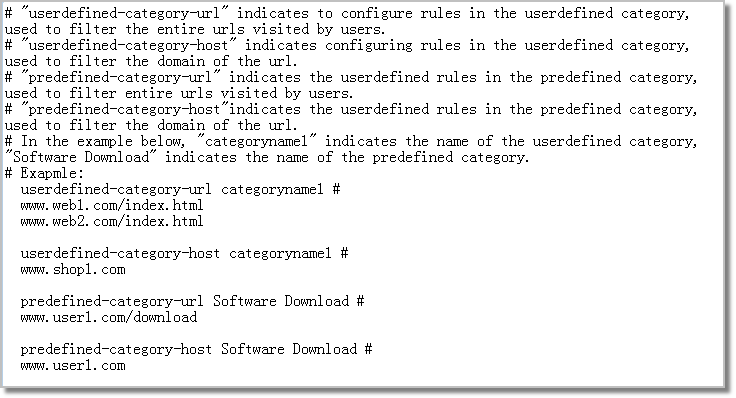
    1. Click Import. In Import, click Download CSV Template or Download TXT Template to download a template to the local device. Fill in the CSV template based on the format shown in Figure 1, and fill in the TXT template based on the format shown in Figure 2.

      Figure 1 CSV file format

      • When you create user-defined categories or add URLs/hosts to user-defined categories, the import template name column is mandatory, and the template ID column is optional.
      • When you add URLs/hosts to predefined categories, the import template ID column is mandatory, and the template name column. The ID refers to a URL subcategory ID. You can run the display url-filter category pre-defined command to view URL subcategory IDs.
      • For details on the usage of import templates, see the template description.
      Figure 2 TXT file format

      When the matching mode of URL/Host rules is set to exact matching mode and the string length of the rules ranges from 256 to 511 characters, the rules can be added to predefined categories only through the TXT template.

    2. Set import parameters.

      Parameter Description

      Select a .csv or .txt file to upload.

      Click Browse, select the edited CSV file or TXT file, and click Open.
      Overwrite existing URLs When a user-defined URL category already exists, you can:
      • Select this check box to enable the FW to overwrite the existing URL category.
      • Clear this check box to enable the FW to add up URLs in the category to the existing URLs.

    3. Click Import.

      After the import is complete, you can view all imported user-defined URL categories in User-defined.

    4. In the dialog box that is displayed, click OK to commit and activate the configuration.

      URL category changes do not take effect immediately. You need to click Commit on the upper right of the web page to activate them. To save time, you can commit changes after all changes are made.

  7. Click Export, export user-defined URL categories

    Export user-defined URL categories into a CSV file or TXT file, and save the file on an external storage drive (for example, your PC).

  8. Querying URL Categories

    • Local query

      1. Choose Object > URL Category.
      2. Enter the URL in the Search text box and click . The predefined or user-defined URL category of the specified URL is displayed.
    • Online query

      1. Click Online Query URL Category. The URL category query page of Huawei security center is displayed.

      1. Choose Object > URL Category.

      2. Click Online Query URL Category. The URL category query page of Huawei security center is displayed.

        Enter the URL to be queried in the text box to query the category to which the URL belongs. If you think the URL category information is incorrect or Huawei security center fails to identify the category of the URL, send feedback information to Huawei.

Copyright © Huawei Technologies Co., Ltd.
Next topic >