Configuring Web Reputation
This section describes how to configure the Web reputation feature.
Adding User-Defined Credible/Suspicious Websites
You can add websites with high reputation as user-defined credible websites and websites with low reputation as user-defined suspicious websites.
- Choose to display the Web Reputation tab.

You can also choose , and click Reputation in the Web Reputation Configuration page, and click the Web Reputation tab.
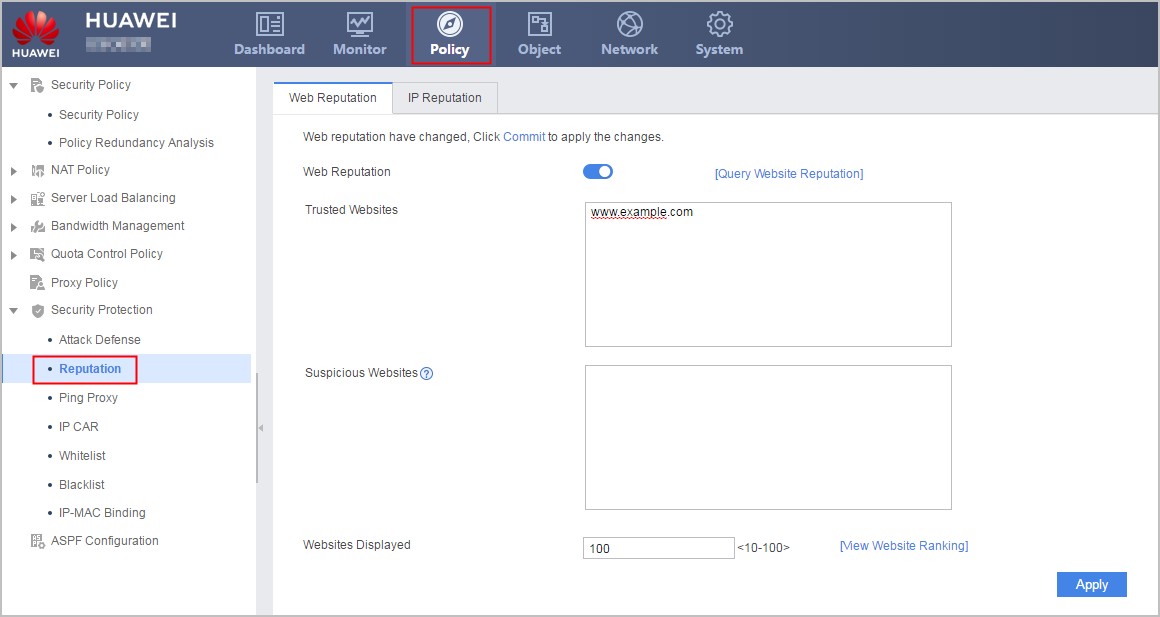
- Enable the Web reputation function in Web Reputation.
The Web reputation function is disabled by default. Contents related to Web reputation can be configured or checked only after the Web reputation function is enabled.
- Add the domain name of the website in Trusted Websites or Suspicious Websites. The value is a string of 1 to 255 characters, without special character slash (/), back slash (\), number sign (#), double quotation mark ("), question mark (?), or space.
Domain names in Trusted Websites are the domain names of unknown websites in general. Domain names in Suspicious Websites are the domain names of predefined credible websites and unknown websites in general. One of the functions of Suspicious Websites is to change the category of predefined credible websites because the contents of the preset Web reputation library cannot be changed. You can add an predefined website to Suspicious Websites if the website is recognized as a suspicious website.
- Click Apply to apply the configuration.
- Click Commit.
After you config Web Reputation, the configuration does not take effect immediately. You need to click Commit to make the configuration take effect. To save time, you can commit the configuration after all operations on the configuration file and all global configurations are complete.
Querying the Web Reputation Category of a Website
You can query the Web reputation category of a website before modification.
- Choose to display the Web Reputation tab.
You can also choose , and click Reputation in the Web Reputation Configuration page, and click the Web Reputation tab.
- Enable the Web reputation function in Web Reputation.
The Web reputation function is disabled by default. Contents related to Web reputation can be configured or checked only after the Web reputation function is enabled.
- Click Comprehensive Reputation Query Website after Web Reputation.
- Enter the domain name of the website to be queried and click Search. The Web reputation category of the website is displayed.
The matching result is determined by the matching priority because a domain name can be categorized into different categories. The displayed Web reputation category is the final matching result.
The entered domain name shall not contain such characters as www or com. For example, in the query of the web reputation category for www.example.com, enter only example in the text box.
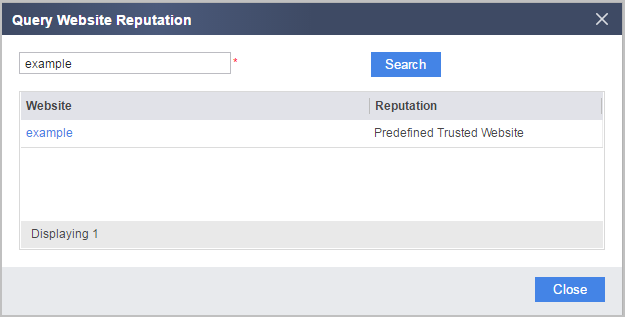
- You can click the domain name of a website and select a new category for the website in the drop-down list.
For unknown websites, select Set to Trusted Website or Set to Suspicious Website.
For predefined credible websites, you can select Add as Suspicious Website.
For user-defined credible websites, select Add as Suspicious Website or Set to unknown website.
Click Apply to apply the configuration after modifying the Web reputation category of the website.
Querying Top N Most Accessed Websites
The access frequency and security of websites vary with time. Therefore, you must regularly check whether the categories of top N most accessed websites are correct, and adjust the categories or add the websites to the correct category.
- Choose to display the Web Reputation tab.
You can also choose , and click Reputation in the Web Reputation Configuration page, and click the Web Reputation tab.
- Enable the Web reputation function in Web Reputation.
The Web reputation function is disabled by default. Contents related to Web reputation can be configured or checked only after the Web reputation function is enabled.
- Input a number N in Web Reputation Top N Statistics to check top N most accessed domain names.
- Click View Top N Statistics. The top N most accessed domain names are displayed.
You can click the domain name of a website and select a new category for the website in the drop-down list.
For unknown websites, select Set to Trusted Website or Set to Suspicious Website.
For predefined credible websites, select Add as Suspicious Website.
For user-defined credible websites, select Add as Suspicious Website or Set to unknown website.
Click Apply to apply the configuration after modifying the Web reputation category of the website.