Web: Example for Enabling Remote Users to Access Enterprise Networks over SSL VPN Tunnels Using SecoClient
Networking Requirement
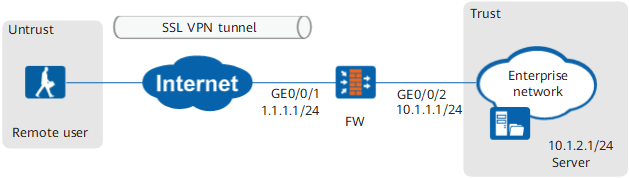
Figure 1 shows the enterprise network. The enterprise requires that external mobile users access intranet resources over an SSL VPN tunnel.
Data Planning
Item |
Data |
|---|---|
Interface |
Interface number: GigabitEthernet 0/0/1 IP address: 1.1.1.1/24 Security zone: Untrust GigabitEthernet 0/0/2 IP address: 10.1.1.1/24 Security zone: Trust |
Virtual gateway |
Virtual gateway name: sslvpn Interface: GigabitEthernet 0/0/1 Maximum number of users: 150 Maximum number of online users: 100 |
Mobile user |
User name: user0001 Password: Password@123 |
Network extension |
Network extension address pool: 172.16.1.1 to 172.16.1.100 NOTE:
If the intranet server IP address and the IP address of network extension address pool are on different subnets, configure a route to the network extension address pool on the intranet server. Routing mode: manual Intranet subnet accessible to network extension users: 10.1.2.0/24 |
Procedure
- Configure the FW.
- Set interface IP addresses and assign the interfaces to security zones.
- Choose .
Click
 of GE0/0/1 and set the parameters as follows:
Zone
Untrust
IPv4
IP Address
1.1.1.1/24
Access Management
HTTPS, Ping
- Click OK.
Repeat the preceding steps to configure GE0/0/2.
Zone
Trust
IPv4
IP Address
10.1.1.1/24
Access Management
HTTPS, Ping
- Create a user group and a user.
- Choose .
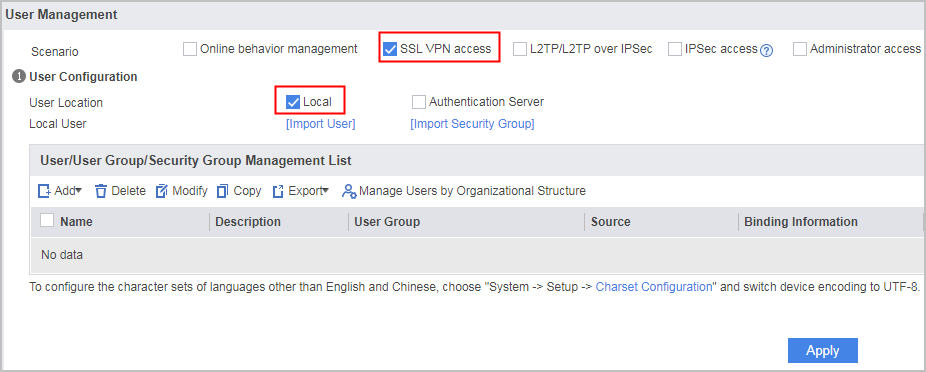
- Select SSL VPN access for Scenario and Local for User Location.
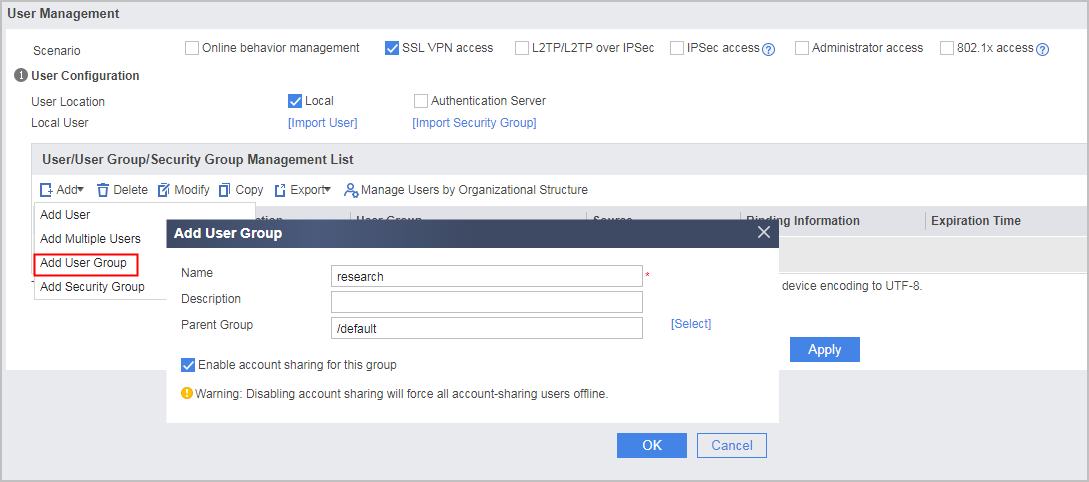
- Click Add, select Add User Group, and set the user group name to research.
- Click OK.
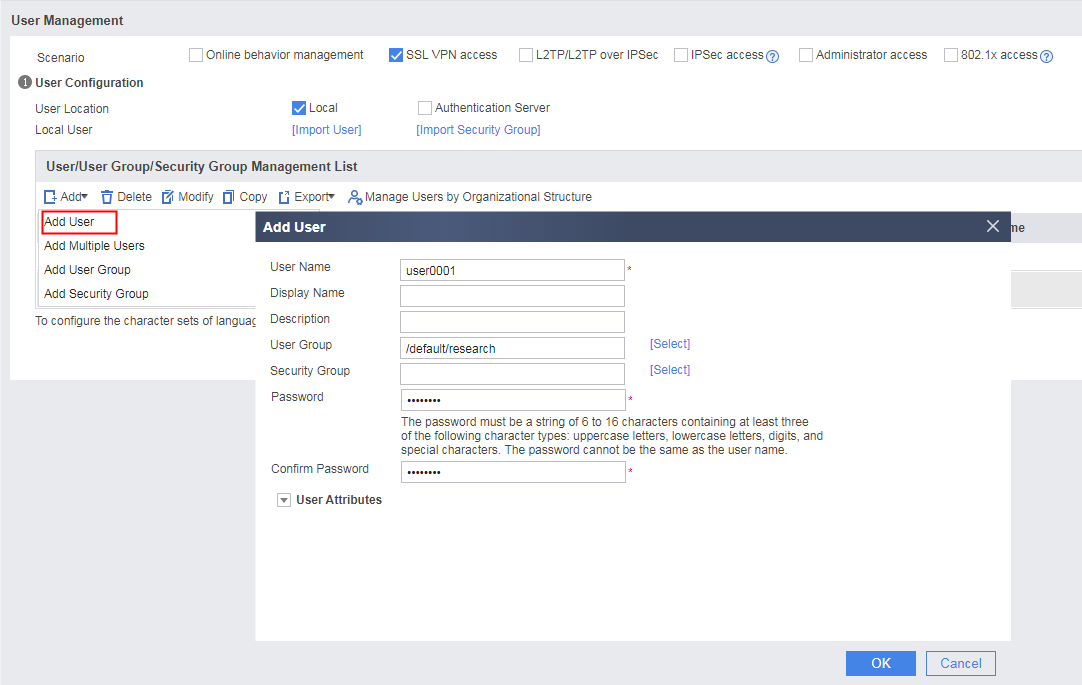
- Click Add, select Add a User, set the user name to user0001, and set the password to Password@123.
- Click OK.
- Click Apply.
- Create and configure an SSL VPN virtual gateway.
- Configure an SSL VPN virtual gateway.
Set parameters, including the gateway IP address, user authentication mode, and maximum number of concurrent users, and click Next.
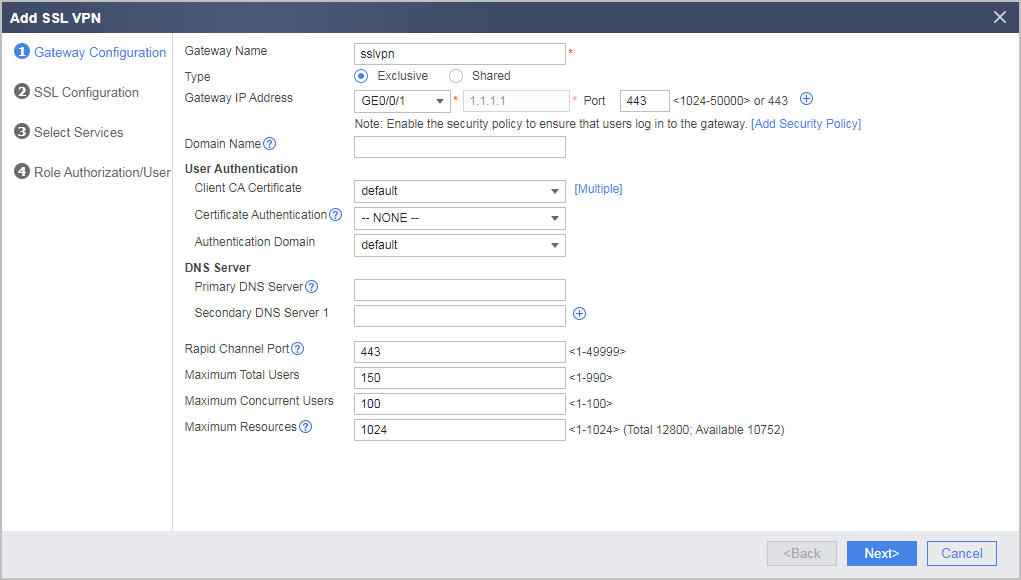
- Configure the SSL version and encryption suite. Then click Next.
In the example, use the default algorithms.
- Select services to be enabled and click Next.
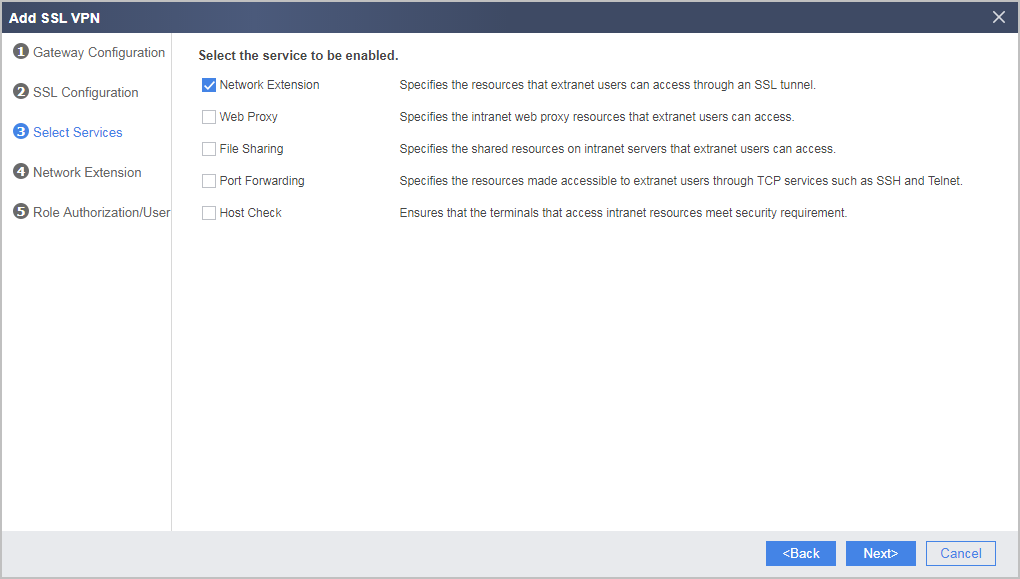
- Configure network extension and click Next.
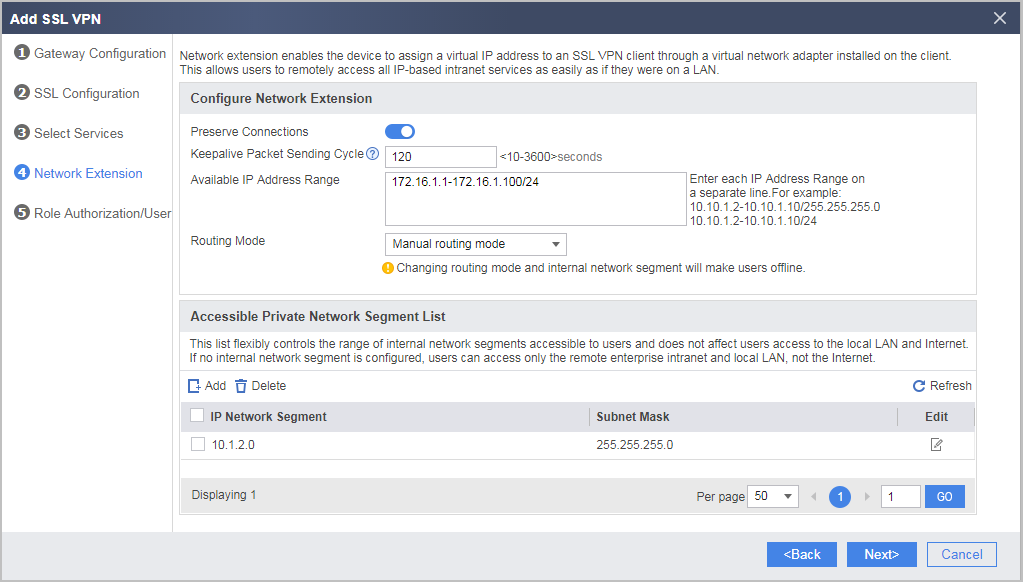
- Configure SSL VPN role authorization/users.
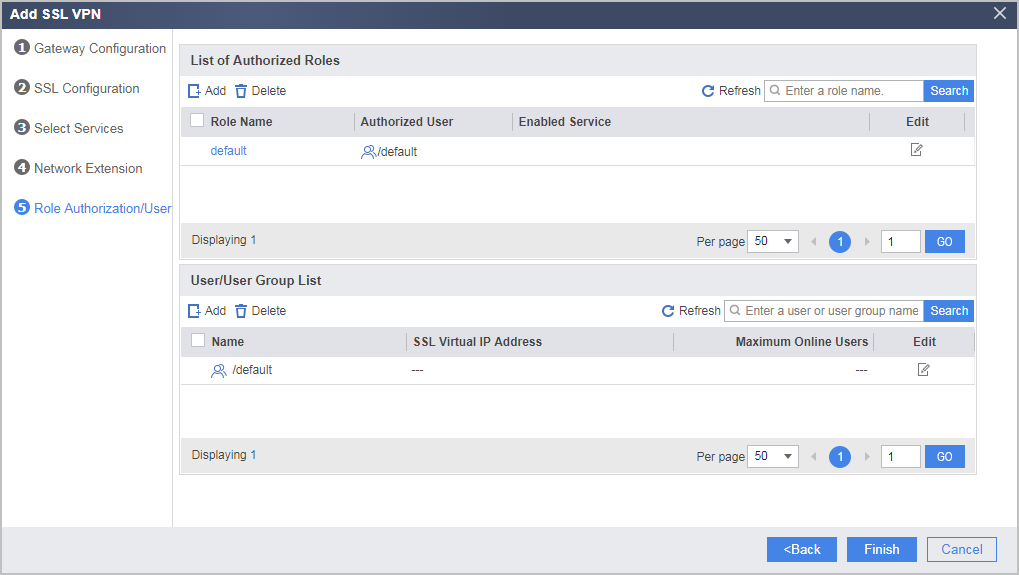
Click
 of default in List of Authorized Roles, select Network Extension, and click OK.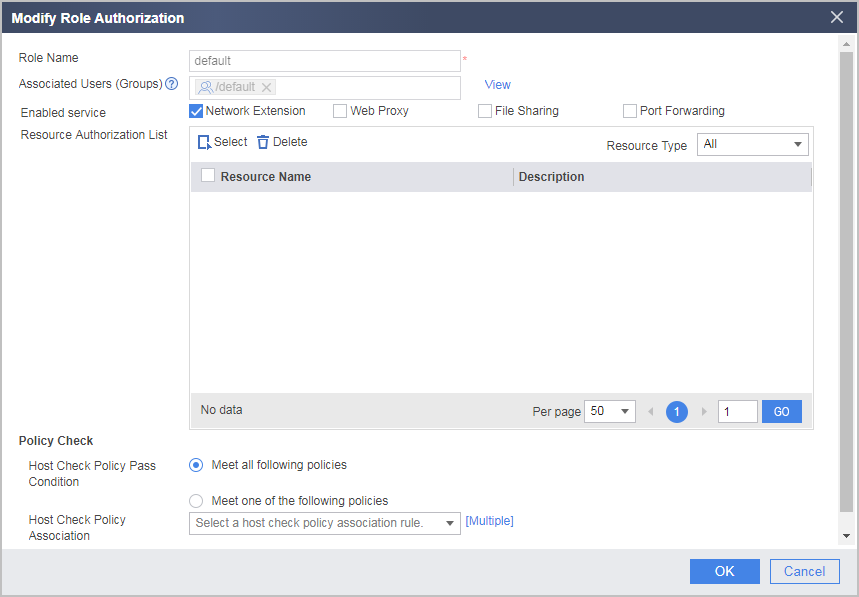
- Return to the role authorization/user page and click Finish.
- Configure an SSL VPN virtual gateway.
- Set interface IP addresses and assign the interfaces to security zones.
- Configure the SecoClient at the mobile user side.

The SecoClient that supports this version has no longer evolved and cannot be downloaded from the Huawei Support website. The downloaded SecoClient can still be used. SecoClient configuration examples and common configuration problems are retained in the document. When users need to use the SSL VPN function through client access, see : VPN Client Download Description.
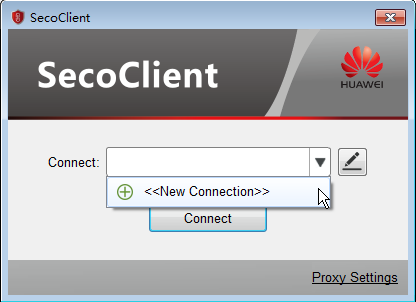
- Open the SecoClient.
Select New Connection from the Connect drop-down list.
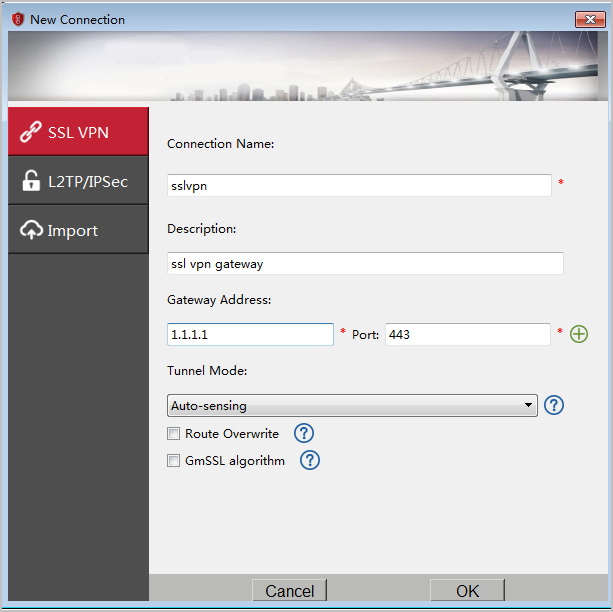
- Set SSL VPN connection parameter values.
In the New Connection dialog box, select SSL VPN from the left navigation tree, set connection parameter values, and click OK.
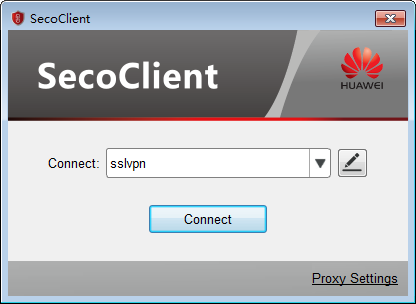
- Log in to the SSL VPN virtual gateway.
- Select the created SSL VPN connection from the Connect drop-down list and click Connect.
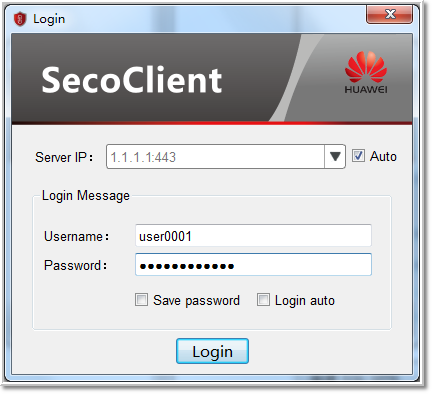
- On the login page, enter the user name and password.
If there are multiple virtual gateways and Auto is selected, the system automatically selects the virtual gateway with the highest response speed to establish SSL VPN tunnels. If there is only one gateway, leave Auto deselected.
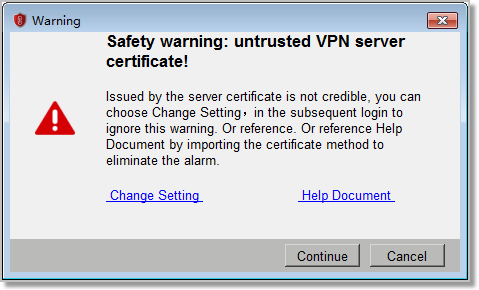
During tunnel establishment, the SecoClient verifies the certificate of the VPN gateway. If the verification fails, the following alarm is displayed. If you confirm that the VPN gateway to be connected is reliable, click Continue. If the VPN gateway is suspect, click Cancel and see How Can I Clear the Alarm "Your certificate of calibration is illegal, continue to log in?".
- Click Login to initiate a VPN connection.
When the VPN access succeeds, a prompt is displayed at the lower right corner of the screen.
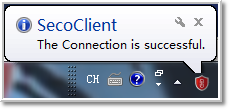
Using the connection, the mobile user can access intranet resources as users in the enterprise intranet.
- Select the created SSL VPN connection from the Connect drop-down list and click Connect.
- Open the SecoClient.
Verification
- Log in to the FW, choose , and view the online user list. User user0001 successfully logs in.

- Enable a mobile user to access intranet resources. The access succeeds.
Configuration Scripts
#
sysname FW
#
interface GigabitEthernet 0/0/1
 undo shutdown
 ip address 1.1.1.1 255.255.255.0
 service-manage https permit
 service-manage ping permit
#
interface GigabitEthernet 0/0/2
 undo shutdown
 ip address 10.1.1.1 255.255.255.0
 service-manage https permit
 service-manage ping permit
#
ip route-static 0.0.0.0 0.0.0.0 1.1.1.2
#
aaa
 domain default
  service-type ssl-vpn
#
firewall zone trust
 set priority 85
 add interface GigabitEthernet 0/0/2
#
firewall zone untrust
 set priority 5
 add interface GigabitEthernet 0/0/1
#
 v-gateway sslvpn interface GigabitEthernet 0/0/1 private
 v-gateway sslvpn authentication-domain default
 v-gateway sslvpn alias sslvpn
#
#****BEGIN***sslvpn**1****#
v-gateway sslvpn
 basic
  ssl version tlsv10 tlsv11 tlsv12
  ssl timeout 5
  ssl lifecycle 1440
  ssl ciphersuit custom aes256-sha aes128-sha
 service
  network-extension enable
  network-extension keep-alive enable
  network-extension keep-alive interval 120
  network-extension netpool 172.16.1.1 172.16.1.100 255.255.255.0
  netpool 172.16.1.1 default
  network-extension mode manual
  network-extension manual-route 10.1.2.0 255.255.255.0
 security
  policy-default-action permit vt-src-ip
  certification cert-anonymous cert-field user-filter subject cn group-filter subject cn
  certification cert-anonymous filter-policy permit-all
  certification cert-challenge cert-field user-filter subject cn
  certification user-cert-filter key-usage any
  undo public-user enable
 hostchecker
 cachecleaner
 role
  role default condition all
  role default network-extension enable
#
security-policy
 rule name sslvpn_ul
  source-zone untrust
  destination-zone local
  service https
  action permit
 rule name sslvpn_ut
  source-zone untrust
  destination-zone trust
  source-address 172.16.1.0 mask 255.255.255.0
  destination-address 10.1.2.0 mask 255.255.255.0
  action permit
# The following configuration is stored in the database, but not in the configuration profile.
user-manage group /default/research
user-manage user user0001
 parent-group /default/research
 password *********