Manual Activation of the License
Manual Activation of the License Using the Web UI
- Log in to the web UI and choose .

The supported license resources vary with models. The screenshot in this section is for reference only. License control items support details, please refer to theLicense Control Items.
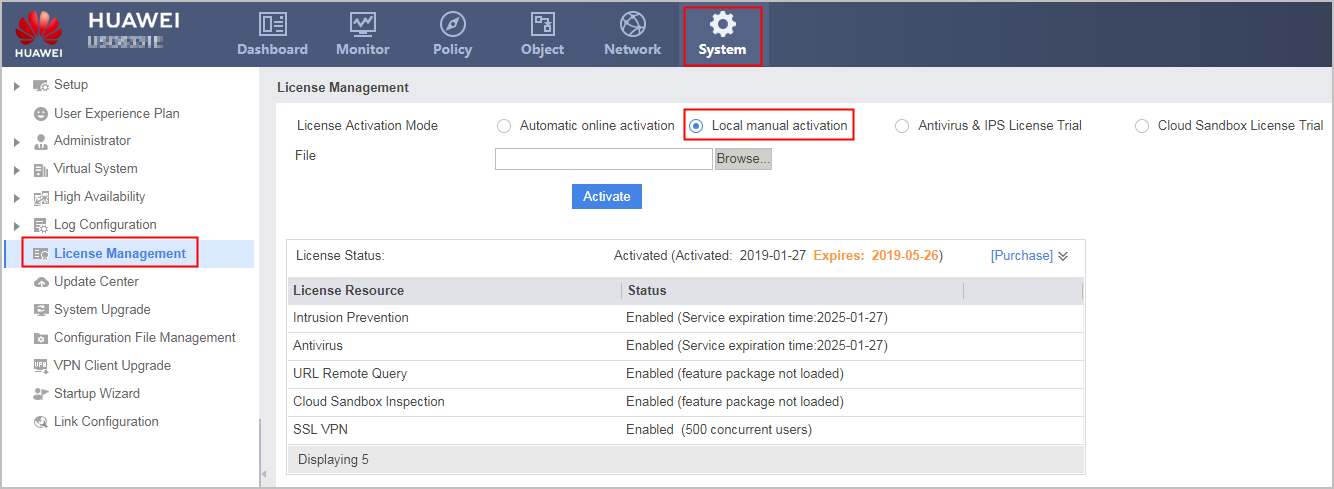
- Select Local Manual Activation from the License Activation Mode.
- Click Browse. Select the license file to be uploaded.
- Click Activate to activate the uploaded license file.
Manually Activating the License Using the CLI
- Check whether there is enough space to save the license file.
dir
- Upload the license file and save it in the default root directory.
The suffix of the license file is *.dat. The license file must be saved in the root directory of the storage device. You can rename the license file but cannot change the file name extension .dat. Otherwise, the system cannot upload the license file properly.
For how to upload the license file and save it in the root directory, see Transferring Files.
- Access the system view. system-view
- Activate the specified license file. license active file-name The license can be activated only when the ESN and software version in the license file are correct.

The system can have only one activated license file. Activating a new license file deactivates the original one.
The license file is stored on the CF card of the device. After being activated, the license file cannot be manually deleted from the CF card during the device operating. If the CF card is damaged after the license file is activated or the license file is deleted mistakenly from the BootROM, the license file can still be used if the device is not restarted. If the device restarts, the license file is lost on the FW, interrupting services. In this case, the FW sends alarm FWLCNS_1.3.6.1.4.1.2011.6.122.16.5.19 hwLicenseFileLose to inform you to re-upload the license file to the CF card and activate it.
- Run the save command to save the currently activated license file.
After activating the license file, run the display license command to check license information.