Creating a User-Defined Region
If predefined regions cannot meet requirements, you can create a user-defined region.
Context
A user-defined region does not belong to any predefined region. For example, you create group New York but you cannot display the statistics of New York under predefined group United States.
By default, private addresses do not belong to any country, province, or city. They belong to an unknown region. To better display the traffic maps related to the LAN, you are advised to add LAN IP addresses to a user-defined region.
Procedure
- Choose .
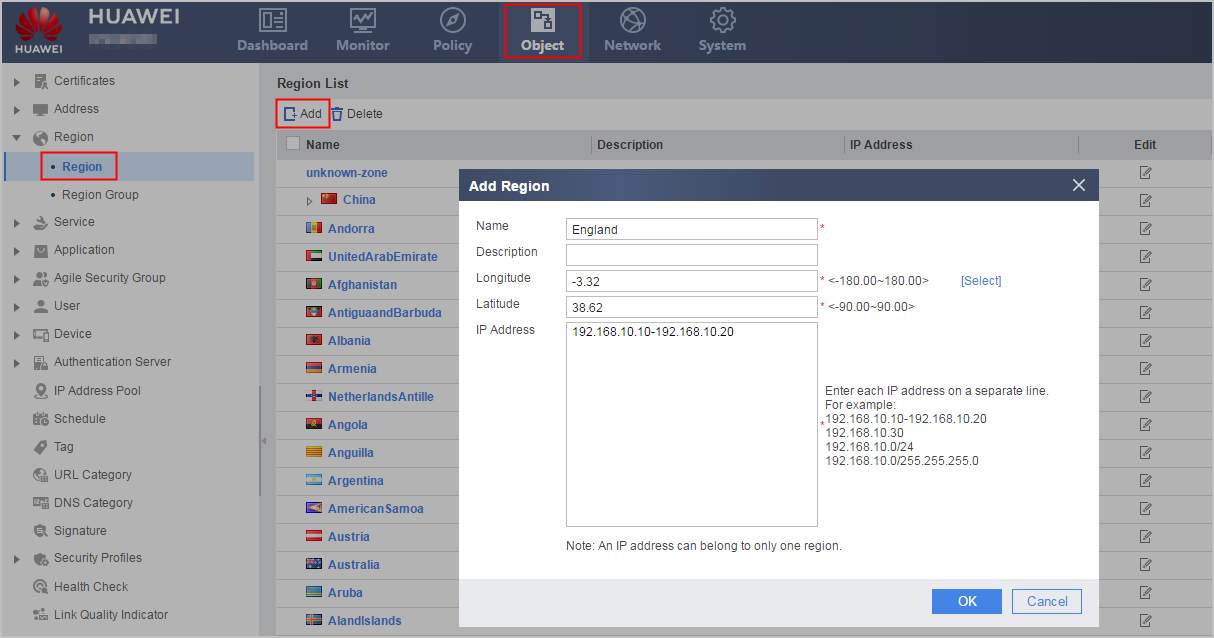
- Click Add and set the following
parameters:
Parameter
Description
Name
Name of a user-defined region, which cannot be the same as any predefined region.
Description
User-defined region information.
Longitude/Latitude
Longitude and latitude of a user-defined region to be marked correctly on the traffic map and threat map.
You can enter the longitude and latitude in the text box or click Select to determine the location on a map.
IP Address
IP addresses in the user-defined region.
If the IP address you are adding to a user-defined region has been added to a user-defined region or predefined region, the addition takes effect and the IP address is removed from the predefined or user-defined region to which the IP address belonged.
- Click OK.
Follow-up Procedure

You can delete the entire address range of a region, but you cannot delete part of the address range. For example, if you have added IP address range 10.20.20.20 to 10.20.20.30 for a region, you cannot delete 10.20.20.20 to 10.20.20.25.
In the region list, user-defined regions are above the predefined regions. You can select Only User-Defined or use the search box to display a user-defined region for modification.