Configuring a Layer-2 Ethernet Interface
This section describes how to configure a Layer-2 Ethernet interface that forwards Layer-2 frames.
Context
- Select an Ethernet interface and switch it to Layer-2 mode.
- Assign the interface to a specific VLAN. For more information about VLANs, see VLAN.
- Configure interface parameters, such as a duplex mode and a transmission rate.

If the interfaces work at Layer 2 and IPv6 needs to be processed on FW, you need to choose to enable the global IPv6 function.
Procedure
- Choose .
- Click
 for the interface.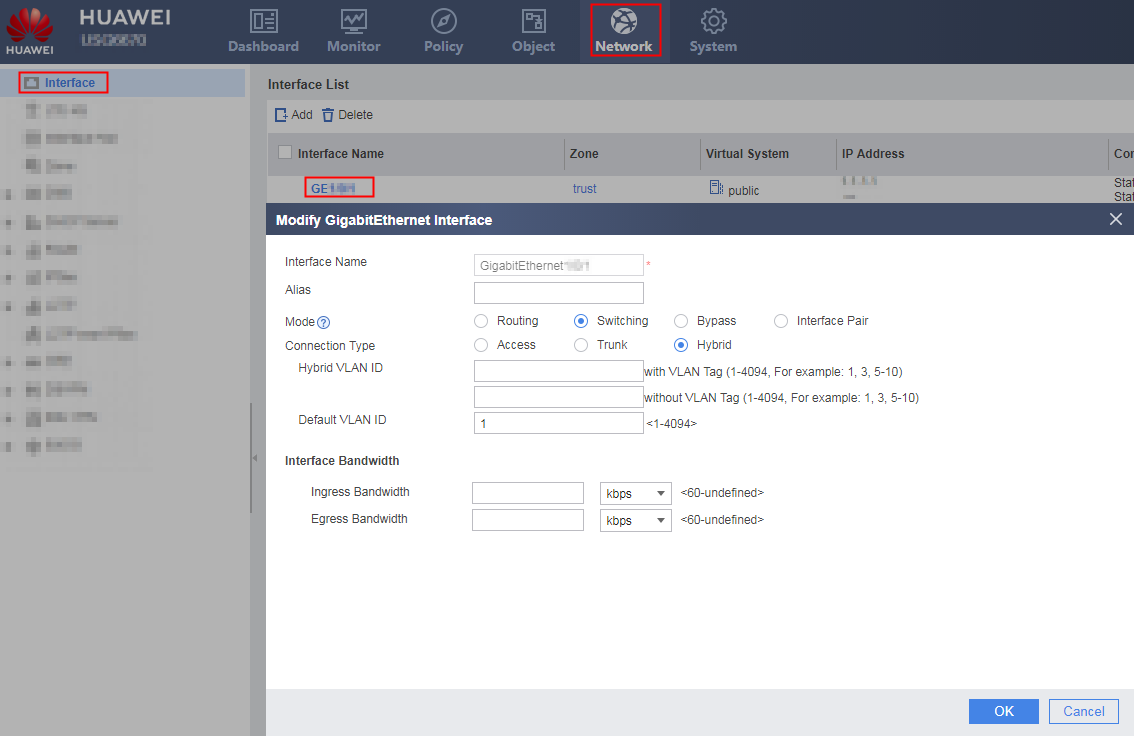
- Set the following Ethernet interface parameters.
Parameter
Description
Interface Name
Interface type and number.
The parameter cannot be modified.
Alias
Another name for an interface.
The alias is not part of the interface name. A configured alias appears in the (alias) format by the side of the interface name, but does not appear in logs.
Mode
Layer at which the interface works and whether to enable bypass detection when the interface works at Layer 2:
Select Switch to enable the interface to work at Layer 2 and disable bypass detection.
Select Bypass to enable the interface to work at Layer 2 and enable bypass detection. In Bypass mode, if the connection type is Access, you can change the Zone on this page.
After bypass detection is enabled, the device detects packets received on this interface and then discards them.
Select Interface Pair to enable the interface work as a member of an interface pair.
When a Layer-3 Ethernet interface is configured to work in Layer-2 mode or bypass mode, the device automatically clears specific configurations, such as DHCP, DDNS, and route configurations of the interface and retains specific configurations, such as HRP heartbeat interface configurations of the interface. If the interface is specified as a heartbeat interface, the interface cannot be configured to work in Layer-2 mode or bypass mode. Therefore, before you configure a Layer-3 Ethernet interface to work in Layer-2 mode or bypass mode, ensure that the interface has no configuration.
Connection Type
Link type of a Layer-2 Ethernet interface:
- Access: Access interfaces belong to a single VLAN and send and receive packets within this VLAN. These interfaces are connected to PCs.NOTE:
When the link type of a Layer-2 Ethernet interface is Access, the virtual system to which the VLAN of the interface belongs and the virtual system to which the configured security zones belong are the same one.
- Trunk: Trunk interfaces belong to multiple VLANs and send and receive packets between these VLANs. These interfaces are connected to devices.
- Hybrid: Hybrid interfaces belong to multiple VLANs and send and receive packets in these VLANs. These interfaces can be connected to both PCs and devices.
A hybrid interface sends untagged packets of multiple VLANs, whereas a trunk interface sends untagged packets only from the default VLAN.
Access VLAN ID
ID of a VLAN, to which an access interface belongs. This parameter is set only when Connection Type is set to Access.
Trunk VLAN ID
ID of a VLAN, to which a trunk interface belongs. This parameter is set only when Connection Type is set to Trunk.
A Trunk interface joins multiple VLANs and connects to a network device. To allow all packets from one or more VLANs to pass through a trunk interface, specify VLAN IDs in Trunk VLAN ID.
Default VLAN ID
Default VLAN ID of a trunk interface. This parameter is set only when Connection Type is set to Trunk.
Hybrid VLAN ID (With VLAN Tag)
ID of a VLAN, to which a hybrid interface belongs. A hybrid interface sends tagged frames with the specified VLAN ID. This parameter is set only when Connection Type is set to Hybrid.
Hybrid VLAN ID (Without VLAN Tag)
ID of a VLAN, to which a hybrid interface belongs. A hybrid sends untagged frames with the specified VLAN ID. This parameter is set only when Connection Type is set to Hybrid.
Hybrid VLAN ID
ID of a VLAN, to which a hybrid interface belongs. A hybrid interface sends tagged frames or untagged frames with the specified VLAN ID. This parameter is set only when Connection Type is set to Hybrid.
Default VLAN ID
Default VLAN ID of a hybrid interface. This parameter is set only when Connection Type is set to Hybrid.
Interface Bandwidth
Ingress Bandwidth
Maximum bandwidth for inbound traffic on the interface.
Egress Bandwidth
Maximum bandwidth for outbound traffic on the interface.
Advanced
Negotiation
If you deselect this parameter, the interface is disabled from working in auto-negotiation mode.
Disable the interface from working in auto-negotiation mode before you configure the interface rate and duplex mode.
This configuration takes effect on the Ethernet electrical interface.
Only MEth, GE, and WAN interfaces support this function.
Speed
Transmission rate of a Layer-2 Ethernet interface:
- 10M: 10 Mbit/s
- 100M: 100 Mbit/s
- 1000M: 1000 Mbit/s
The transmission rate of the Layer-2 Ethernet interface must be the same as that on the peer end.
Only MEth, GE, and WAN interfaces support this function.
Duplex
Duplex mode of the Layer-2 Ethernet interface:
- Half: enables the interface to only send or receive data packets at a time.
- Full: enables the interface to send and receive data packets simultaneously.
An Ethernet interface must work in the same mode as its peer interface.
This parameter is required only when Speed is set to 10M or 100M.
Only MEth, GE, and WAN interfaces support this function.
- Click OK.
Follow-up Procedure
Check the interface status.
- Choose .
Check the physical status of the interface.
Enable or disable the interface.
- Choose .
- Perform either of the following operations as needed:
- To enable the interface, select the Enable check box.
- To disable the interface, clear the Enable check box.