Configuring a Layer-2 Ethernet Subinterface
This section describes how to configure a Layer-2 Ethernet subinterface.
Context
Subinterfaces are logical or virtual interfaces created on a physical interface. Subinterfaces share the physical parameters of the physical interface on which they are created. However, subinterfaces have their own data link layer and network layer parameters. A subinterface status change does not affect the main interface status, whereas a main interface status change affects the subinterface status. Subinterfaces work properly only when their main interface is in the Up state.
The device supports creating subinterfaces on Layer-2 Ethernet and Layer-2 Eth-Trunk interfaces. Using a subinterface to terminate a VLAN allows for inter-VLAN forwarding.
Procedure
- Choose .
- Click Add.
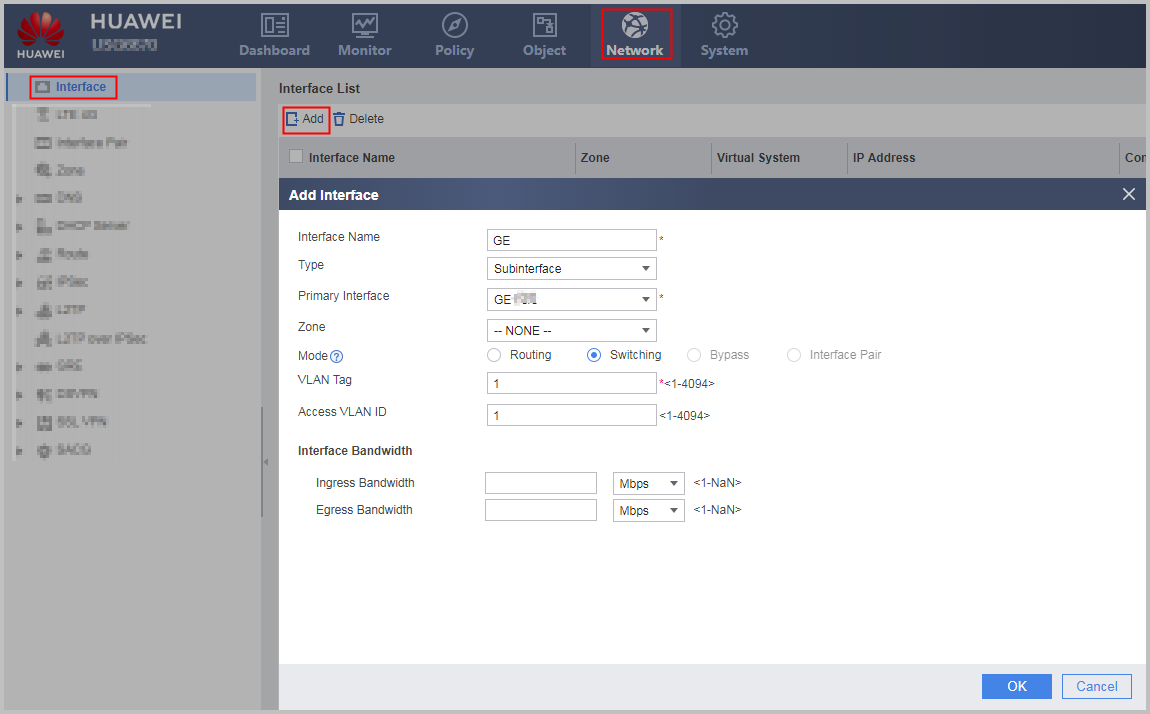
- Set the following subinterface parameters.
Parameter
Description
Interface Name
Alias name for a subinterface.
Type
Type of a subinterface to be created.
When creating a subinterface, set this parameter to Subinterface.
Primary Interface
Type and number of a Layer-2 interface to which the new subinterface belongs.
Zone
Security zone to which a subinterface is to be added.
You can directly add a subinterface to an existing security zone. However, if the desired security zone does not exist, create one and then add the interface to it.
VLAN Tag
Specifies the VLAN tag (ID of the VLAN to which the new subinterface belongs). Each subinterface receives or forwards only packets that carry the specified VLAN tag.
- Click OK.
If the operation is successful, the new subinterface is displayed among Layer-2 interfaces in Interface List.
Repeat previous steps to create other subinterfaces.
Follow-up Procedure
Check the subinterface status.
- Choose .
Verify that the physical, IPv4, and IPv6 statuses of the subinterface are Up.
Enable or disable the interface.
- Choose .
- Perform either of the following operations as needed:
- To enable the interface, select the Enable check box.
- To disable the interface, clear the Enable check box.