Bidirectionally Bound Users Who Are Exempted from Authentication Cannot Access Network Resources
This section describes how to troubleshoot the fault that bidirectionally bound users who are exempted from authentication cannot access network resources.
Symptom
An enterprise has deployed a FW as the access gateway that connects the intranet to the Internet, as shown in Figure 1. The user management and authentication mechanisms are configured on the FW, and a top executive is bidirectionally bound to the IP and MAC addresses. The top executive can access network resources without authentication.
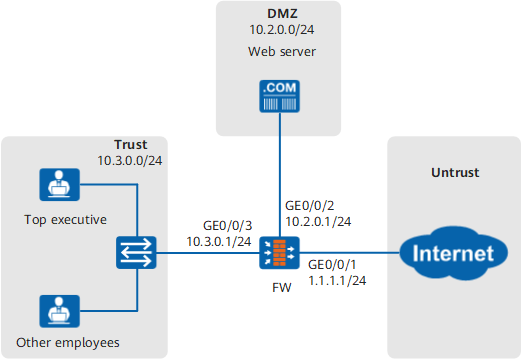
A top executive cannot access network resources.
Fault Diagnosis
Choose . In Online User List, enter the login name of a top executive and check whether the user object of the top executive exists. You can troubleshoot user management and authentication based on the following results:
Procedure
Matching conditions in the authentication policy are incorrectly configured.
Choose , enter the source address or security zone of a top executive to search for all matched authentication policies, verify that the matching conditions are correct, and make sure that the authentication policy can match traffic from the top executive.
The action in the authentication policy is incorrectly configured.
Choose and verify that the action in the authentication policy that matches a top executive is No-auth/Authentication exemption.
The top executive does not use the PC at the specified IP and MAC addresses.
Check for the IP and MAC addresses of the PC used by the top executive. The IP and MAC addresses must be those bound to the user object of the top executive.
The number of online users reaches the upper limit.
Choose and check whether the number of online users reaches the upper limit.
The user object of the top executive is locked out.
Choose and check for the user objects that are locked out. If the user object of the top executive is locked out, unlock the user object.
The security policy is incorrectly configured.
Choose , enter the user name or source address of a top executive to search for all matched security policies, and verify that the security policies and profiles do not block traffic from the top executive.
The user object of the top executive does not exist.
Possible causes and the troubleshooting procedure are as follows:
The user object of the top executive exists.
Possible causes and the troubleshooting procedure are as follows: