Users Who Are Authenticated Using AD SSO Cannot Access Network Resources
This section describes how to troubleshoot the fault that users who are authenticated using AD SSO cannot access network resources.
Symptom
An enterprise has deployed a FW as the egress gateway that connects the intranet to the Internet, as shown in Figure 1. The AD identity authentication mechanism is enabled on the intranet. The user management and authentication mechanisms are configured on the FW to implement authentication on internet users in AD SSO mode.
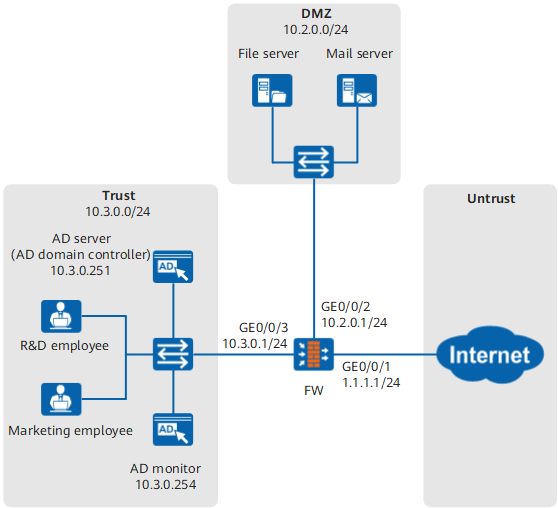
In practice, the R&D and marketing employees can log in to the AD server, but cannot access network resources.
Fault Diagnosis
Choose . In Online User List, enter the login names of R&D and marketing employees to check whether the user objects of the R&D and marketing employees exist. You can troubleshoot user management and authentication based on the following results:
Procedure
The login and logout scripts are incorrectly configured on an AD domain controller.
Check the login and logout scripts on the AD domain controller. The address and port in the login and logout scripts must be the IP address (10.3.0.254 in this example) and port of the AD monitoring service.
The AD monitoring service is incorrectly configured.
Check the configuration of the AD monitoring service. The parameter settings of the AD monitoring service must be consistent with those on the FW.
The AD SSO configuration on the FW is incorrect.
Choose and verify that the shared key used during AD SSO is the same as that specified in the AD monitoring service.
- Check the anti-replay time of the AD SSO service program. Ensure that the anti-replay time is not too short. Otherwise, the AD SSO service program may consider the user unauthorized and does not send the user's login information to the FW.
The number of online users reaches the upper limit.
Choose and check whether the number of online users reaches the upper limit.
The AD SSO configuration on the FW is incorrect.
Choose to check whether the Server IP address/port in the AD SSO configuration is the same as that set on the AD server.
The number of online users reaches the upper limit.
Choose and check whether the number of online users reaches the upper limit.
User objects of the R&D and marketing employees are locked out.
Choose and check for the user objects that are locked out. If the user objects of the R&D and marketing employees are locked out, unlock them.
The R&D and marketing employees are new users and have been added to the group to which permissions are incorrectly specified.
Choose and find the temporary group used for AD SSO. Then use the temporary group to search for security policies that reference this group and verify that the security policies and profiles do not block the traffic from the R&D and marketing employees.
The security policy is incorrectly configured.
Choose , use the user names of the R&D and marketing employees to search for all security policies that reference the user objects, verify that the security policies and profiles do not block the traffic from the R&D and marketing employees.
Choose , enter the user names or source addresses of the R&D and marketing employees to search for all matched security policies, and verify that the security policies and profiles do not block traffic from the R&D and marketing employees.
User objects of the R&D and marketing employees do not exist.
For the installing AD SSO service program mode, possible causes and the troubleshooting procedure are as follows:
For the monitoring AD authentication packets mode, possible causes and the troubleshooting procedure are as follows:
User objects of the R&D and marketing employees exist.
Possible causes and the troubleshooting procedure are as follows: