Upgrading the VPN Client
This section describes how to upgrade the VPN client.
Procedure
- Upload the SecoClient software installation package to the FW.

The SecoClient that supports this version has no longer evolved and cannot be downloaded from the Huawei Support website. The downloaded SecoClient can still be used. SecoClient configuration examples and common configuration problems are retained in the document. When users need to use the SSL VPN function through client access, see : VPN Client Download Description.
- Choose .
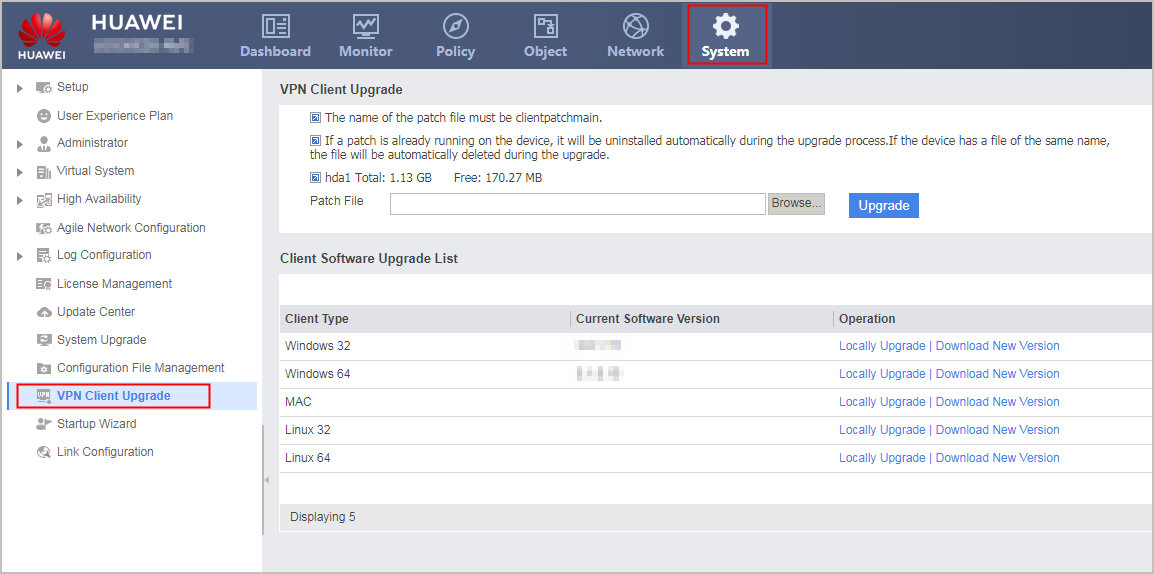
- Click Locally Upgrade next to the client software, click Browse, and select the SecoClient software installation package to be uploaded.
Different software installation packages are available for the Windows (32-bit/64-bit), MAC and Linux (32-bit/64-bit) operating systems. Therefore, the administrator needs to upload the correct software installation package based on the operating system.
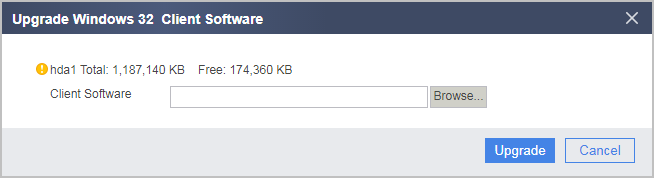
- Click Upgrade to upgrade the software installation package on the FW.
- Choose .
- A mobile user obtains the software installation package.
- The mobile user logs in to the SSL VPN gateway from a browser. For the login method, see Logging In to the SSL VPN Gateway.
- After the login succeeds, the virtual gateway page is displayed.

- Click Options on the upper right of the virtual gateway page. You can view the SecoClient software installation package in Download Network Extension Client.
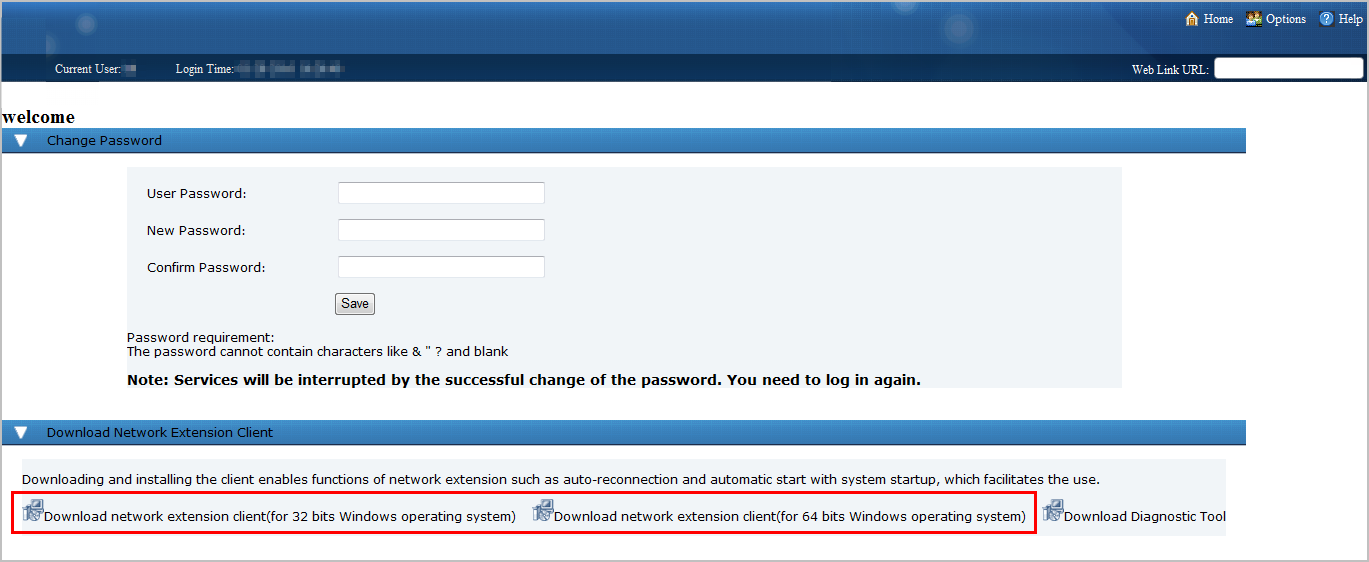
- Click the Download network extension client link to download the software installation package.
After obtaining the new SecoClient software installation package, the mobile user can uninstall the existing SecoClient software and then install the new SecoClient software.