CLI:Example for Configuring a Global Address Pool-based DHCP Server (Using Sub-interfaces)
After learning this configuration example, you can understand how to use the FW sub-interfaces to configure a DHCP server based on global address pools, and enable the DHCP server to provide services for DHCP clients on VLANs, including dynamic address allocation, gateway address, DNS server address, and WINS server address.
Networking Requirements
An enterprise attempts to divide different VLANs for different departments using a Layer 2 switch. To save resources, the FW works as the DHCP server to specify network parameters to all hosts on VLANs, including allocating IP addresses, configuring domain names, DNS server addresses, WINS server addresses, and egress gateway addresses.
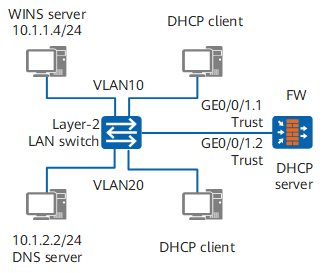
As shown in Figure 1, the FW connects to the Layer 2 switch using interface GigabitEthernet 0/0/1, and divides interface GigabitEthernet 0/0/1 to two subinterfaces that connect to VLAN 10 and VLAN 20 respectively.

To focus on how to assign IP addresses to DHCP clients on VLANs using sub-interfaces, this section highlights a part of the network.
The network topology is as follows:
Two servers are specified with fixed IP addresses: 10.1.2.2/24 and 10.1.1.4/24.
For hosts on VLAN 10, their address lease is 10 days and 12 hours, domain name is example.com, DNS server address is 10.1.2.2/24, WINS server address is 10.1.1.4//24, and egress gateway address is 10.1.1.1/24.
For hosts on VLAN 20, their address lease is 5 days, domain name is example.com, DNS server address is 10.1.2.2/24, no WINS server is configured, and egress gateway address is 10.1.2.1/24.
Item |
Data |
Description |
|
|---|---|---|---|
FW |
Interface number: GigabitEthernet 0/0/1.1 IP address: 10.1.1.1/24 Security zone: Trust |
Sub-interface GigabitEthernet 0/0/1.1 is associated with VLAN 10. The DHCP server assigns IP addresses and specifies network parameters using this sub-interface to DHCP clients on VLAN 10. |
|
Interface number: GigabitEthernet 0/0/1.2 IP address: 10.1.2.1/24 Security zone: Trust |
Sub-interface GigabitEthernet 0/0/1.2 is associated with VLAN 20. The DHCP server assigns IP addresses and specifies network parameters using this sub-interface to DHCP clients on VLAN 20. |
||
WINS server |
IP address: 10.1.1.4 |
WINS server assigned to DHCP clients on VLAN 10. |
|
DNS server |
IP address: 10.1.2.2 |
DNS server assigned to DHCP clients on VLAN 20. |
|
Domain name suffix |
example.com |
Domain name suffix assigned to DHCP clients on VLAN 10 and VLAN 20. |
|
Address lease |
10 days and 12 hours |
Address lease assigned to DHCP clients on VLAN 10. |
|
5 days |
Address lease assigned to DHCP clients on VLAN 20. |
||
Egress gateway |
IP address: 10.1.1.1 |
Egress gateway assigned to DHCP clients on VLAN 10. |
|
IP address: 10.1.2.1 |
Egress gateway assigned to DHCP clients on VLAN 20. |
||
Configuration Roadmap
The configuration roadmap is as follows:
- To assign IP addresses and specify network parameters for DHCP clients on VLANs using interfaces, you need to configure the following items on DHCP servers.
- Enable the DHCP service.
You can employ two address pools, address pool 1 (network segment 10.1.1.0/24) and address pool 2 (network segment 10.1.2.0/24) specify the unique properties of each network segment (such as their address ranges, address lease, gateway addresses, and WINS servers).
Both the two IP address pools specify the common properties of all clients (such as their domain name suffix and DNS server). In addition, you need to reserve the IP addresses that have been specified (such as DNS server address and WINS server address) to avoid reassigning them.
- Associate two sub-interfaces to VLAN 10 and VLAN 20. Enable global address pools for the two sub-interfaces.
Set the switch interface connected to the FW as a Trunk interface. Add the switch interfaces connected to PCs to related VLANs in default mode. (The configuration procedure is not mentioned here. )
- Set Internet Protocol (TCP/IP) Properties to Obtain an IP address automatically and Obtain DNS server address automatically on each DHCP client, enabling the DHCP clients to automatically obtain IP addresses and other network parameters allocated by the DHCP server.
It is recommended to centrally plan and configure important network parameters, such as domain name suffix, DNS server, and egress gateway, for the DHCP clients on the DHCP server, to avoid network access errors caused by incorrect configurations of the DHCP client network parameters.
Procedure
- Enable DHCP service.
<FW> system-view
[FW] dhcp enable
- Configure the global address pool attributes of the DHCP server.
# Configure the IP address pool 1.
[FW] ip pool 1
[FW-ip-pool-1] network 10.1.1.0 mask 255.255.255.0
[FW-ip-pool-1] excluded-ip-address 10.1.1.4
[FW-ip-pool-1] domain-name example.com
[FW-ip-pool-1] dns-list 10.1.2.2
[FW-ip-pool-1] gateway-list 10.1.1.1
[FW-ip-pool-1] nbns-list 10.1.1.4
[FW-ip-pool-1] lease day 10 hour 12
[FW-ip-pool-1] quit
# Configure the IP address pool 2.
[FW] ip pool 2
[FW-ip-pool-2] network 10.1.2.0 mask 255.255.255.0
[FW-ip-pool-2] excluded-ip-address 10.1.2.2
[FW-ip-pool-2] domain-name example.com
[FW-ip-pool-2] dns-list 10.1.2.2
[FW-ip-pool-2] gateway-list 10.1.2.1
[FW-ip-pool-2] lease day 5
[FW-ip-pool-2] quit
- Configure sub-interfaces, and assign IP addresses and specify network parameters to clients in VLANs.
# Configure sub-interface GigabitEthernet 0/0/1.1, and assign IP addresses and specify network parameters to clients on VLAN 10.
[FW] interface GigabitEthernet 0/0/1.1
[FW-GigabitEthernet0/0/1.1] vlan-type dot1q 10
[FW-GigabitEthernet0/0/1.1] ip address 10.1.1.1 255.255.255.0
[FW-GigabitEthernet0/0/1.1] dhcp select global
[FW-GigabitEthernet0/0/1.1] quit
# Configure subinterface GigabitEthernet 0/0/1.2, and assign IP addresses and specify network parameters to clients on VLAN 20.
[FW] interface GigabitEthernet 0/0/1.2
[FW-GigabitEthernet0/0/1.2] vlan-type dot1q 20
[FW-GigabitEthernet0/0/1.2] ip address 10.1.2.1 255.255.255.0
[FW-GigabitEthernet0/0/1.2] dhcp select global
[FW-GigabitEthernet0/0/1.2] quit
- Add interfaces to corresponding security zones and configure the security policy.
[FW] firewall zone trust
[FW-zone-trust] add interface GigabitEthernet 0/0/1.1
[FW-zone-trust] add interface GigabitEthernet 0/0/1.2
[FW-zone-trust] quit
[FW] security-policy
[FW-policy-security] rule name sec_policy
[FW-policy-security-rule-sec_policy] source-zone trust
[FW-policy-security-rule-sec_policy] source-zone local
[FW-policy-security-rule-sec_policy] destination-zone local
[FW-policy-security-rule-sec_policy] destination-zone trust
[FW-policy-security-rule-sec_policy] action permit
[FW-policy-security-rule-sec_policy] quit
[FW-policy-security] quit
- Configure DHCP clients (using a Windows XP-based PC as an example).
- Right-click Network Neighborhood on the desktop, and choose Attributes > Network Connections.
- Right-click Local Area Connection of the connected network adapter, and choose Properties.
- Select Internet Protocol (TCP/IP) and click Properties. The Internet Protocol (TCP/IP) Properties window is displayed. Select Obtain an IP address automatically and Obtain DNS server address automatically.
Configuration Verification
On any PC on a VLAN, run the cmd command to enter the DOS environment. Run the ipconfig /all command to verify whether the client has obtained the network parameters, such as an IP address, default gateway address, WINS server address, and DNS server address.
If the information obtained by the DHCP client is incomplete (for example, only the IP address is obtained but other network parameters are not), run the ipconfig /release command to lease the dynamic IP address, and then run the ipconfig /renew command to apply for a new IP address and other network parameters.
C:\Documents and Settings\Administrator> ipconfig /all

Windows IP Configuration

        Host Name . . . . . . . . . . . . : example
        Primary Dns Suffix  . . . . . . . : example.com
        Node Type . . . . . . . . . . . . : Hybrid
        IP Routing Enabled. . . . . . . . : No
        WINS Proxy Enabled. . . . . . . . : No
        DNS Suffix Search List. . . . . . : example.com
Ethernet adapter Local Area Connection:

        Connection-specific DNS Suffix  . : example.com
        Description . . . . . . . . . . . : Realtek RTL8139/810x Family Fast Eth
ernet NIC
        Physical Address. . . . . . . . . : 00-1B-B9-7A-7D-61
        Dhcp Enabled. . . . . . . . . . . : Yes
        Autoconfiguration Enabled . . . . : Yes
        IP Address. . . . . . . . . . . . : 10.1.1.3
        Subnet Mask . . . . . . . . . . . : 255.255.255.0
        Default Gateway . . . . . . . . . : 10.1.1.1
        DHCP Server . . . . . . . . . . . : 10.1.1.1
        DNS Servers . . . . . . . . . . . : 10.1.2.2
        Primary WINS Server . . . . . . . : 10.1.1.4
        Lease Obtained. . . . . . . . . . : 2011-1-10 15:00:34
        Lease Expires . . . . . . . . . . : 2011-1-21 03:00:34
On the DHCP server FW, run the display dhcp server statistics command to view the statistics information.
[FW] display dhcp server statistics
DHCP Server Statistics:

 Client Request          :6
  Dhcp Discover          :1
  Dhcp Request           :4
  Dhcp Decline           :0
  Dhcp Release           :1
  Dhcp Inform            :0
 Server Reply            :4
  Dhcp Offer             :1
  Dhcp Ack               :3
  Dhcp Nak               :0
 Bad Messages            :0
Configuration Scripts
Configuration scripts of FW
#
dhcp enable
#
ip pool 1
 gateway-list 10.1.1.1
 network 10.1.1.0 mask 255.255.255.0
 excluded-ip-address 10.1.1.4
 lease day 10 hour 12 minute 0
 dns-list 10.1.2.2
 nbns-list 10.1.1.4
 domain-name example.com
#
ip pool 2
 gateway-list 10.1.2.1
 network 10.1.2.0 mask 255.255.255.0
 excluded-ip-address 10.1.2.2
 lease day 5 hour 0 minute 0
 dns-list 10.1.2.2
 domain-name example.com
#
interface GigabitEthernet0/0/1.1
 vlan-type dot1q 10
 ip address 10.1.1.1 255.255.255.0
 dhcp select global
#
interface GigabitEthernet0/0/1.2
 vlan-type dot1q 20
 ip address 10.1.2.1 255.255.255.0
 dhcp select global
#
firewall zone trust
 set priority 85
 add interface GigabitEthernet0/0/1.1
 add interface GigabitEthernet0/0/1.2
#
security-policy
 rule name sec_policy
  source-zone local
  source-zone trust
  destination-zone local
  destination-zone trust
  action permit
#
return