Configuring Artificial Intelligence Engine
Context
The configuration roadmap is as follows:
- Set parameters in the AIE profile.
- Reference the configured AIE profile in the security policy.
Procedure
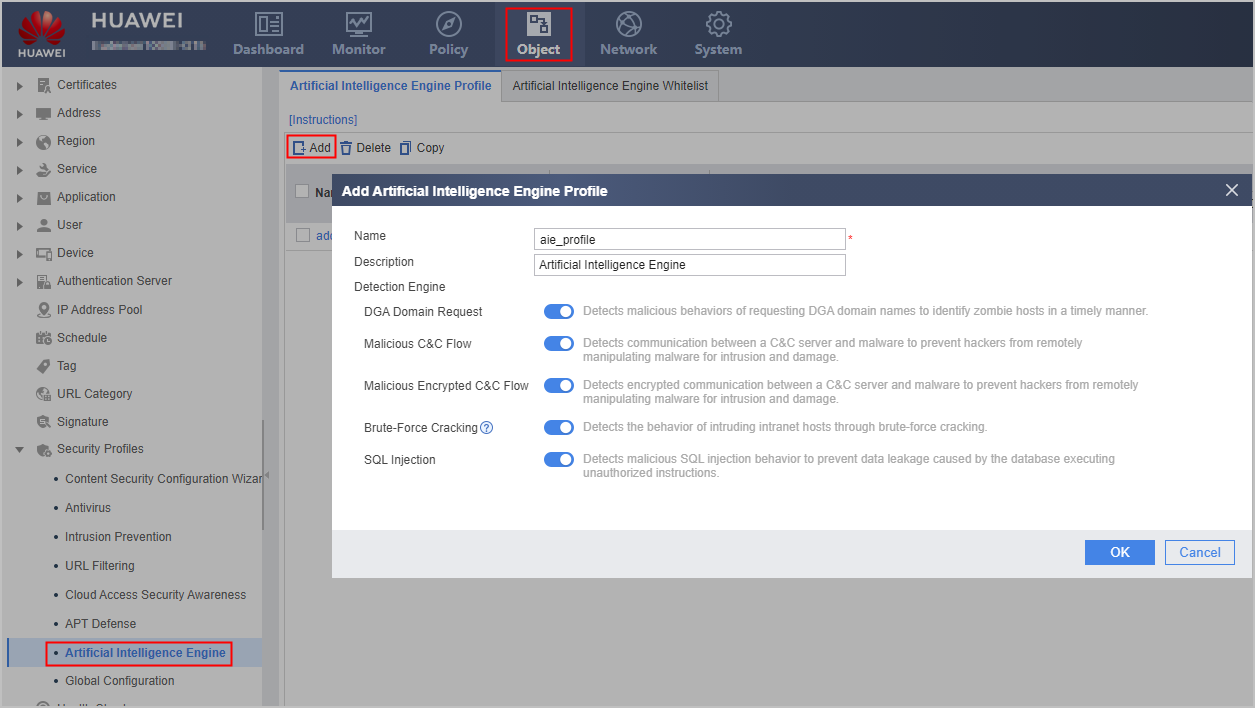
- Choose .
- Choose Artificial Intelligence Engine Profile tab, create an AIE profile using either of the following methods:
- Click Add.
- If the profile to be created is similar to an existing one, select the existing one, click Copy, and modify the profile.
- Configure the name and description of the profile, and enable the AIE. After the configuration is complete, click OK.
- Optional: Choose Artificial Intelligence Engine Whitelist tab, click Add to configure AIE whitelists.
The whitelist of the AIE is a detection exception mechanism. You can add known secure IP addresses and domain names to whitelists to improve the detection accuracy and reduce false positives.
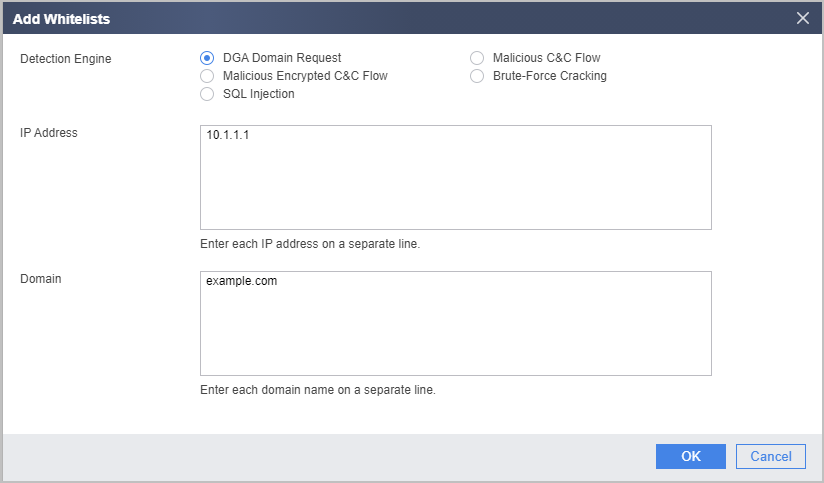
Different detection engines support different types:
- The DGA domain name request detection engine supports the configuration of IP address and domain name whitelists.
- The brute-force cracking detection engine supports the configuration of IP address whitelists.
- The malicious C&C flow detection engine supports the configuration of IP address whitelists.
- The malicious encrypted C&C flow detection engine supports the configuration of IP address and certificate fingerprint whitelists.
- The SQL injection detection engine supports the configuration of IP address whitelists.
- Reference the AIE profile in a security policy.
For details on how to configure a security policy, see Configuring a Security Policy Using the Web UI.
Follow-up Procedure
After the AIE is configured, you can perform the following operations to modify configurations of the AIE:
To enable or disable a specific detection function of the AIE in an existing profile, click  in the Edit column of the profile to be modified in the AIE profile list. After the configuration is modified, click OK.
In addition, you can manage the AIE from the following aspects:
To ensure the effectiveness of the AIE, update the AIE database at scheduled time.
You need to modify the policy configuration in the AIE profile, based on logs and reports, where you can find the advanced threats that need to be blocked but actually not.
You can choose and to search for logs and reports, respectively.