CLI: Example for Configuring Antivirus
This section provides an example for configuring antivirus on the enterprise gateway device to protect intranet users and servers from viruses.
Networking Requirements
The FW is deployed at the network edge of the enterprise as the security gateway. To ensure that intranet users can securely download files and mails from the Web server and POP3 server and that the FTP server can securely receive the uploaded files of Internet users, configure the antivirus function on the FW to protect the intranet. Figure 1 shows the networking diagram.
Users need to receive mails from Netease. Therefore, set the response action for Netease to permit. An important file is blocked by the FW because of false positive (the virus ID is 16424404). To ensure that users can receive this file, configure virus exception for this virus.
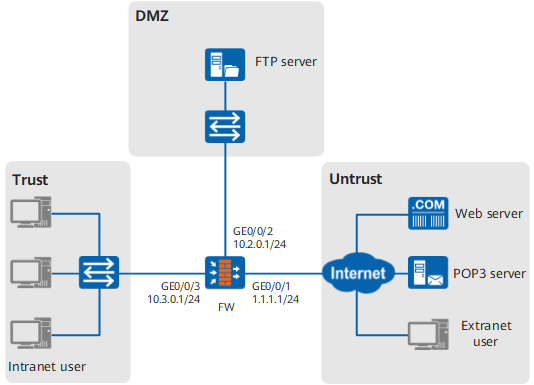
Configuration Roadmap
- Set the IP address and security zone of the interface.
- Configure two antivirus profiles. In one profile, set the matching condition and action for HTTP and POP3 protocols and configure application exception for Netease and virus exception for virus 16424404. In the other profile, set the matching condition and action for the FTP protocol.
- Configure a security policy, and reference the antivirus profile in the interzones from the trust zone to the untrust zone and from the untrust to the dmz zone respectively.
Procedure
- Set the IP address and security zone of the interface.
- Configure antivirus profiles.
- Commit the configuration information.
[FW] engine configuration commit - Create security policies.
- Save the configuration information to upload the configuration file including the above-mentioned configurations automatically for the next startup.
[FW] quit
<FW> save
Verification
- When an intranet user attempts to download virus-infected files using HTTP, the download connection is interrupted.
- When an intranet user attempts to download a virus-infected email using POP3, the attachments in the email are deleted.
- When an extranet user attempts to upload virus-infected files, the upload connection is interrupted.
- Intranet users can use the Netease email box to send and receive emails.
- Intranet users can download important software infected with virus 16424404.
You can choose to view threat logs whose threat type is virus. Click  to view log details.
You can also verify the configuration using an EICAR test file.
The following part describes how to construct an EICAR test file. Considering such issues as incorrect input in construction, you can also access https://www.eicar.org/ to directly download an EICAR test file.
- Construct an EICAR test file and compress it.
Create a .txt file on the PC and enter the following information:
X5O!P%@AP[4\PZX54(P^)7CC)7}$EICAR-STANDARD-ANTIVIRUS-TEST-FILE!$H+H*

The preceding 68 characters are known characters in the EICAR test file. In addition, you can add combinations of such characters as the space, tab, LF, CR, and CTRL-Z. Note that the total length of the EICAR test file cannot exceed 128 characters. For simplicity, you are advised to include only the preceding 68 characters in the EICAR test file. Pay attention to the third character in the string. It is the upper-case letter O instead of the digit 0.
- When saving the file, select All Files and name it EICAR.COM.
- Compress the EICAR.COM file into an eicar.zip file.
Before configuring the ID (16424404) of the EICAR test file as a virus exception, test whether antivirus takes effect in the HTTP download direction.
Create an HTML page that contains the eicar.zip file download path on the web server. When an intranet user accesses the page using HTTP and downloads the eicar.zip file, the download fails.
To test whether antivirus takes effect in the HTTP download direction, you can also access https://www.eicar.org/ to directly download an EICAR test file for verification.
Before configuring the ID (16424404) of the EICAR test file as a virus exception, test whether antivirus takes effect in the POP3 download direction.
Send the eicar.zip file to a mailbox as an attachment. After an intranet user logs in to the mailbox and downloads the email that contains the eicar.zip file using POP3, the attachment in the email is deleted, and the following information is displayed in the email body:eicar.zip is deleted from the mail because it contains virus.
After configuring the ID (16424404) of the EICAR test file as a virus exception, test whether the file can be downloaded using HTTP and POP3.
The EICAR test file can be downloaded using HTTP and POP3.
Test whether antivirus takes effect in the FTP upload direction.
When an intranet user attempts to upload the eicar.zip file after logging in to the FTP server, the FTP client displays a file upload failure.
Configuration Scripts
The following lists related scripts of this configuration example.
#
 sysname FW
#
interface GigabitEthernet0/0/1
 ip address 1.1.1.1 255.255.255.0
#
interface GigabitEthernet0/0/2
 ip address 10.2.0.1 255.255.255.0
#
interface GigabitEthernet0/0/3
 ip address 10.3.0.1 255.255.255.0
#
firewall zone trust
 add interface GigabitEthernet0/0/3
#
firewall zone untrust
 add interface GigabitEthernet0/0/1
#
firewall zone dmz
 add interface GigabitEthernet0/0/2
#
profile type av name av_http_pop3
 http-detect direction download
 undo ftp-detect
 undo smtp-detect
 pop3-detect action delete-attachment
 undo imap-detect
 undo nfs-detect
 undo smb-detect
 exception application name Netease_WebMail action allow
 exception av-signature-id 16424404
profile type av name av_ftp
 undo http-detect
 ftp-detect direction upload
 undo smtp-detect
 undo pop3-detect
 undo imap-detect
 undo nfs-detect
 undo smb-detect
#
security-policy
 rule name policy_av_1
  source-zone trust
  destination-zone untrust
  profile av av_http_pop3
  action permit
 rule name policy_av_2
  source-zone untrust
  destination-zone dmz
  profile av av_ftp
  action permit
#
return

# The following configuration is used to perform a one-time operation and not stored in the configuration profile.
 engine configuration commit