Configuring the Whitelist for Embedded Web Pages
By configuring the whitelist for embedded web pages, you can solve the problem that some web pages embedded in the main page cannot be accessed.
Context
Assume that a whitelist rule is configured for www.example.com. In this case, users can access only the URL with www.example.com as the domain name and cannot access the links that do not use www.example.com as the domain name on the web page. This problem can be solved only by adding every embedded web page on the main page to the whitelist, but the configuration is complex.
To solve this problem, you can use the whitelist for embedded web pages. This function enables the system to match the referer field (indicating the source web page) in a user's HTTP request with the whitelist for embedded web pages. If the field matches the whitelist for embedded web pages, the user can access the web page. Therefore, if a whitelist for embedded web pages is configured for a web page, users can access the web pages embedded in this web page, simplifying the configuration. The specific configuration method is as follows.
Configuration on the Web UI
- Create a URL filtering profile.
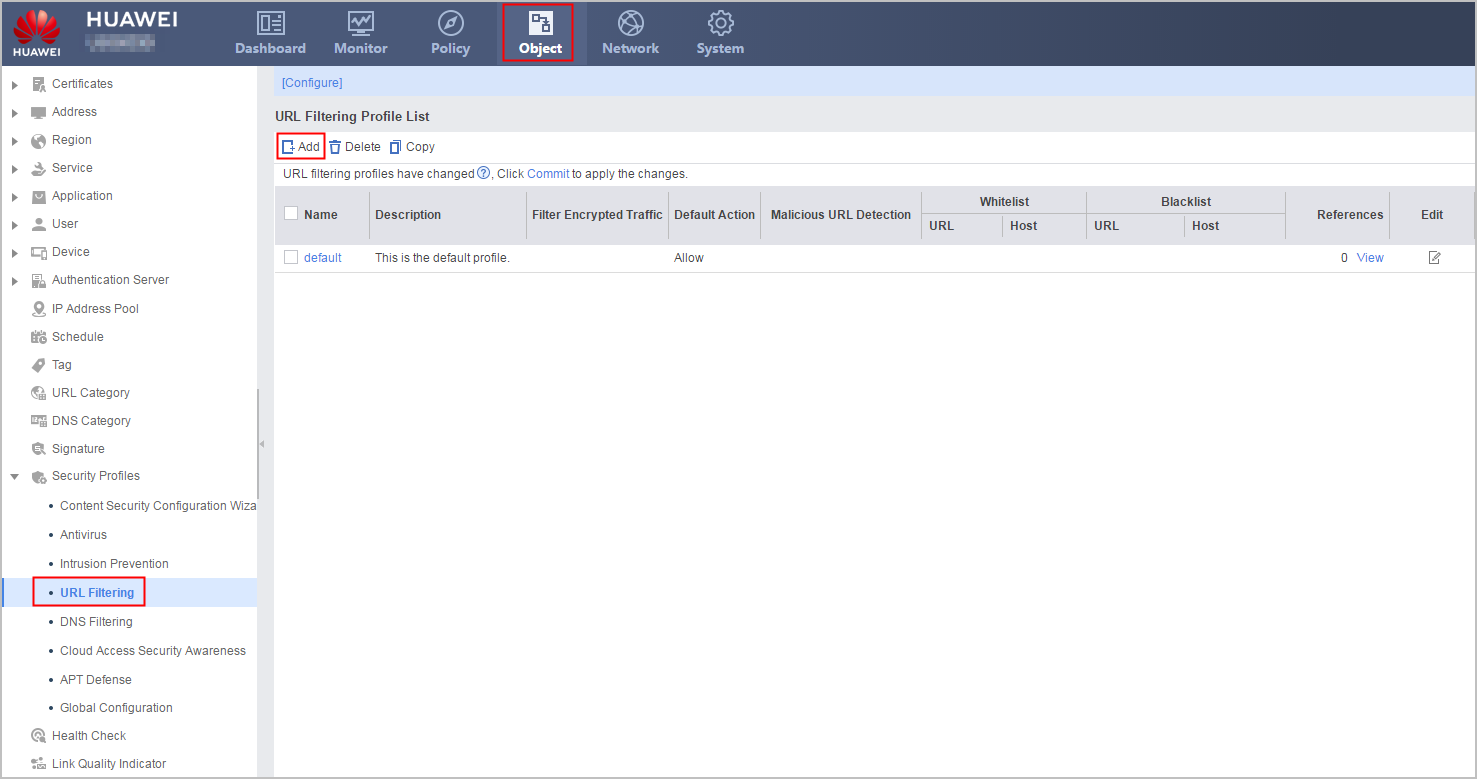
Choose . In URL Filtering Profile List, click Add.
Add a referer-host rule to the URL filtering profile.
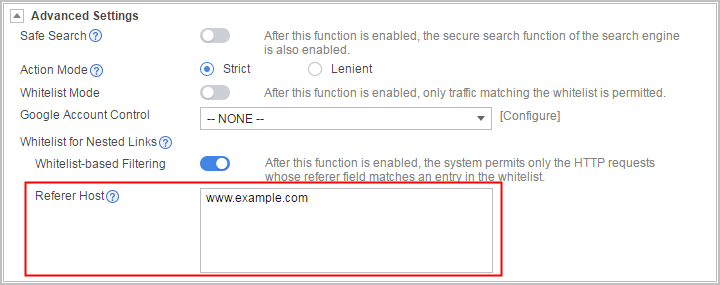
The referer field in an HTTP request will be matched with the referer-host rule. If a match is found, the URL request is allowed. If the referer field in the HTTP request does not match the configured referer-host rule or the referer-host is not configured, you can enable the function of matching the referer field in a URL request with whitelist under Whitelist-based Filtering to match the referer field with the configured whitelist. If a match is found, the URL request is allowed. If the function of matching the referer field with whitelist is disabled, the referer field will not be matched with whitelist. By default, the function of matching the referer field in a URL request with whitelist is enabled.
- Click OK.
- Reference the profile on security policies. For details on how to configure security policies, see Configuring a Security Policy Using the Web UI.
- Click Commit.
The configuration does not take effect immediately after you create or modify the profile. You must click Commit on the upper right of the interface to apply the configuration. To save time, you can commit the configuration after all operations on the profile are complete.
Configuration on the CLI
- Create a URL filtering profile.
profile type url-filter name name
- Add a referer-host rule to the URL filtering profile.
add referer-host host-text
The referer field in an HTTP request will be matched with the referer-host rule. If a match is found, the URL request is allowed. If the referer field in the HTTP request does not match the configured referer-host rule, the user can choose to match the referer field with whitelist.- When the function of matching the referer field in a URL request with whitelist is enabled, the referer field will be matched with whitelist. If a match is found, the URL request is allowed.
- When the function of matching the referer field with whitelist is disabled, the referer field will not be matched with whitelist.
By default, the function of matching the referer field in a URL request with whitelist is enabled. If the function is disabled, you can run the undo referer-filter whitelist-all enable command to disable it.
- Reference the profile on security policies. For details on how to configure security policies, see Configuring a Security Policy Using the CLI.
- Return to the system view and commit the configuration.
The new or modified security profile does not take effect until you run the engine configuration commit command to commit the configuration. To save time, you can submit the configuration after all operations on the profile are complete.
Configuration Example
In the URL filtering profile, set referer-host to www.example.com, so that all embedded links on the www.example.com website can be accessed.
<sysname> system-view
[sysname] profile type url-filter name url_profile_01
[sysname-profile-url-filter-url_profile_01] add referer-host www.example.com