Configuring Email Attachment Control
Mail attachment control restricts the attachment size and number of files attached to email.
Context
The mail attachment control function control the attachment size and the number of files attached to email and prevent confidential information from being leaked through email.
Attachment size checks can be implemented in both the sending and receiving directions.
If the email is encapsulated in SMTP messages, the FW performs mail attachment control in the mail sending direction. As shown in Figure 1, if you enable the mail attachment control in the sending direction between the trust zone and the dmz, the FW prevents intranet users from sending confidential information through email.
If the email is encapsulated in POP3 or IMAP messages, the FW performs mail attachment control in the mail receiving direction. As shown in Figure 2, if you enable the mail attachment control in the sending direction between the trust zone and the untrust zone, the FW protects the intranet against viruses and avoids over-consumption of bandwidth resources when downloading attachments.
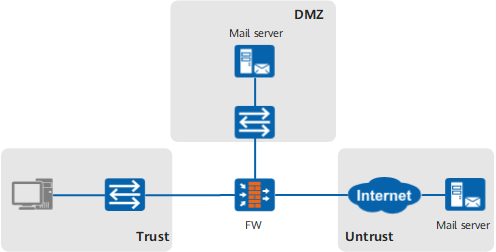
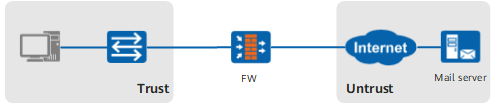

If intranet users send or receive email through SMTP, POP3, or IMAP, the FW performs the mail attachment control.
Procedure
- Choose .
- Choose Email Content Filtering tab.
- Click Add.
- Set the name and description of the mail content filtering
profile.
Parameter
Description
Name
Name of the mail content filtering profile. The name, which must be unique, is displayed in the parameter list of mail filtering during the configuration of security policies.
Description
Description of the mail content filtering profile. The description must clearly indicate the function of the profile to make profiles easy to find and maintain. Example of the profile description: The mail filtering policies for the trust -> dmz interzone.
- Set the parameters in Attachment Size and Quantity Control.
- Click OK.
- Reference the mail filtering profile in the security policy. For details on how to configure security policies, see Configuring a Security Policy Using the Web UI.
- Click Submit.
The configuration does not take effect immediately after you create or modify the configuration file. You must click Submit on the upper right corner of the current page to activate the configuration. To save time, you can submit the configuration after all the operations on the profile are complete.